
Cloning a Jira issue seems simple: find "Clone" in the issue's action menu (the three dots), click it, and you're done. This creates a basic copy with the summary and description. But to truly leverage this feature, you need to go beyond a simple click and integrate cloning into your team's core strategy. This guide provides actionable steps to do just that.
Why Cloning Jira Issues Is a Strategic Advantage
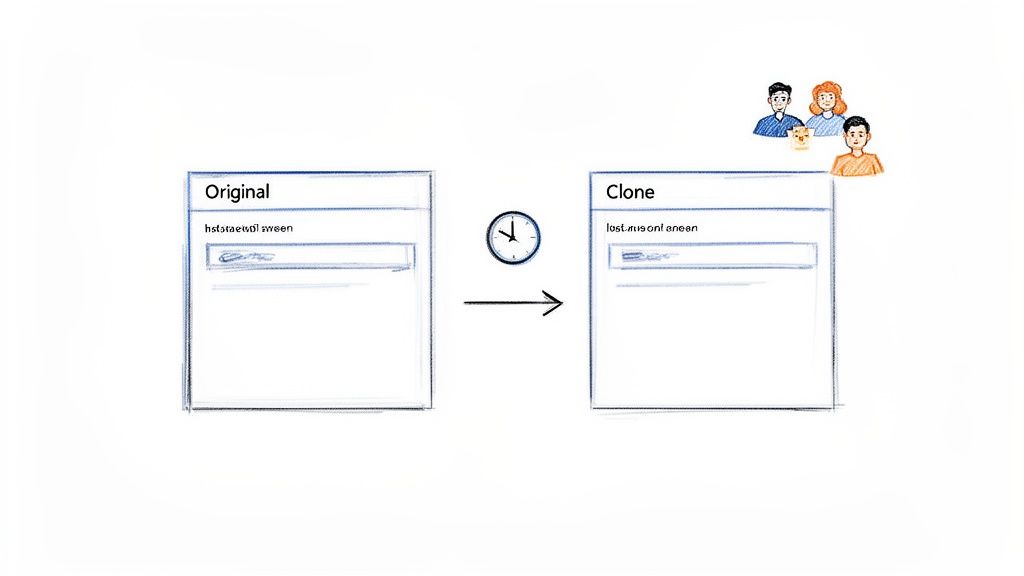
Cloning in Jira is about more than saving a few minutes; it's a practice for improving efficiency and consistency. Manually recreating tickets is slow and introduces risk. Details get missed, standards vary, and critical context is lost when work moves between teams. The result is rework and delays.
When you clone Jira issue tickets, you create a repeatable, reliable process. This reduces human error and accelerates your entire workflow.
Consider a practical scenario: a developer fixes a complex bug in a development environment. That same fix must be tested in staging and deployed to production. Instead of manually creating two new tickets and hoping all details are copied correctly, clone the original bug report for each environment. This action guarantees that all context, descriptions, and initial findings are carried over accurately.
The True Cost of Manual Creation
The hidden cost of not cloning is significant. It's about maintaining momentum and ensuring everyone—from developers to QA to operations—is working from the same information.
A solid cloning strategy delivers tangible benefits:
- Workflow Consistency: Ensures every similar task, from a new user story to a deployment request, has a consistent structure and includes all necessary information from the start.
- Reduced Errors: Eliminates typos or forgotten details on recurring tasks, which is critical for QA and release teams who rely on accuracy.
- Accelerated Handoffs: Speeds up the movement of work between teams. For example, you can escalate a support ticket to the development backlog without losing any of the customer's original report.
Actionable Insight: Don't think of cloning as just making a copy. Treat it as a tool to protect information integrity. Cloning establishes a single source of truth that prevents misunderstandings and aligns your team.
However, Jira's native cloning feature has limitations, especially regarding agile reporting. For instance, if the status of a cloned issue isn't reset, it can skew metrics like cycle time by 20-40%. An estimated 70% of users encounter difficulties when trying to clone an entire epic with all its subtasks. Community experts frequently discuss how cloning affects Jira reports, highlighting it as a common pain point.
Understanding the line between simple duplication and strategic replication is key.
Mastering Jira's Native Cloning Feature
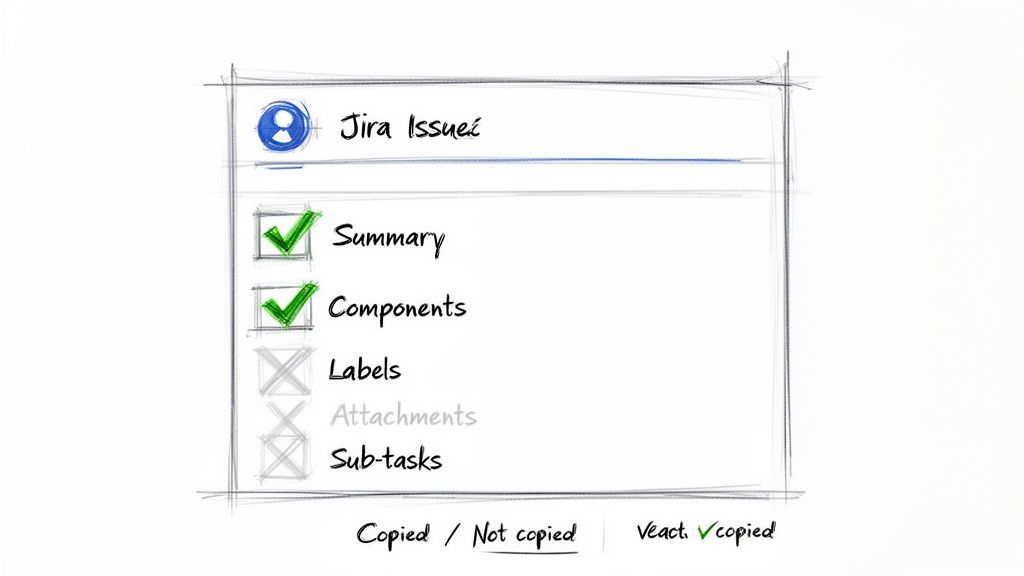
The first step for most teams is using Jira’s built-in clone function, located in the issue view under the "Actions" menu (the three dots). It’s a direct way to create a copy, but the key is to know exactly what information is transferred and what is left behind.
When you clone a Jira issue with the native tool, you create a new, separate ticket. Jira automatically links it back to the original via a "clones" link for traceability. By default, the new summary gets a "CLONE -" prefix, which your Jira admin can customize.
Now, let's get into the specifics of what this feature does and doesn't do.
What Gets Copied and What Stays Behind
To use the standard cloning feature effectively, you must understand what data is included. Use this table as a quick reference.
What Gets Copied with Native Jira Cloning
| Jira Field or Attribute | Is It Cloned? | Actionable Insight |
|---|---|---|
| Summary & Description | Yes | The core text is fully copied. |
| Components & Versions | Yes | Copied, but only if they also exist in the destination project. Verify these fields post-clone if moving across projects. |
| Priority & Issue Type | Yes | These fundamental classifications are always preserved. |
| Reporter | Yes | The original reporter is maintained. Decide if your workflow requires this or if it needs to be manually updated. |
| Labels & Custom Fields | Mostly | Most standard and custom fields are copied, but complex field types may not transfer correctly. Always double-check critical custom fields. |
| Attachments | Only if selected | You must manually check a box during the clone process to include them. This is a common oversight, so make it a habit. |
| Sub-tasks & Links | No | The issue hierarchy is ignored. Only the "clones" link is created. Do not use native cloning for epics with child issues. |
| Comments & Work Logs | No | All discussion, time tracking, and history are left on the original issue. Manually copy essential comments if needed. |
| Status | No | The cloned issue always starts at the beginning of its workflow, which is useful for clean-slate tasks. |
The limitations quickly become apparent. The most significant omissions are the context and history of an issue.
Comments, work logs, and status history are stripped away. This is a major drawback for bug reports or complex tasks where the discussion thread contains critical information.
Even more importantly, the issue hierarchy is ignored. Cloning an epic only copies the epic itself—none of its stories or tasks are included.
Actionable Insight: Use native cloning to duplicate the what (the issue's core data), but not the who, when, or why (the collaborative context). For that, you need a more advanced solution.
Working Around the Limitations
For a simple one-off task, you can manually re-attach a file or copy-paste a key comment. This is a practical, though not ideal, workaround.
However, if you need to clone an issue with five sub-tasks, a dozen attachments, and a long comment thread, the manual effort becomes unsustainable and error-prone. This is the point where you should consider a more robust solution.
Understanding these boundaries is key to using Jira effectively. The native feature is a time-saver for simple cloning needs. For teams with structured processes, it serves as a starting point that reveals the need for automation. To better integrate cloning into your processes, learn about changing workflows in Jira. This will help you design workflows that accommodate these native limitations.
Cloning Across Projects and Keeping Subtasks Intact
Jira's built-in clone feature works well for duplicates within the same project. But what if work needs to move from one team's board to another? This is where the standard "clone" button falls short. Work rarely stays confined to a single Jira project.
For example, a support agent logs a critical bug in a Jira Service Management project. To fix it, that ticket must become a story in the development team’s software project. A simple clone won't carry over subtasks, attachments, or the full context developers need. This manual handoff is slow and prone to information loss.
Where Native Cloning Hits a Wall
Cross-project cloning is a common challenge. Another frequent use case is replicating an entire epic for a new software release. After carefully crafting a complex feature with all its user stories and technical subtasks, you now need the same structure for a parallel product line in a different project.
If you try to clone a Jira issue like an epic using the native tool, you will only get a copy of the epic itself. The entire hierarchy of child issues and subtasks will be left behind. Manually recreating dozens of linked issues is not only time-consuming but also a guaranteed way to introduce errors.
These scenarios demand a more powerful solution. You need a tool capable of:
- Cross-Project Cloning: Duplicating an issue from one project (e.g., "SUPPORT") directly into another (e.g., "DEV").
- Hierarchy Preservation: Cloning a parent issue and its entire tree of child issues and subtasks.
- Field Modification: Changing key fields—like setting the new issue's status or assigning it to the correct person—before the clone is created.
Why You'll Probably Need a Marketplace App
When you encounter these limitations, it's time to explore the Atlassian Marketplace. Apps are designed to fill these gaps, turning a cumbersome manual task into a single, reliable action. They extend Jira's functionality to support how modern teams collaborate.
Actionable Insight: Native cloning treats an issue as a flat item. Advanced workflows, however, depend on preserving structure and context—the links, subtasks, and project-specific fields. Marketplace apps are built to handle this complexity.
When evaluating Marketplace apps, focus on how they solve your specific cloning problems. Can it convert a Service Desk ticket into a development backlog story while correctly mapping all fields? Can it duplicate a complex project template for a new client, ensuring every subtask is perfectly preserved?
The best tools provide granular control, allowing you to define exactly what gets copied, what is ignored, and what is modified during the cloning process. This precision is what elevates a basic copy-paste into an intelligent, automated workflow.
Automating Your Cloning Workflow
Cloning issues manually is inefficient for recurring tasks. If you find yourself repeatedly clicking "Clone" for the same reason, it's time to automate. Jira Automation is a native feature that lets you create "if-this-then-that" rules to handle repetitive work, saving time and improving process consistency.
Consider a common workflow: a developer moves a User Story to the "Ready for QA" column. To ensure a smooth handoff, you can create an automation rule to create the QA ticket automatically.
Building Your First Automation Rule
The objective is clear: when a 'User Story' status changes to "Ready for QA," Jira should automatically clone it and its sub-tasks into a new 'QA Ticket'. This creates a seamless transition and provides the testing team with all necessary context without manual intervention.
Jira's automation engine uses three core components:
- Trigger: The event that initiates the rule.
- Condition: An optional check to ensure the rule runs only under specific circumstances.
- Action: The task you want Jira to perform.
For this scenario, you'll build a rule with a trigger and an action to automatically clone a Jira issue upon a status change.
The rule builder uses a drag-and-drop interface, making it accessible even without development skills.
You can chain these components to map out nearly any process your team follows.
A Practical Cloning Automation Example
Let's build the QA handoff rule. Navigate to Jira's automation settings and create a new rule with these steps:
-
Select a Trigger: Start with the Issue transitioned trigger. Configure it to activate when an issue's status changes to "Ready for QA."
-
Add an Action: Next, add the Clone issue action. Here, you specify what to create. You can clone it into the same project but change the issue type to 'QA Ticket'.
-
Use Smart Values: To pass information from the original issue to the new one, use smart values. For the new ticket's summary, enter
QA for: {{issue.summary}}. Jira will automatically pull the title from the original user story.
Actionable Insight: By automating this single step, you create a reliable process that ensures the QA team receives exactly what they need, precisely when they need it, every time. This eliminates forgotten tickets and missing information.
This is a basic example. You can build more complex, multi-step workflows. For more advanced techniques, explore this guide to Jira workflow automation. To connect Jira with other applications, you can extend these concepts by automating your workflow with Zapier integration.
Scaling Up with Bulk Cloning Marketplace Apps
Jira's native automation is excellent for simple, single-issue cloning workflows. But what happens when your needs scale up significantly?
Imagine launching a new product and needing to create 200 standardized tasks for QA, DevOps, and marketing. Or onboarding a major client, which requires replicating an entire project template with hundreds of issues and subtasks. Triggering automation rules one by one is impractical.
This is where dedicated cloning apps from the Atlassian Marketplace become essential. These tools are built to handle large-scale cloning operations that are beyond the scope of native Jira features.
Moving Beyond Single-Issue Limitations
The primary advantage of a marketplace app is its ability to perform batch operations. Instead of one-to-one duplication, these tools support one-to-many or many-to-many cloning. This is crucial for tasks like setting up recurring quarterly initiatives or rolling out a standardized set of epics for a new sprint.
Most of these apps allow you to use Jira Query Language (JQL) to select the exact issues you want to duplicate, giving you precise control over the process. If you need to build more effective queries, our guide on how to create a filter in Jira can help.
Actionable Insight: Transitioning from single-issue automation to a bulk cloning app is like moving from manual craftsmanship to an assembly line. Both produce quality, but only one can deliver at the speed and scale required by modern organizations.
A simple automation flow often follows this pattern: a trigger leads to a clone action and an update.
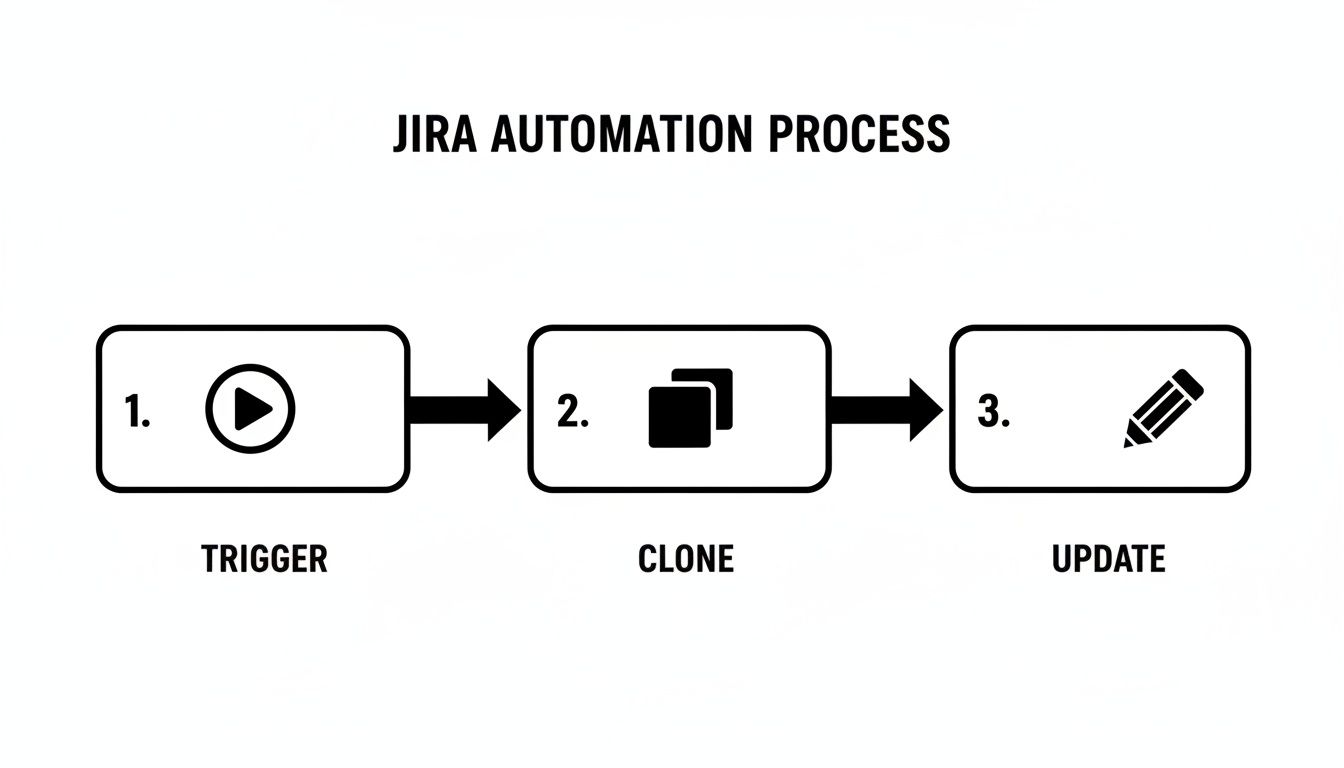
While this works for individual tickets, it doesn't scale for duplicating hundreds of issues at once. Specialized apps are designed for this purpose.
High-Powered Cloning Solutions
The Marketplace offers several powerful cloning solutions. Some excel at straightforward bulk actions, while others provide deep customization for complex, nested issue structures. Their common goal is to save you time and enforce process consistency.
One notable solution is Deep Clone for Jira, which can bulk clone up to 100,000 issues or even entire projects in a single operation. For large-scale migrations or DevOps teams needing to preserve intricate issue hierarchies, this is a powerful tool. It meticulously copies everything—epics, subtasks, comments, attachments, and checklists—avoiding the pitfalls of native Jira.
When evaluating apps, look for these key features:
- JQL-Based Selection: Use JQL to precisely target which issues to clone.
- Cross-Project Bulk Cloning: Duplicate multiple issues from one project directly into another in a single operation.
- Hierarchy Preservation: Ensure that epics are cloned with all their stories, tasks, and subtasks intact.
- Pre-Clone Modifications: Modify fields like the assignee, status, or priority before the new issues are created.
Investing in a dedicated cloning app is about adopting a scalable system to keep your projects organized and your teams efficient.
Common Questions About Cloning Jira Issues
When you start cloning issues, several practical questions arise. Understanding how Jira handles links, permissions, and reporting can prevent future problems. Here are answers to common queries.
What Happens to Issue Links When I Clone a Jira Issue?
Jira's native clone feature creates a "Clones" link between the original and the new issue, which is useful for basic traceability.
However, other important links, such as “blocks,” “is blocked by,” or “relates to,” are not copied. If this relational context is vital to your workflow, this is a significant limitation. For complex projects, consider Marketplace apps that let you specify which links to copy, ensuring no critical information is lost.
Can I Clone Issues Between Jira Cloud and Jira Server?
Directly cloning an issue from a Jira Cloud instance to a Jira Server instance (or vice versa) is not a built-in feature. This action is more of a migration and requires specialized tools designed for moving data between separate Jira environments.
Most cloning apps operate within a single Jira instance. To replicate an issue across different instances, you will need to use an export/import strategy rather than a simple clone function.
How Do Permissions Affect My Ability to Clone Issues?
If you can't clone an issue, it's almost always a permissions problem. To clone a Jira issue, you must have the “Create Issue” permission in the project where the new issue will be created. If you are cloning into a different project, you need that permission in the destination project.
If the "Clone" option is missing from the issue's action menu, it's a clear sign of a permissions issue. Contact your Jira admin to verify that your role has the necessary access rights in the target project.
Actionable Insight: No "Create Issue" permission means no cloning. This is the most common reason users believe the feature is broken, but it's simply Jira's security model at work.
Do Cloned Issues Affect My Agile Reports?
Yes, they do, and this requires careful management. A cloned issue is a new ticket in Jira, which can impact your burndown charts, velocity metrics, and cycle time reports.
For example, if you clone an issue that was already "Done," the new copy will likely start at the beginning of your workflow, such as "To Do." This can skew your data, making it appear that more work was completed in a sprint than was actually the case. To maintain accurate reporting, immediately review any cloned issue and set its status and sprint details correctly.
Ready to stop wrestling with manual cloning and start automating your most complex Jira workflows? With Harmonize Pro's flagship app, Nesty, you can transform static issues into dynamic checklists that enforce your Definition of Done, automate handoffs between teams, and ensure quality at every step. See how Nesty can bring order and efficiency to your projects at https://harmonizepro.com/nesty.
Leave a Reply