
Cloning a single issue in Jira is simple. But when you need to clone ten, fifty, or a hundred issues at once, you hit a wall. This is one of the most common gaps in Jira's native toolkit, causing real bulk clone issues in Jira that disrupt project plans and lead to manual errors.
This isn't just a minor missing feature. For many teams, it's a fundamental roadblock that forces them into clunky, time-consuming workarounds.
Confronting the Reality of Bulk Cloning in Jira
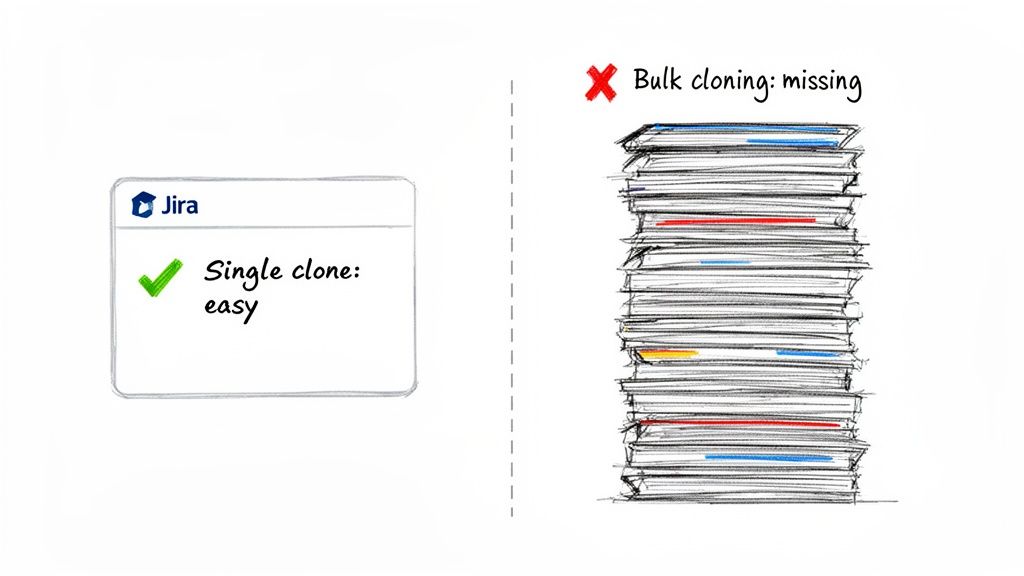
You expect a tool like Jira to handle repetitive tasks at scale. The need to duplicate a whole set of issues comes up all the time—spinning up a new project from a template, creating a standard regression test suite, or onboarding a new customer with a repeatable checklist of tasks. But this is where expectation meets reality, especially if you're on Jira Cloud.
The bottom line is that Jira Cloud has no native bulk clone functionality. It simply doesn't exist. This leaves most Jira users scrambling for third-party apps or getting stuck with mind-numbing manual processes. Atlassian Support has been direct about this, stating, "Currently, it is not possible to clone/copy issues in bulk in Jira Cloud." This position has held firm despite a long-standing feature request on the Atlassian community forums.
Native Bulk Clone Capabilities Cloud vs Data Center
The gap becomes clear when you compare Jira's two main versions. While Data Center users have a basic built-in option, Cloud users are left without a solution. It's a jarring difference that often catches teams by surprise, especially when migrating from one platform to the other.
This table breaks down the core differences in what you get out of the box.
| Feature | Jira Cloud | Jira Data Center |
|---|---|---|
| Native Bulk Clone | ❌ Not available | ✅ Available (with limits) |
| Actionable Solution | Marketplace Apps, Automation Rules | Native Feature, Marketplace Apps |
| Impact on Teams | High reliance on paid add-ons or time-consuming manual work. | Functional but often hits a 1,000-issue cap, requiring manual workarounds. |
As you can see, even the Data Center solution has its limits. This isn't just a missing button in the UI; it creates workflow bottlenecks that impact productivity.
Actionable Insight: The inability to reliably clone issue templates at scale is a major productivity drain. What should be a five-minute setup task can easily become a multi-hour manual effort. The most effective solution is to invest in a Marketplace app or build a robust automation rule.
Why This Limitation Creates Workflow Bottlenecks
Without a built-in tool, teams are forced into inefficient habits. Manually cloning dozens of tickets one by one is tedious and a breeding ground for mistakes. A project manager rushing to get a sprint started might forget to copy attachments on one ticket, misconfigure a custom field on another, or fail to link a sub-task correctly.
This triggers a cascade of downstream problems:
- Delayed Sprint Planning: Teams burn valuable planning time manually recreating tickets that should have been cloned from a template in seconds.
- Inconsistent Project Setups: Manual work introduces inconsistencies. One project's task structure looks different from the next, confusing team members and making reporting difficult.
- Error-Prone Test Cycles: QA teams struggle to replicate complex test suites accurately, which can lead to missed regression tests and bugs slipping into production.
The absence of a solid bulk cloning feature undermines Jira's core purpose: to bring agility, consistency, and standardization to your work. Finding a scalable solution isn't just a nice-to-have; it's critical for maintaining process integrity.
Working Around Jira Data Center Cloning Limits
If you're on Jira Data Center, you have a native bulk clone option—something Cloud users are missing. But this built-in tool comes with a significant limitation that can cause major bulk clone issues in Jira.
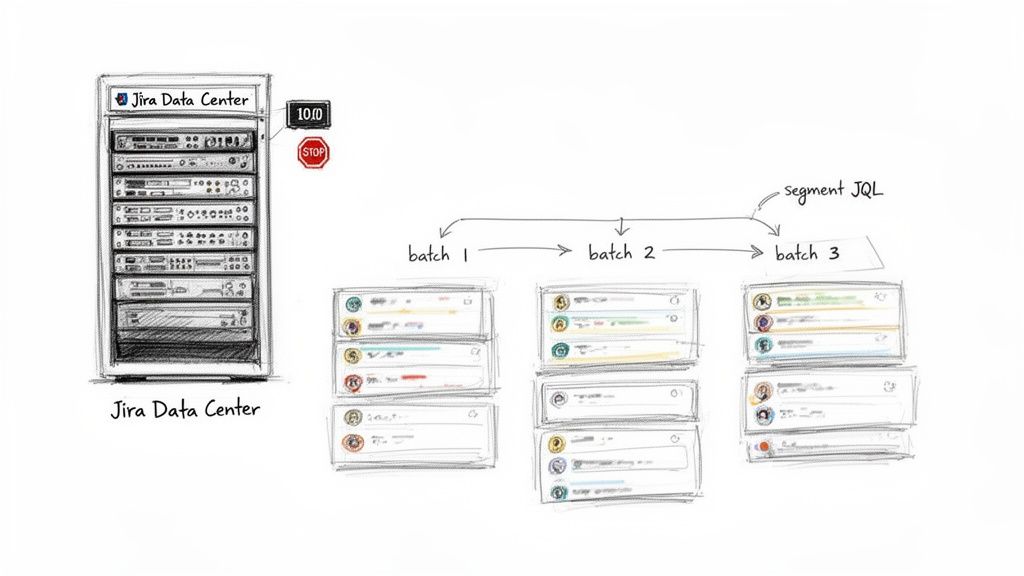
The roadblock is a hard-coded 1,000-issue limit for any single bulk operation. Atlassian put it there to prevent massive operations from slowing down the server. While the intention is sound, the real-world impact for teams managing large-scale projects is a major pain point.
The 1,000-Issue Cliff
When you try to clone 1,200 issues, you won't get a warning. Jira will simply process the first 1,000 issues and silently ignore the remaining 200.
This silent failure is dangerous. Teams can walk away thinking the operation was a success, only to find out later that critical tasks are missing. You often don't spot the problem until a key task is missed during a release.
For example, a QA team needs to duplicate a regression test suite of 1,500 test cases. The manager runs a JQL filter and kicks off the bulk clone. In reality, 500 test cases were never created, leaving massive holes in their testing coverage.
Segmenting Your JQL for Batch Processing
To get around this, you must break down your issues into smaller batches. This means getting creative with your JQL queries to create multiple sets, each with fewer than 1,000 issues.
Here are actionable JQL strategies you can use to segment your issues:
- By Creation Date: Run separate clones for issues created in specific timeframes.
created >= "2023/01/01" AND created <= "2023/03/31" - By Component or Label: If you use categorization, clone issues one component or label at a time.
component = "API" OR component = "Backend" - By Priority: Clone "Highest" and "High" priority issues first, then circle back for "Medium" and "Low."
priority in (Highest, High)
Actionable Insight: Always check the issue count your JQL query returns before you click "Bulk Change." Never assume it's under 1,000. This simple check can save you from major problems later.
While this batching approach works, it's not foolproof. Every manual clone is another opportunity for error. This method can also break relationships between your issues. If your original tickets have intricate links (like "blocks"), cloning them in separate batches often means those links won't be recreated properly. An issue in your first batch might be looking for a ticket that won't exist until you run the second batch, forcing you into manual cleanup.
In Jira Data Center, even app-based cloning operations are often capped at 1,000 issues per project to maintain system stability. Anything over that limit is simply ignored. You can find more on this limitation in Appfire's documentation.
Choosing the Right Marketplace App for Cloning
When you hit the wall with Jira's built-in options, the Atlassian Marketplace is your solution. It’s packed with third-party apps built to solve complex bulk clone issues in Jira. But how do you pick the right one?
The secret is to look past the "clone" button. You need an app that solves the real-world complexities of your team's workflows.
Evaluating Key Features That Matter
Not all cloning apps are the same. A basic tool might copy an issue's summary and description, but that's rarely enough. The real value lies in the attached context.
When comparing apps, focus on how they handle these critical elements:
- Sub-tasks and Epic Hierarchies: Does the app keep the full parent-child structure intact? A DevOps team cloning a release epic needs every user story and sub-task perfectly organized.
- Attachments and Comments: Can you bring over every file and discussion thread? This is non-negotiable for QA teams cloning bug reports, where comment history is essential.
- Custom Fields: How does it manage your unique custom fields? If your "Client Name" or "Deployment Environment" fields get dropped, you’re creating more manual cleanup.
- Issue Links: Will the app intelligently recreate links like "blocks" or "is duplicated by" within the newly cloned set of issues? Losing these connections can derail your workflow.
Actionable Insight: Your goal is a true, one-to-one replica of your source issues with a single click. Anything less just creates more manual work on the back end, defeating the purpose of using an app.
A Real-World Scenario: DevOps Release Cloning
Let’s walk through a common example. A DevOps team is preparing to deploy a new microservice. Their process revolves around a standardized release epic in Jira with over 50 child issues and sub-tasks. It covers everything from build configuration to deployment checklists.
This epic is their master template for every new environment—Dev, Staging, and Production.
Imagine cloning that epic and its 50+ children manually, three times. It’s slow and prone to human error. A single missed sub-task could lead to a failed deployment.
This is where an app like Deep Clone or Elements Copy & Sync becomes a lifesaver. The team can select the source epic and create perfect duplicates in a few clicks.
Here’s their new, actionable process:
- Find the Source: Run a JQL query to find their "Release Template Epic."
- Configure the Clone: Inside the app, define target projects and set up rules, like adding a prefix such as "[STAGING]" or "[PROD]" to each summary.
- Preserve Everything: Check the boxes to include all sub-tasks, attachments, and comments.
- Execute: One click creates two new epics, each with a complete and accurate hierarchy of all 50+ child issues.
What used to be a risky, half-day manual slog is now a reliable, two-minute task.
Comparing Top Bulk Cloning Apps
While many apps clone issues, a few stand out. For serious bulk cloning challenges, the top contenders are Deep Clone, Elements Copy & Sync, and the flexible ScriptRunner.
Each has its strengths, and your choice depends on your goals.
Top Bulk Cloning Apps Feature Comparison
| Feature | Deep Clone | Elements Copy & Sync | ScriptRunner |
|---|---|---|---|
| User Interface | Intuitive, wizard-style UI that guides you through the process step-by-step. | Recipe-based system that is powerful but has a steeper learning curve. | A blank canvas. Requires scripting knowledge (Groovy) to build custom actions. |
| Hierarchy Cloning | Excellent support for cloning entire epic hierarchies and sub-task structures. | Strong capabilities for copying issues and maintaining links across projects. | Fully customizable. You can script any hierarchy logic you need, but you have to build it. |
| Cross-Project Cloning | Seamlessly clones issues to different projects, with easy field mapping. | Specifically designed for complex cross-project synchronization and data mapping. | Can handle any cross-project scenario, provided you can script the logic for it. |
| Customization | Offers great out-of-the-box options for prefixes, suffixes, and field edits. | Highly customizable through its "recipes," allowing for complex conditional logic. | The ultimate in customization. If you can dream it, you can script it. |
| Best For | Teams needing a fast, easy-to-use, and powerful solution for bulk cloning. | Teams with complex, ongoing synchronization needs between projects or instances. | Technical teams who need total control and want to build their own bespoke cloning automations. |
The right tool comes down to your team's specific pain points. For straightforward replication, Deep Clone is a fantastic go-to. If you need issues to stay in sync across projects, Elements Copy & Sync offers deeper functionality. For custom solutions, ScriptRunner provides unlimited power. Run a trial to find the perfect fit.
Bringing Automation into Your Cloning Workflows
Instead of cloning issues manually, automate the process. Setting up trigger-based automation for cloning eliminates repetitive work and ensures consistency.
With Jira Automation, you can set up rules that automatically clone issues based on specific events.
- When a developer pushes a task to “Ready for QA,” an automation rule can instantly create a copy in the QA team’s project.
- The moment a new customer onboarding epic is created, a complete template with all its sub-tasks can be duplicated and assigned.
- You can even schedule recurring tasks, like monthly audit checklists, to generate themselves automatically.
How to Set Up an Automation Rule
Start by going to Project Settings > Automation.
First, choose your trigger. A common one is Issue Transitioned, but it could also be a scheduled trigger that runs at a specific time.
Next, narrow the scope with a JQL condition, like "project = DEV AND status = 'Ready for QA'". Ensure the rule’s scope includes both the source and target projects.
Finally, give your rule a descriptive name like "Clone Dev Tasks to QA Project" so everyone understands its purpose.
Defining the Clone Action
Once your trigger is set, define the action. In the Actions section, select the Clone Issue option.
Specify the destination project and issue type. You can add a prefix to the summary, like "QA -". Use smart values to pull in data from the original issue dynamically, like {{issue.key}} or {{triggerIssue.summary}}.
Actionable Insight: Teams can cut manual ticket creation time by 50% or more by automating this single step. It improves both speed and consistency.
After the clone is created, add more actions. You might want to automatically link the new issue back to the original or update a specific field.
Keeping Everyone in the Loop with Notifications
Automated cloning shouldn't happen in a black box. Notify your team about what's happening.
Add a notification step right after the clone action:
- Slack: Use a webhook to send a message to a specific channel with the new issue key.
- Email: Notify the new assignee directly using an @mention.
- Microsoft Teams: Use an HTTP request action pointed at a Teams incoming webhook.
Visualizing the App Selection Process
If Jira's native automation isn't enough, the Atlassian Marketplace has specialized cloning apps. Here's a simple, three-step process for choosing the right one.
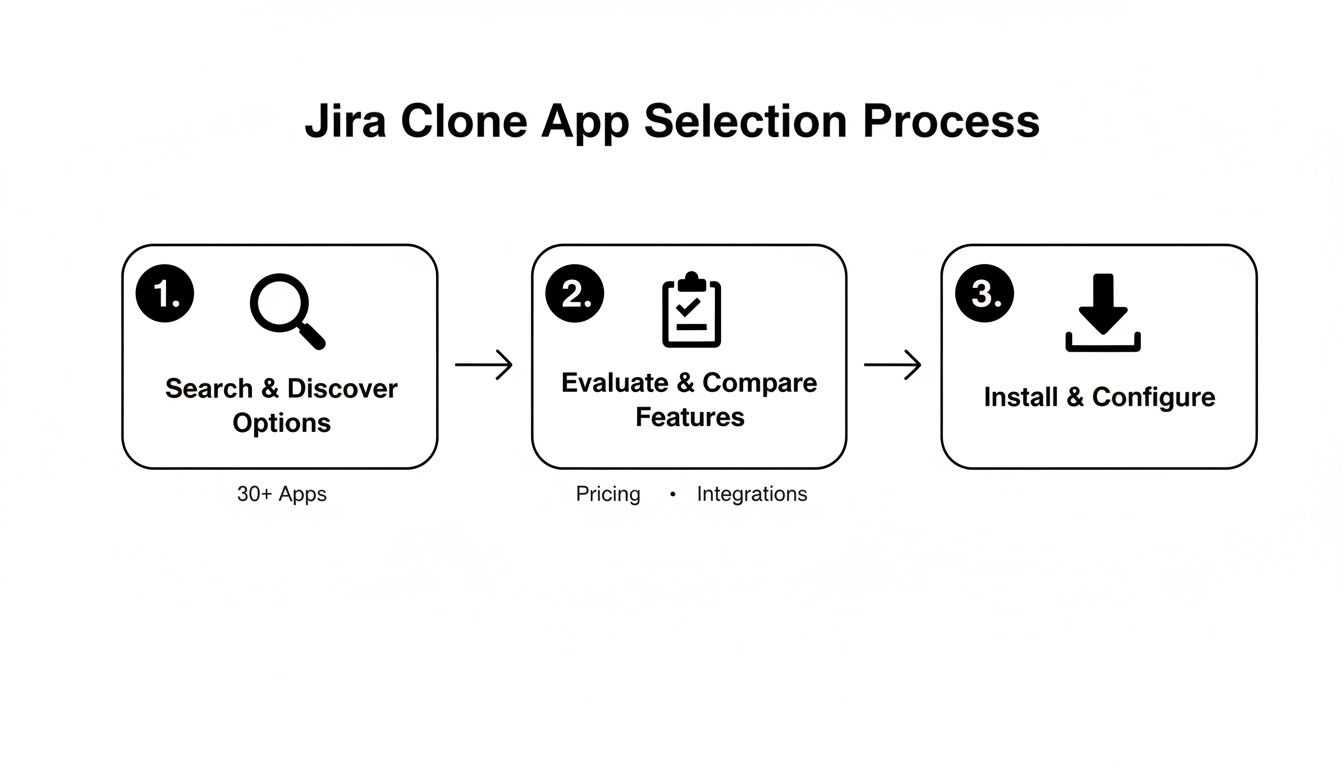
This flow involves searching the Marketplace, evaluating top contenders, and installing the best fit. Following a structured approach can reduce implementation time by around 30% and ensure you get a tool that handles all your needs from day one.
Pro Tips for Handling Errors
Automation rules can fail, often due to permission issues. Build error checking directly into your rule to handle this.
Use an If/Else block to check if the user has permission to clone issues. If they do, the clone proceeds. If not, the "else" branch can add a comment to the original issue: "Clone failed: insufficient permissions." This logs failures so they can be addressed quickly.
Scaling Cloning Across Different Teams
When creating automation rules for multiple teams, consistency is key. Avoid these common pitfalls:
- Using slightly different smart value syntax in different rules.
- Forgetting to give the automation user permissions in both source and target projects.
- Running into project permission schemes that block sub-task cloning.
For workflows spanning multiple teams, use multi-project or global automation rules. These let you create a single rule that works across your entire Jira instance. For more on this, see our guide on Jira workflow automation.
Mapping Custom Fields Correctly
Cloning between projects can be tricky due to custom field mismatches. If configurations don't align, data can be lost.
Ensure field IDs and configurations match between source and target projects. You might need to:
- Map a "Severity" field in one project to a "Priority" field in another.
- Ensure critical data like SLA dates and the original reporter are carried over.
- Decide whether to copy custom checklists as-is or reset them.
Real-World Examples
A QA team automated the cloning of their regression test suite every time a new release branch was created. This simple rule cut their test prep time by 40%.
Other powerful use cases include:
- Nightly builds automatically creating testing tasks for the QA team.
- Recurring compliance audits that spawn a fresh checklist of tasks monthly.
- Standardized onboarding templates for new clients, complete with over 20 predefined tasks.
The Business Impact
Automating routine processes like bulk cloning does more than save time. To learn more, explore the advantages of business process automation. It strengthens your audit trails, reduces manual oversight, and frees up your team for more valuable work.
Keeping Your Automation Rules Healthy
As you build more rules, your Jira instance can feel the strain. Regular maintenance is essential.
Archive old or redundant rules monthly. Label active rules clearly by function. Regularly check the Automation Audit Log to identify performance bottlenecks. Keep your instance running smoothly by enabling only the rules that deliver the most value.
Troubleshooting When Jira Cloning Goes Wrong
Even with a solid plan, bulk cloning can fail. When a clone fails, it's almost always a predictable issue tied to permissions, workflows, or a data mismatch. Understanding these common failure points is key to fixing the most frustrating bulk clone issues in Jira.
Sometimes, the process halts without a clear error, leaving you with a half-finished job. The good news is that most of these problems have straightforward solutions.
Decoding Permission-Related Errors
The most common culprit behind a failed clone is permissions. The user or automation rule running the clone must have the right permissions in both the source and destination projects.
The user needs "Create Issues" permission in the destination project. It sounds obvious, but it’s the first thing to check. If you’re copying comments, they’ll also need "Add Comments" permission. This layered permission model often catches people off guard. For more guidance, review strategies for addressing "Access Is Denied" errors.
A classic scenario is an automation rule that works for one team but fails for another. The issue is almost always that the Automation for Jira system user lacks project permissions in the new target project.
Actionable Insight: Before starting a big clone, do a quick sanity check. Ensure the user or automation agent has full create and edit permissions in the target project. A five-second look at the permission scheme can save you an hour of headaches.
Navigating Workflow and Screen Conflicts
Mismatched project configurations, especially around workflows and screen schemes, are another major cause of cloning failures. If your destination project has a required custom field that doesn't exist in the source project, the clone will fail. Jira can't create an issue when it can't populate a mandatory field.
Workflow validators are also notorious for causing trouble. If the destination project’s "Create" transition requires the "Due Date" field to be set, and the original issues don't have a due date, the validator will block the creation of every single one.
Here’s an actionable diagnostic checklist for these failures:
- Required Fields: Compare the "Create Issue" screens for both projects. Are there required fields in the destination that are missing from the source? That's your likely problem.
- Workflow Validators: Check the validators on the "Create" transition in the destination project's workflow. Temporarily disable a restrictive validator to see if the clone works—that will confirm the cause.
- Field Context: Ensure all necessary custom fields are available and configured for the specific issue types in the destination project.
Fixing these issues requires a methodical approach. For complex setups, maintaining a clean record of project configurations is a lifesaver. Solid audit trail best practices can help you quickly spot a recent workflow change that might be causing the trouble.
Handling Timeouts and Incomplete Clones
When cloning thousands of issues, you might encounter server timeouts, especially on Jira Cloud. The operation starts, clones a few hundred issues, and then stops without warning.
The result is a mess: sub-tasks without parents or broken issue links. There's no magic button to fix this, but you can mitigate it.
The best strategy is to break the job into smaller chunks, just as you would for Jira Data Center's 1,000-issue limit. Instead of cloning 2,000 issues at once, run four separate batches of 500. This reduces the system load and lowers the risk of a timeout.
If you consistently hit these limits, it may be time to look at a Marketplace app with more robust batch processing.
Common Questions About Bulk Cloning in Jira
When you start bulk cloning in Jira, questions come up. You might be hitting native limitations or trying to optimize a Marketplace app. Here are direct, practical answers to the most common questions.
Can I Bulk Clone Issues Natively in Jira Cloud?
No. Out of the box, Jira Cloud has no built-in feature to clone multiple issues at once. This is a significant gap compared to Jira Data Center.
To bulk clone in Jira Cloud, you must use a third-party app from the Atlassian Marketplace. Cloning issues one by one is not a scalable solution.
What Happens to Sub-Tasks and Issue Links During a Clone?
This depends on your method. Jira’s single-clone function has checkboxes for attachments and links, but it can be unreliable with complex issue structures.
- Native Cloning (Single Issue): You can bring sub-tasks and links along, but it often struggles to replicate deep hierarchies, especially across projects with different configurations.
- Marketplace Apps: This is where apps like Deep Clone or Elements Copy & Sync excel. They are built to preserve these relationships and maintain the entire hierarchy—epics, stories, sub-tasks, and all links—giving you a true one-to-one copy.
Actionable Insight: A successful bulk clone is about accuracy. If you're losing sub-tasks or breaking links, you aren't saving time. You're creating a massive cleanup project. Always use tools that guarantee the integrity of your issue hierarchy.
Why Do My Cloned Issues Have a "CLONE" Prefix?
By default, Jira adds "CLONE -" to the summary of any duplicated issue to distinguish it from the original.
While sometimes helpful, it's often an annoyance. Here's how to change it:
- System-Wide Change (Admin): A Jira Administrator can go to Jira Administration > System > Advanced Settings and find the
jira.clone.prefixvalue. They can remove it or change it to something more useful. - Marketplace App Settings: Most cloning apps let you customize or remove this prefix in their configuration settings for each clone job, giving you more flexible control.
How Can I Clone Issues Between Different Projects?
Cloning issues to a different project adds complexity due to potential configuration mismatches. While you can set up an automation rule for this, it requires careful setup.
The biggest hurdle is mapping fields. Your source and destination projects might have different required fields, screen schemes, or workflow validators that will block the process. If your target project requires a "Customer" custom field that doesn't exist in the source project, the clone will fail.
This is another scenario where dedicated Marketplace apps are more robust. They typically include an intuitive field mapping interface that lets you resolve these conflicts before you start the clone, ensuring your data moves over smoothly.
Tired of fighting Jira's limitations and wasting hours on manual workarounds? At Harmonize Pro, we build powerful apps to solve these exact problems. Our flagship app, Nesty, transforms static Jira tickets into dynamic, automated checklists that enforce your team's processes. Stop wasting time on repetitive tasks and ensure quality at every step. Discover a smarter way to manage complex workflows.
Leave a Reply