Tag: jira automation rules

  • Boost Jira Automation Rules: A Practical Guide to Streamlining Workflows

    Boost Jira Automation Rules: A Practical Guide to Streamlining Workflows

    Repetitive Jira updates are a massive time-sink. Your team's most valuable asset is their focus, and manual ticket-nudging drains it dry. The solution is Jira automation rules. Think of them as simple if-this-then-that recipes that handle the grunt work for you. They’re designed to eliminate manual chores, prevent errors, and give your team their creative energy back. This guide provides actionable steps to get you started immediately.

    Stop Wasting Time on Repetitive Jira Tasks
    A visual metaphor of automation streamlining tasks on a conveyor belt, saving time and improving efficiency.

    This image nails the core idea: automation turns a chaotic, hands-on process into a smoothly flowing system. It's the difference between focusing on innovation and drowning in administration.

    Manual ticket management isn't just boring; it’s a major source of project friction. Every minute spent changing a status, reassigning an issue, or pinging someone for an update is a minute not spent on coding, testing, or planning. This "work about work" causes delays, invites human error, and leads to inconsistent workflows.

    The core problem is that manual updates don't scale. As your team grows and projects get more complex, the administrative overhead explodes, creating a bottleneck that slows everything down.

    This is exactly where Jira automation rules come into play. They act as a tireless assistant, executing tasks based on triggers you define. Once set up, your processes are followed perfectly every time, without anyone having to think about it.

    Why Automation Is No Longer Optional

    Jira automation became a game-changer after Atlassian acquired Code Barrel's "Automation for Jira" app in 2019. By 2022, this powerful no-code tool was built directly into Jira Cloud and modern Data Center versions.

    This native integration means you can start building impactful rules right now. Here’s what you stand to gain:

    • Enforce Process Consistency: Ensure every ticket moves through your workflow the same way, from "Ready for Dev" to "Done." This brings a new level of predictability.
    • Eliminate Handoff Errors: Automatically assign tickets to the next team, attach the right documents, and send a notification. Nothing gets lost in the shuffle.
    • Reclaim Valuable Time: Some teams save over 150 hours per month by automating administrative tasks. That’s time freed up for work that actually matters.
    • Improve Cross-Team Collaboration: Keep everyone in the loop with automated updates and notifications, cutting down on status meetings. To understand the broader concepts, read our guide on what workflow automation is all about.

    For any software team, a high-impact action is linking Jira to GitHub. This unlocks powerful automation, allowing you to trigger rules based on commits, pull requests, and merges, directly connecting your code to your project board.

    Building Your First High-Impact Automation Rules

    Theory is great, but the real "aha!" moment comes when you solve actual problems. It's time to put that knowledge into practice. We're going to walk through building three incredibly practical rules that any software team can use right away to reduce manual work and make their processes more reliable.

    These aren't just simple examples. They're proven automations that fix common headaches in development, project management, and client onboarding. Let's dig in.

    Rule 1: The Seamless Dev-to-QA Handoff

    One of the most frustrating bottlenecks is the handoff from development to QA. A developer finishes their work, but the ticket sits there, waiting for someone to reassign it and move it to the "In QA" column. This gap creates delays and risks that tickets get lost.

    This automation closes that gap. When an issue is moved to "Ready for QA," the rule instantly assigns it to your QA lead and drops a comment to notify the team.

    Here’s the step-by-step setup:

    • Trigger: Issue Transitioned. Be specific. Configure it to fire only when the status moves from any other status to "Ready for QA." This prevents the rule from running unexpectedly.
    • Action 1: Assign Issue. Set this to automatically assign the ticket to your QA lead or the main point of contact. This immediately establishes ownership.
    • Action 2: Add Comment. Notify the wider team. Use a simple, clear comment like: Ready for testing. @qa-team, please take a look. This pings the group so someone can pick it up even if the main assignee is busy.

    This simple rule enforces your workflow, creates a perfect audit trail, and ensures you never lose momentum between coding and testing. It's a cornerstone of a healthy CI/CD pipeline.

    Rule 2: The Polite Stale Issue Nudge

    We've all seen tickets that haven't been updated in a week, collecting digital dust. Is it blocked? Forgotten? Chasing down these updates is a massive time-sink for project managers.

    This rule acts as an automated assistant. It scans for inactive issues and sends a gentle reminder to the assignee in Slack, asking for an update without any manual intervention.

    Here's how to build this "nudge" rule:

    • Trigger: Scheduled. Run this daily or every other day. You'll need a JQL query to define what "stale" means. A great starting point is status not in (Done, "Won't Do") AND updated < -7d.
    • Action: Send Slack Notification. Connect Jira to Slack and craft a helpful message: "Hey {{issue.assignee.displayName}}! Just a friendly nudge on {{issue.key}}. It hasn't seen any updates in over a week. Is everything okay?"

    Using smart values like {{issue.assignee.displayName}} makes it personal, and including a direct link with [{{issue.key}}]({{issue.url}}) makes it easy for them to jump in and provide an update.

    Rule 3: The Client Onboarding Sub-Task Creator

    A consistent onboarding process is critical for new clients. But it usually involves the same checklist every time: "Schedule Kickoff," "Set Up Accounts," "Send Training Docs." Creating these sub-tasks manually for every new client is tedious and error-prone.

    This rule standardizes the entire process. When a new "Client Onboarding" epic is created, it automatically generates your entire predefined checklist of sub-tasks.

    Here’s the configuration:

    • Trigger: Issue Created. The rule fires the moment the new issue appears.
    • Condition: Issue Fields Condition. This is crucial. Ensure the rule only runs on the right issue type. Set the condition to Issue Type = Epic and add another condition to check the summary, like Summary ~ "Onboarding for".
    • Action: Create Sub-tasks. Add a "Create sub-task" action for every step of your process.

    For instance, your list of sub-tasks might look like this:

    • Schedule Kickoff Meeting
    • Grant System Access
    • Deliver Welcome Packet
    • Conduct Initial Training Session
    • Schedule First Check-in Call

    By turning your onboarding into a Jira automation rule, you build a repeatable, scalable system that delivers a consistent experience to every new client.

    To tackle more complex processes, our guide on Jira workflow automation dives into more advanced strategies. Mastering these foundational rules will give you a solid base to build from.

    Advanced Automation for Complex Workflows

    Once you've nailed the basics, you can use Jira automation to tackle your organization's most complex, multi-step processes. Advanced features—smart values, rule branching, and rule chaining—allow you to build sophisticated systems that handle complex handoffs without manual intervention.

    This is about transforming a convoluted manual process into a self-managing system. It frees up your team to focus on high-value work instead of playing project traffic controller.

    Let’s walk through a common and often messy DevOps workflow to see these concepts in action.

    Building a Multi-Environment Deployment Rule

    Coordinating deployments across development, staging, and production is a massive headache. The process is often a chaotic mix of manual ticket updates, Slack pings, and the risk of someone dropping the ball. A well-designed Jira automation rule can orchestrate this entire sequence.

    The goal is to create a system where a single trigger—like merging a pull request—kicks off a cascade of updates, assignments, and notifications across several related tickets representing each environment.

    This visualization shows the core flow for many automations, from handling handoffs to nudging people and creating new tasks.
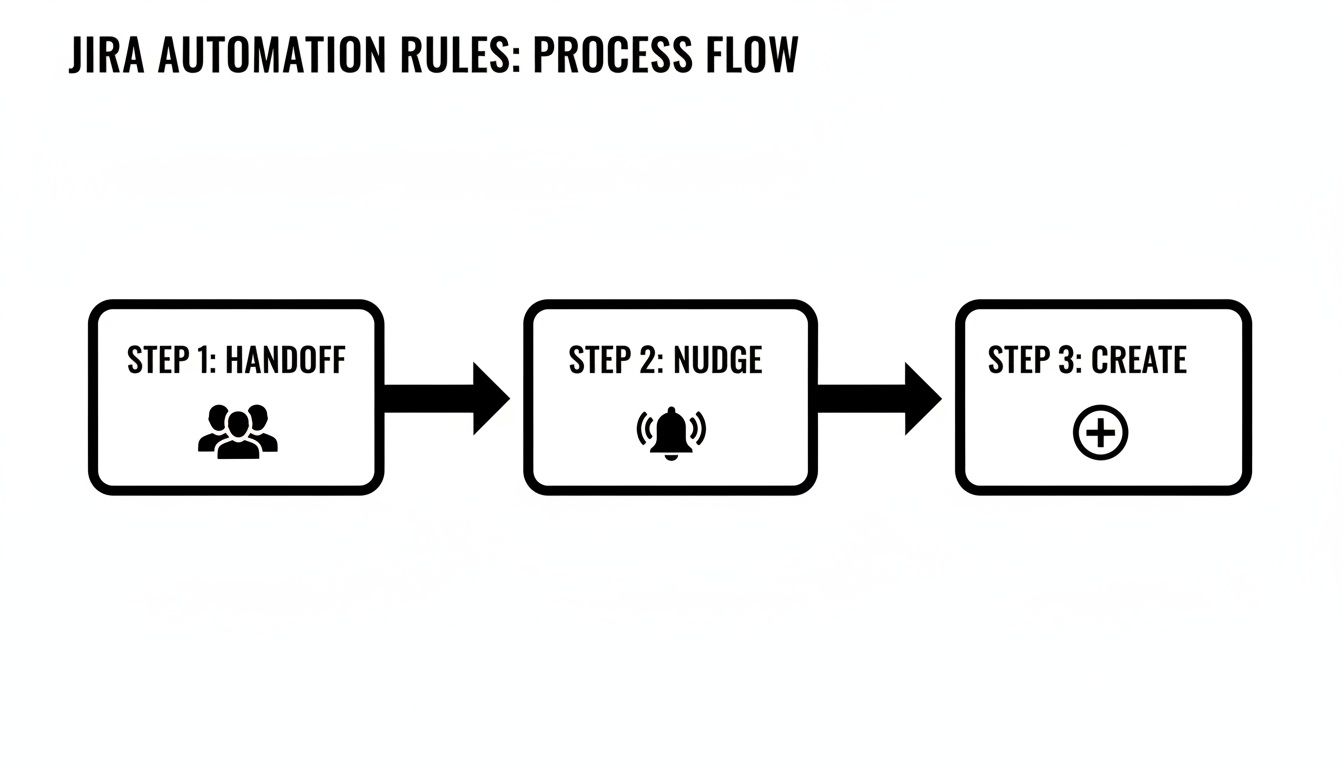
    A visual representation of a three-step Jira automation process flow: Handoff, Nudge, and Create.

    A single event can set off a chain reaction that keeps work moving forward without manual intervention.

    To build our deployment rule, we’ll use a few advanced components:

    • Smart Values: Dynamic variables that pull data from your Jira issues. We’ll use them to copy info from a parent ticket to its sub-tasks. For instance, {{triggerIssue.fields.summary}} grabs the summary from the issue that kicked off the rule.
    • Lookup Issues Action: A powerful action that lets your rule search for other issues using JQL. It's the key to connecting our main development ticket to its staging and production counterparts.
    • Rule Branching: This lets the rule perform actions on multiple related issues, like those found with "Lookup Issues." It’s like running a mini-rule for each issue in a list.

    Orchestrating the Deployment Flow

    Let's say our setup is a main feature story with sub-tasks like "Deploy to Staging" and "Deploy to Production." Our automation will kick in the moment the development work is finished.

    The trigger is a Pull Request Merged event from your connected code repository. When a developer merges their code, the magic begins.

    First, the rule uses the Lookup Issues action with a JQL query like this: parent = {{triggerIssue.key}} AND summary ~ "Deploy to". This finds all sub-tasks under the story whose summaries are about deployment.

    Next, we use a Branch rule / related issues action. Inside this branch, the rule will execute a set of actions for each sub-task it found.

    Within the branch, we can add an If/else block to check the summary of each sub-task.

    • If {{issue.summary}} contains "Staging," the rule can transition that sub-task to "In Progress" and assign it to the DevOps team.
    • If {{issue.summary}} contains "Production," it can add a comment like: Ready for production deployment pending successful staging validation.

    By using branching and conditions, a single trigger intelligently updates multiple tickets according to their specific purpose. This creates a clear, automated audit trail and ensures the right team is notified at exactly the right moment.

    Leveraging Scheduled Triggers and Smart Values

    Advanced Jira automation rules are also perfect for proactive cleanup and reporting. For these routine jobs, use scheduled triggers.

    Imagine you need a weekly report of all production bugs that have been sitting idle. A scheduled rule can run every Friday, find those issues, and send a summary to a Slack channel.

    Here’s a quick recipe for that rule:

    1. Trigger: Scheduled (e.g., weekly on Friday at 9 AM).
    2. JQL Condition: project = "PROD" AND type = Bug AND status != Done AND updated < -7d.
    3. Action: Send Slack message. Use smart values to build a formatted list: *Weekly Stale Bug Report:* {{#lookupIssues}} - {{key}} - {{summary}} {{/lookupIssues}}.

    The {{#lookupIssues}} block loops through all the issues found by the JQL, creating a neat, clickable list in Slack. This proactive reporting keeps critical issues from falling through the cracks, with zero manual effort.

    Mastering these workflows is a core part of effective process orchestration. To go deeper on connecting separate tasks into a cohesive system, you might be interested in learning more about process orchestration and its applications.

    By combining smart values, branching, and scheduled triggers, you can build robust systems that manage your team's most challenging workflows.

    Keeping Your Automation Rules From Breaking Jira

    As your team builds more Jira automation rules, you'll see a massive leap in productivity. But here's the catch: inefficient rules can slow your entire Jira instance to a crawl and chew through your monthly execution limits.
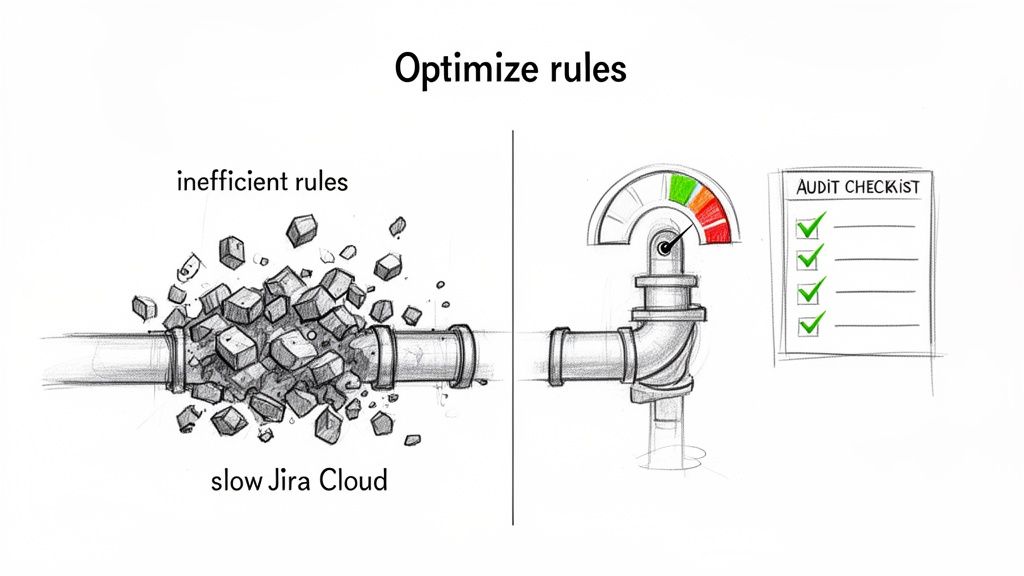
    Visual comparison: Inefficient Jira rules clog a pipe, while optimized rules ensure smooth Jira Cloud performance.

    Good governance and smart optimization are non-negotiable. The goal is to build rules that are not just effective but also incredibly efficient.

    Understanding Jira Automation Limits

    Your ability to run automations isn't unlimited. Atlassian sets monthly execution limits based on your Jira Cloud plan.

    In late 2023, a big change occurred: Atlassian moved away from a shared pool of executions. Now, each product has its own quota. Only successful actions count toward this limit now, but a few high-volume rules can still drain your allowance fast. Get the full rundown on these Atlassian automation changes and what they mean for your team.

    The key takeaway is that every execution counts. A single poorly configured rule triggering hundreds of times a day can exhaust a month's worth of executions in a week.

    Regularly auditing your rules is essential maintenance. The first place to check is your automation settings under the "Usage" tab. This dashboard shows you exactly which rules are using the most executions. Look for rules with sky-high counts; those are your prime candidates for optimization.

    A Practical Guide to Optimizing Your Rules

    Once you’ve identified your most resource-hungry rules, it’s time to optimize them. The core strategy is to make them more specific so they only fire when absolutely necessary. Think of it as using a scalpel instead of a sledgehammer.

    Here are some quick wins for rule optimization.

    Rule Optimization Quick Wins

    Inefficient Method (High Usage) Optimized Method (Low Usage) Why It Works
    Trigger: Issue Updated Trigger: Issue Transitioned Fires only on status changes, not every minor edit, comment, or field update.
    One rule with no conditions A rule with a JQL condition or If/else block Adds a gatekeeper. The rule stops if the issue doesn't match specific criteria, saving an execution.
    A rule that fires on every individual event A Scheduled trigger processing issues in bulk Instead of 100 executions for 100 events, you get one execution that handles all 100 issues at once.

    This table shows how easy it is to slash your execution count by being more precise.

    Here are the techniques in action:

    • Swap Broad Triggers for Specific Ones: The Issue Updated trigger is the number one offender. If you only care about status changes, swap it for the much leaner Issue Transitioned trigger.
    • Add More Conditions: Use an If/else block or a sharp JQL condition to double-check that the issue is exactly what you're looking for. For example, check if the Assignee field is empty before trying to assign the ticket.
    • Process Issues in Batches: Instead of a rule that reacts to every event, switch to a Scheduled trigger. A daily rule that runs a JQL query to find all "stale" tickets is far more efficient than an "Issue Updated" rule checking every modification across your instance.

    Establishing Team-Wide Best Practices

    To prevent performance problems, establish clear ground rules for creating Jira automation rules.

    Implement these guidelines for your team:

    1. Enforce a Naming Convention: A standard like [Project Key] - [Trigger] - [Action] makes it instantly clear what a rule does.
    2. Require Descriptions: Every rule needs a simple description covering its purpose and who to contact if it breaks.
    3. Perform Peer Reviews: Before a new global or multi-project rule goes live, have another person review it. This quality check is great for catching potential performance hogs.

    By proactively managing and optimizing your automations, you ensure they remain a powerful asset instead of becoming a performance liability.

    Getting Your Automation Rules to Work Flawlessly

    An automation rule is only useful if you can trust it to work every single time. This is why treating your rules like any other piece of code is essential. They need solid testing before deployment and ongoing monitoring once they're live.
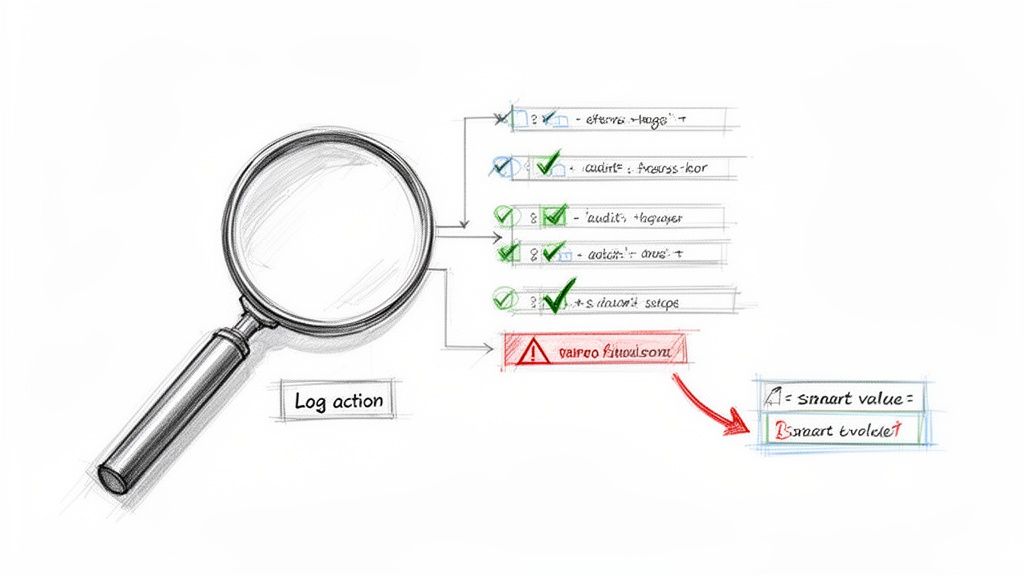
    A sketch illustrates a magnifying glass, log actions, and a flowchart of checks, warnings, and smart values.

    Thankfully, Jira gives you a powerful tool for this: the audit log. It's your command center for figuring out what’s really going on.

    The Audit Log Is Your Best Friend

    The audit log is the black box recorder for your Jira automation rules. Found in each rule's settings, it keeps a detailed history of every time that rule has tried to run. It tells you what happened, when, and why.

    When a rule misbehaves, the audit log should be your first stop. It gives you a play-by-play of the trigger, each condition, and every action, flagging the exact point of failure with an "ERRORED" status. This is a lifesaver for troubleshooting.

    Using the Log Action for Smarter Debugging

    What about when a rule runs successfully but produces the wrong outcome? This often happens when a smart value isn't behaving as expected. The best trick here is to temporarily add a Log action to the rule.

    This action prints the value of any smart value directly into the audit log. It’s the Jira equivalent of a print statement in code. It’s perfect for seeing what values are actually being used at runtime for things like {{issue.fields.summary}} or {{now.plusDays(5)}}.

    By adding a temporary Log action, you can see precisely what your smart values contain before the rule commits to its final action. It's a clean, non-disruptive way to confirm your logic is sound.

    Monitoring usage is also critical for managing your execution limits. Since the 2023 limit changes, some teams have discovered that a single inefficient rule was eating up 50-80% of their monthly quota. A runaway rule can burn through a free or standard plan's limits in days. Learn more about how to manage your Jira automation usage from Atlassian.

    Keep Your Automation Library Clean

    A healthy automation setup needs regular housekeeping. Don't let your rule list become a junkyard of old, disabled, or redundant automations.

    Set a quarterly reminder to review all your global and project-specific rules. As you review each one, ask:

    • Is this still relevant? Workflows evolve. A rule that was a lifesaver last year might be obsolete today.
    • Can this be more efficient? Could a broad trigger be narrowed down to save executions?
    • Does this have an owner? Every rule should have someone responsible for it.

    By disabling or deleting rules that are no longer serving a purpose, you'll declutter your instance and stop them from chipping away at your monthly execution limits.

    Got Questions About Jira Automation? We've Got Answers.

    As you build more sophisticated Jira automation rules, questions will pop up. That’s a good sign—it means you're pushing past the basics. Here are clear, straightforward answers to some of the most common questions.

    Think of this as your go-to reference to get you unstuck and help you build smarter, more reliable automations.

    Can Jira Automation Rules Work Across Different Projects?

    Yes, and this is one of Jira Automation's most powerful capabilities. You can create global rules that aren't tied to a single project. These are fantastic for standardizing processes across your entire organization, like a rule that automatically closes any stale ticket in any project after 30 days of inactivity.

    When creating a rule, select "Global" for its scope. A word of caution: a poorly configured global rule can cause widespread chaos, so they demand extra testing and a solid understanding of your execution limits.

    What Are the Most Common Reasons a Rule Fails to Run?

    When an automation rule doesn't fire, it's usually one of a few common culprits. Check these first:

    • Permissions Problems: The rule runs with the permissions of the user who triggered the action or a designated "rule actor." If that account can't edit a field or transition an issue, the rule will fail. This is the most common issue.
    • A Flawed JQL Condition: A typo or logical error in your JQL query will stop a rule in its tracks. Always test your JQL in Jira’s advanced issue search before plugging it into a rule.
    • Mismatched Statuses: The "Issue Transitioned" trigger is very literal. It will only fire if the issue moves directly from the exact "From" status to the "To" status you defined.

    How Many Automation Rules Can I Have?

    There's no hard limit on the number of rules you can create in Jira Cloud. You could have hundreds of rules in a single project.

    The real constraint isn't the number of rules, but the number of times they execute each month. Atlassian's limits are based on rule executions, which is why optimizing your rules to run only when necessary is so critical.

    A single, inefficient rule that runs constantly can chew through your monthly quota way faster than 50 well-designed, efficient ones. It’s all about efficiency, not volume.

    Is It Possible to Trigger a Rule from an External Tool?

    Yes, using an Incoming Webhook trigger. This gives you a unique URL that an external system can call to kick off a Jira automation.

    A great example is connecting your CI/CD pipeline. After a successful deployment, a tool like Jenkins or GitHub Actions could send a webhook to Jira. Your rule catches that signal, then automatically transitions the related tickets to "Done" and adds a comment with the release version. It's a powerful way to link your development work directly to your project tracking.


    Ready to move beyond basic rules and orchestrate complex, multi-step handoffs right inside your Jira issues? Harmonize Pro's Nesty app transforms your tickets into self-managing workflows with unlimited nested checklists, intelligent triggers, and automated quality gates. Eliminate missed steps and manual coordination for good.

    Discover how Nesty can extend your Jira automation capabilities today.
  • A Practical Guide to Jira Workflow Automation

    A Practical Guide to Jira Workflow Automation

    Jira workflow automation is a method for building simple, rule-based logic into your projects to handle repetitive tasks. Use it to create a series of if-this-then-that instructions that automatically transition tickets, notify the right people, and update fields without manual intervention. This guide will show you how to apply this strategy to make your operations run smoothly as you scale.

    Why Jira Workflow Automation Is a Game Changer

    Two people observe a hand-drawn workflow board with several process columns and text.

    Manual Jira updates are a significant time sink. Projects often get bogged down by tedious updates, slow handoffs between teams, and simple human error. For example, a developer might push their code but forget to move the ticket into the "Ready for QA" column. As a result, the testing team remains unaware that a task is waiting, bringing the entire process to a halt.

    This is the exact problem Jira workflow automation solves. It transforms your static Jira board into a dynamic, self-managing system. Instead of relying on individuals to remember every step in a complex process, you build rules that execute these tasks automatically.

    Moving Beyond Manual Drudgery

    The primary value of automation is reclaiming your team's most valuable resource: time. By automating routine administrative tasks, you enable your engineers, QA analysts, and project managers to concentrate on high-impact work.

    Here are common problems that you can eliminate with automation:

    • Slow Handoffs: Tickets no longer sit idle waiting for a manual status or assignee change. Automate these transitions to ensure work flows continuously.
    • Inconsistent Data: Enforce required fields upon ticket creation or transition. This eliminates the need to chase down information and ensures your reports are built from complete data.
    • Constant Context Switching: Allow developers to stay focused on coding instead of frequently switching to Jira for ticket updates. Integrate your Git repository to update tickets automatically based on developer actions.
    • Missed Notifications: Set up rules to automatically notify key stakeholders at critical workflow stages, ensuring everyone stays informed.

    The goal is not just to accelerate tasks, but to build a reliable and predictable system that reduces the mental load on your team. When the process works seamlessly, your team can focus on solving problems and innovating.

    The Tangible Impact on Your Team

    Implementing Jira workflow automation provides immediate, measurable benefits. It is a core reason why Jira is a market leader, controlling over 42% of the project-tracking market. Its automation engine is the foundation for workflows used by millions daily, demonstrating its value as an essential feature.

    The results are clear: tickets are resolved faster, and project data becomes more accurate and reliable. For teams looking to implement more structured processes, our guide on getting started with Nesty provides actionable steps for creating nested checklists and advanced triggers.

    Understanding The Building Blocks Of An Automation Rule

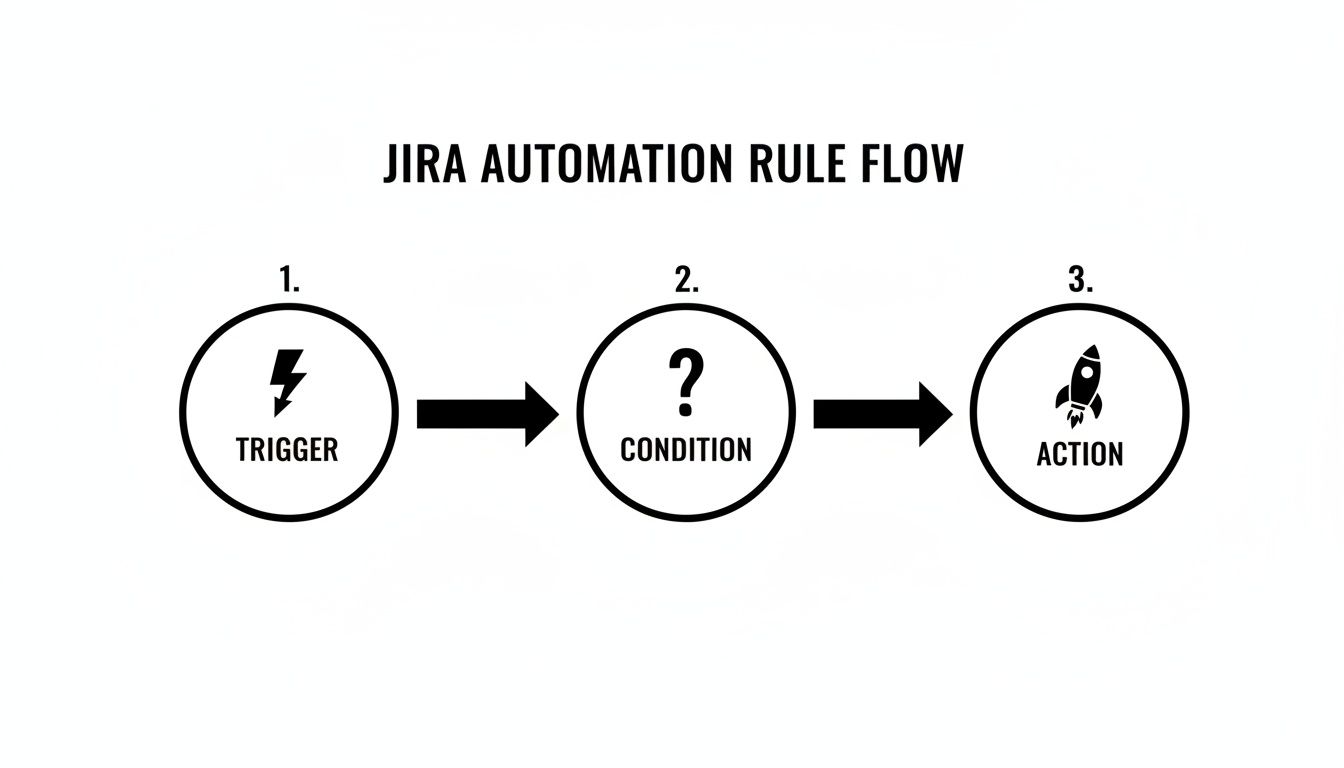
    To effectively use Jira workflow automation, you need to understand its fundamental logic. Every automation, regardless of its complexity, is composed of three core components: Triggers, Conditions, and Actions.

    This structure operates like a simple command: a catalyst (Trigger) initiates the process, a set of qualifiers (Conditions) confirms it should proceed, and a task (Action) is executed. Mastering this sequence is key to building automations that genuinely assist your team.

    Here is a breakdown of these components:

    Component Purpose Actionable Examples
    Trigger The "If this happens…" event that starts the rule. Issue Created, Field Value Changed (e.g., Priority is updated), Issue Transitioned (e.g., moves from "To Do" to "In Progress"), Comment Added.
    Condition The "…only if this is true…" checkpoint. The rule stops if conditions are not met. Issue Type = Bug, Status = In Review, Assignee is empty, or a JQL query like priority = Highest AND "Story Points" > 8.
    Action The "…then do that" task performed by the rule. Transition Issue, Edit Issue (e.g., add a label), Send Slack/Teams notification, Create sub-tasks, Add a Nesty checklist.

    This Trigger → Condition → Action framework is the foundation for everything from sending a simple notification to orchestrating a complex, multi-step deployment process.

    Triggers: The Starting Gun

    A Trigger is the event that initiates an automation rule. Your rule remains dormant until its specified trigger event occurs.

    These events can range from a specific user action to a scheduled time, giving you precise control over when your automations execute.

    Here are common triggers to implement:

    • Issue Created: Use this for setup tasks. When a new issue is logged, automatically assign a default component or add a standard "Definition of Done" checklist.
    • Field Value Changed: This is highly practical. For instance, trigger a rule the moment the Priority field is changed to Highest to escalate visibility.
    • Issue Transitioned: Fire the rule when an issue moves between statuses, such as from ‘In Progress’ to ‘In Review’, to notify the next person in the chain.
    • Version Released: Use this trigger for cleanup. Build a rule to automatically find and close all tickets associated with a version upon its release.

    Selecting the correct trigger is the critical first step. An incorrect choice can cause your rule to execute too frequently, not at all, or at inconvenient times.

    Conditions: The Brains Of The Operation

    If the trigger starts the process, the Condition decides whether it should continue. It acts as an "…only if this is true" checkpoint. After a trigger fires, Jira evaluates the conditions you've set. The rule proceeds to the action only if all conditions pass. If any condition fails, the rule halts.

    This is how you add precision to your Jira workflow automation. Conditions prevent your rules from running on every issue, allowing you to target very specific scenarios.

    A common mistake is building rules with only a trigger and an action. Conditions provide the necessary control, preventing a rule designed for bug reports from incorrectly running on new feature stories.

    Base your conditions on any data point within an issue. For example, use a JQL (Jira Query Language) condition to check if issueType = Bug AND priority = High. Alternatively, use a simpler field condition to check if the ‘Assignee’ field is empty. For advanced use cases, you can even check for a specific change in assignee to initiate a series of other checks.

    Actions: The Workhorse

    The final component is the Action—the "then do that" part of the rule. Once the trigger fires and all conditions are met, the action is the task the rule performs. This is the workhorse of your automation, executing repetitive tasks so your team doesn't have to.

    The range of available actions is extensive, covering everything from modifying the issue itself to communicating with external tools.

    Here are a few practical actions you can configure:

    • Transition Issue: Automatically move an issue to the next status in your workflow.
    • Edit Issue: Modify a field's value, such as setting a due date or adding a label.
    • Send a Notification: Ping a user, group, or channel in Slack or Microsoft Teams.
    • Create Sub-tasks: Instantly break down a larger story into predefined sub-tasks and assign them to the appropriate team members.

    By combining Triggers, Conditions, and Actions, you can construct powerful automations tailored to your team's specific workflow.

    Practical Automation Recipes You Can Use Today

    Understanding the theory of Jira workflow automation is useful, but applying it delivers tangible results. This section provides battle-tested automation recipes you can implement immediately to eliminate common bottlenecks and manual work.

    Flowchart illustrating the three steps of a Jira automation rule: trigger, condition, and action.

    Every automation rule follows a Trigger → Condition → Action sequence. Once you internalize this logic, you can analyze any manual process and break it down into an automatable workflow.

    Automatically Assign Bugs to the Right QA Lead

    A common bottleneck is bug triage, where new bugs sit in the backlog awaiting assignment. This recipe routes new bugs directly to the appropriate QA lead, preventing delays.

    Implement it with this configuration:

    • Trigger: Issue Created
    • Condition: Issue Type = Bug AND Component is not empty
    • Action: Use an If/else block to route the issue based on its component.
      • If: Component = "API"Action: Assign issue to Jane Doe
      • If: Component = "UI/UX"Action: Assign issue to John Smith
      • If: Component = "Database"Action: Assign issue to Emily Rogers

    With this rule active, bugs are immediately assigned upon creation, eliminating manual handoffs and ensuring they enter the QA queue without delay.

    Move a Task to “In Review” When a Pull Request is Opened

    Developers often face context switching when they finish coding, open a pull request, and then must remember to update the corresponding Jira ticket. This automation eliminates that manual step, keeping Jira synchronized with your development work.

    To set this up, ensure Jira is connected to your Git provider (e.g., GitHub or Bitbucket).

    • Trigger: Pull Request Created
    • Condition: (Optional but recommended) Status = "In Progress". This prevents the rule from moving a ticket backward in the workflow.
    • Action: Transition issue to "In Review"

    This rule provides immediate visibility to the entire team. Product managers can see what is ready for review, and QA can prepare test cases without waiting for a developer's status update.

    The key benefit is that Jira begins to reflect the actual state of work, rather than being an additional task for developers. The workflow follows the work, not the other way around.

    Auto-Close Stale Tickets and Keep Your Backlog Clean

    Backlogs often become cluttered with old, irrelevant tickets. This recipe functions as a digital janitor, automatically closing issues that have been inactive for an extended period.

    • Trigger: Scheduled (configure it to run daily or weekly).
    • Condition: Use a JQL query like Status = "Awaiting Customer Feedback" AND Updated < -90d to target issues untouched for 90 days.
    • Action: First, Add a comment such as, "Closing this due to inactivity. Please feel free to reopen it if the problem persists." Then, Transition issue to "Closed".

    This practice keeps your team focused on active work and improves the accuracy of your reporting by removing obsolete items from the backlog. Automating such tasks is a key driver behind the global workflow automation market's projected growth to over $45 billion. Industry reports indicate that smart automation can cut triage time by 30-60%, freeing up significant team capacity.

    Sync Parent Task Status with Its Sub-Tasks

    A parent story should not remain "In Progress" when all its sub-tasks are complete. This automation ensures the parent issue's status accurately reflects the state of its underlying work.

    • Trigger: Issue Transitioned (fires when any sub-task changes status).
    • Condition: First, verify that the triggering issue is a sub-task.
    • Action: Use the Branch rule / related issues option.
      • Branch for: Parent
      • Condition (on the parent): Add a condition to verify that all other sub-tasks of the parent are also in the "Done" status.
      • Action (on the parent): Transition issue to "Done"

    This creates a self-managing work hierarchy, which is particularly useful for complex features with numerous sub-tasks. For teams requiring even more structure, our pre-built Nesty templates offer advanced capabilities. Learn how to add nested checklists and quality gates to enforce your Definition of Done in our guide to Nesty developer workflows.

    These recipes are a starting point. By creatively combining Triggers, Conditions, and Actions, you can configure Jira to match your team's real-world processes, saving time and building a more reliable system.

    Advanced Techniques for Complex Workflows

    Once you master the basics, you can begin automating more complex processes in Jira. Moving beyond simple trigger-action recipes allows you to tackle your team's most nuanced workflows. These advanced techniques transform your rules from simple helpers into the operational core of your project.

    Use these methods to build automations that reflect your team's unique processes, making the system adapt to your workflow rather than forcing your workflow to fit the tool.

    Handling Multiple Scenarios with Branching Logic

    A standard automation rule follows a linear path. However, real-world workflows often have a single trigger that can lead to multiple outcomes. Use branch rules to manage these scenarios effectively.

    Branching allows you to create multiple "if-this-then-that" paths within a single rule. Instead of building five separate automations for the same trigger, you can create one master rule that intelligently routes the work.

    For example, when a developer merges a pull request, the next step can vary:

    • A bug fix might need to go to "Ready for Regression Testing."
    • A new feature should move to "Ready for UAT."
    • A small tech debt story can go straight to "Done."

    A branch rule handles this by using the Pull Request Merged trigger and then branching based on the issueType to transition the issue to the correct status. This approach keeps your automation logic clean, organized, and easier to manage than multiple overlapping rules.

    The primary advantage of branching is consolidation. You create a single source of truth for a key workflow step, which simplifies debugging and future updates.

    Making Your Automations Dynamic with Smart Values

    Static actions have limitations; you cannot hard-code every possible assignee or comment for every scenario. Smart Values solve this by letting you pull dynamic information from your issues and inject it directly into your automation actions.

    Smart Values are placeholders, like {{issue.summary}} or {{reporter.displayName}}, that Jira replaces with real-time data when the rule executes. They add context and personalization to your automations.

    Here are ways to use them immediately:

    • Personalized Notifications: Instead of a generic message, send a Slack notification like: "Hey {{assignee.displayName}}, the priority on '{{issue.summary}}' was just raised to Highest by {{initiator.displayName}}."
    • Dynamic Comments: When escalating an issue, automatically add a comment that tags relevant stakeholders and provides context: @"squad.lead", the due date for this issue was just changed to {{issue.duedate}}. Please review.
    • Copying Field Data: Sync information between related issues. When creating sub-tasks, use Smart Values to automatically copy the parent issue's Fix Version and Component fields to the new sub-tasks.

    Using Smart Values makes your automations more informative and feel less robotic, acting more like a helpful team member who provides the right information at the right time.

    Running Automations on a Schedule

    Not all automations should be triggered by a user action. Some of the most effective rules run in the background, maintaining project hygiene and data accuracy. For these time-based processes, use scheduled rules.

    Set these rules to run at a specific interval—such as daily or weekly. The rule then executes a JQL query to find a batch of issues meeting your criteria and performs an action on them.

    This is ideal for housekeeping tasks:

    • Find Stale Issues: Create a daily rule to find all issues that have not been updated in 30 days and add a comment requesting a status update.
    • Identify Blocked Work: Set up a rule to run each morning that identifies high-priority issues with the "Blocked" flag and sends a summary to a project manager's Slack channel.
    • Enforce SLAs: For support teams, a scheduled rule can run hourly to find tickets approaching their SLA breach time and automatically escalate their priority.

    Scheduled rules help you proactively manage your workflow instead of constantly reacting to problems after they have already caused delays.

    Integrating with External Tools Using Webhooks

    Your workflow often extends beyond Jira, connecting to code repositories, CI/CD pipelines, and communication platforms. Webhooks enable your Jira automation to interact with these external systems.

    A webhook is an automated message sent from Jira to another application when a specific event occurs. Configure an action in your automation rule to "Send web request." When the rule runs, Jira sends an HTTP POST request with relevant issue data (in JSON format) to a URL you provide.

    This enables deep, cross-tool integration. For instance, a development team can link Jira to their CI/CD pipeline:

    1. Trigger: An issue is transitioned to "Ready for Deployment."
    2. Action: A webhook is sent to a tool like Jenkins or GitHub Actions.
    3. Result: The external tool receives the webhook, reads the issue key from the JSON payload, and automatically initiates the correct deployment script.

    This creates a seamless flow from development to production, orchestrated entirely by your Jira workflow. By combining these advanced techniques—branching, Smart Values, scheduled rules, and webhooks—you can build an intelligent system that automates even your most intricate processes.

    How to Manage Automation Rules Without Creating Chaos

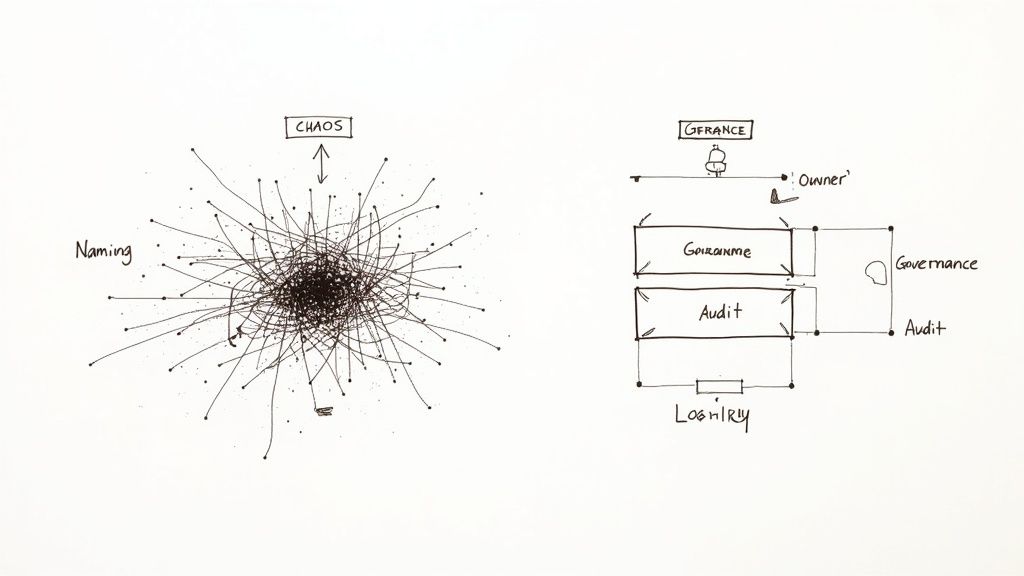
    Hand-drawn diagrams illustrating the contrast between chaotic naming and structured governance and audit workflows.

    As your team adopts automation, it's easy for rules to become a tangled, undocumented mess, leading to conflicts, silent failures, and maintenance challenges. This "rule sprawl" is a common problem that arises without a clear governance plan.

    To prevent this, establish a simple governance framework. These guidelines will help keep your Jira workflow automation scalable, transparent, and manageable as your team grows.

    Establish Clear Naming Conventions

    The first step is to enforce a consistent naming convention for every rule. A vague name like "Update Ticket" creates future confusion. In contrast, a name like [DEV] → [QA] | Transition to In Review on PR Creation clearly communicates the rule's purpose, scope, and trigger.

    A robust naming structure should include:

    • Scope or Team: Identify the relevant team, such as [Marketing], [DevOps], or [Support].
    • Trigger Event: Use clear terms like On PR Merge or On Bug Creation.
    • Primary Action: Describe the main task, such as Assign to QA Lead or Close Stale Ticket.

    This discipline makes your automation library easy to scan and is invaluable for debugging or locating a specific rule.

    Use Labels to Organize and Filter Rules

    Jira allows you to add labels to your automation rules. Use this feature to group related automations, effectively creating folders that let you filter your list and find what you need quickly.

    Think of labels as an organizational toolkit. Create labels like notifications, ci-cd, triage, or housekeeping. This enables you to instantly view all rules related to a specific function, regardless of their project.

    This is highly effective for auditing. If you suspect an issue with your notification system, filter by the notifications label to review all relevant rules at once, instead of searching through a long, unsorted list.

    Define Ownership and Monitor Usage

    Not all rules are equal. Enterprise governance often requires a tiered approach. Allow team leads to manage project-specific rules, but assign a designated owner or a small governance team to any global rules that affect multiple projects.

    This is crucial because automation is a finite resource. Atlassian plans have execution limits, and exceeding them can throttle your instance or incur extra costs. Central ownership for global rules helps prevent redundant or inefficient automations from consuming your monthly quota. For further reading, there are excellent governance models for Jira on dev.to available.

    Make it a practice to regularly review the audit log for failures and monitor your usage statistics. If a single rule is responsible for 40% of your monthly executions, investigate whether it can be optimized. Proactive monitoring ensures your system remains healthy and performant, supporting your organization's growth.

    Frequently Asked Questions About Jira Automation

    As you implement Jira workflow automation, you will likely encounter specific challenges. Here are answers to some of the most common questions from teams getting started.

    Can Automation Rules Run in a Specific Order?

    A frequent question is whether you can force an execution order when multiple rules share the same trigger.

    The short answer is no. Jira processes rules triggered by the same event asynchronously, so you cannot guarantee their execution order.

    The best practice is to consolidate the logic into a single, smarter rule. Instead of creating three separate rules, build one master rule that uses branching logic (e.g., if/else blocks) to handle the different conditions. This approach makes the execution path predictable and simplifies debugging.

    How Do I Test an Automation Rule Without Affecting Live Data?

    To avoid accidentally impacting your production project, test your automation rules in a safe environment.

    The recommended method is to create a dedicated "sandbox" project. Clone your main project’s workflow and settings to create a safe space where you can build and refine rules using test issues.

    Another practical tip is to add a temporary condition to your rule, such as creator = currentUser(). This ensures the rule will only run on issues you create. Once you have confirmed it works correctly, remove the condition to deploy it.

    Pro-Tip: Use a "manual trigger" for testing. Configure the rule to fire only when you click a specific button on an issue. This gives you complete control over when and where the automation runs during the testing phase.

    What’s the Difference Between Project and Global Rules?

    Understanding this distinction is key to keeping your Jira instance organized.

    • Project Rules: These are created within a specific project and can only affect issues in that project. They are ideal for team-specific processes and can be managed by project administrators.

    • Global Rules: These are configured by a Jira administrator and can run across multiple projects or your entire Jira site. Use them to standardize processes everywhere, such as ensuring every "Bug" issue created in any project receives a specific label.

    Knowing when to use each type helps prevent "rule sprawl" and keeps your automations manageable as your organization scales.


    Ready to go beyond basic automation and build truly intelligent, structured workflows? Harmonize Pro's flagship app, Nesty, transforms your Jira issues with unlimited nested checklists, quality gates, and smart triggers to automate complex handoffs for Dev→QA, deployments, and onboarding.

    Learn how Nesty can enforce your Definition of Done and finally put an end to all that manual busywork.

    Article created using Outrank