Tag: Jira dashboards

  • How to Create a Filter in Jira From Basic Search to JQL

    How to Create a Filter in Jira From Basic Search to JQL

    Creating a filter in Jira is often one of the first "aha!" moments for new users. It's the point where you go from just tracking tasks to actively managing your workflow. Thankfully, you don't need to be a query wizard to get started.

    Create Your First Jira Filter in Minutes

    The quickest way to get started is with Jira's Basic Search. Think of it as a set of simple, dropdown-driven controls that let you instantly slice and dice your issues without writing a single line of code. It’s intuitive, powerful, and the perfect entry point.
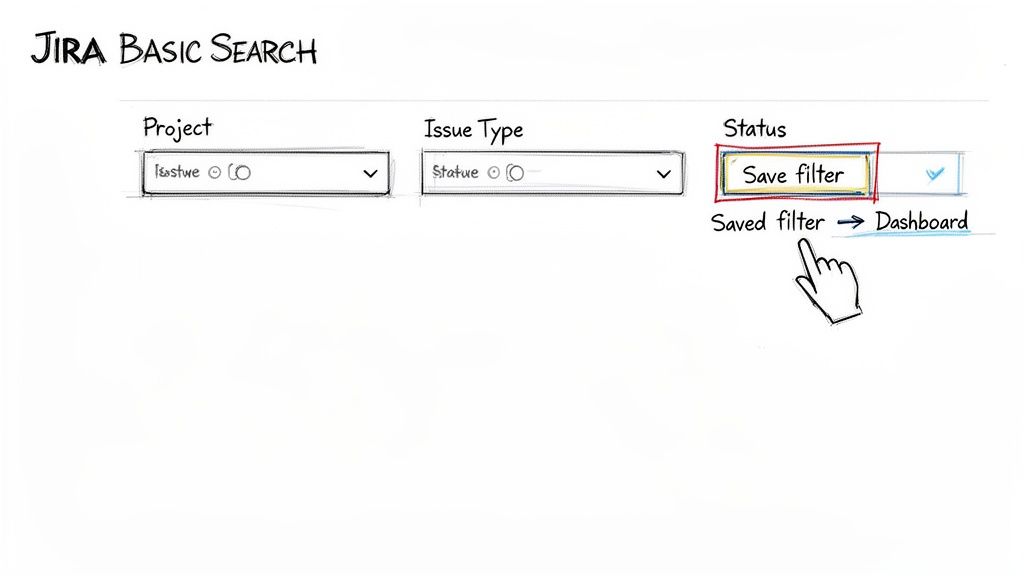
    Sketch of Jira basic search showing project, issue type, and status filters, with an option to save a filter.

    This isn't just a niche feature; it's fundamental to how experienced teams use Jira. According to 2025 statistics from Atlassian's community forums, over 85% of Atlassian Cloud users create at least one custom filter in their first month. It’s a clear indicator of how essential this skill is for getting real value out of the platform.

    Getting Started with Basic Search

    Let’s build a filter for a common scenario: you need a clean view of all open tasks currently assigned to you in a specific project.

    Here are the exact steps to build that view:

    • First, navigate to Filters in the top navigation bar and select View all issues.
    • Ensure you are in "Basic" search mode. If the interface shows "JQL," click the link to switch it back.
    • Now, use the dropdown menus to define your search:
      • Project: Set this to your current project (e.g., "Apollo Project").
      • Assignee: Choose "Current User." This makes the filter dynamic—it will always show tasks assigned to whoever is viewing it.
      • Status: Select both "To Do" and "In Progress."

    The issue list below updates instantly as you select these options. To save this view, click the Save as button at the top. Give it a clear name like "My Open Apollo Tasks." This makes it easy to find and reuse later.

    Why Your First Filter Matters

    That simple search you just saved is far more than a bookmark. It’s a reusable building block that transforms Jira into a personalized, high-signal workspace.

    Key Takeaway: A saved filter isn't just a search; it's a dynamic, reusable view of your work that can power dashboards, boards, and automated reports.

    For instance, you can immediately use the "My Open Apollo Tasks" filter to:

    • Power a gadget on your personal dashboard for an at-a-glance view of your workload.
    • Define quick filters on a Kanban board to easily toggle this view on and off.
    • Set up a daily email subscription that sends you a summary of your tasks.

    Mastering Basic Search is your first step toward making Jira work for you, turning it from a simple data repository into an active project management partner.

    Jira Basic Search vs JQL Search at a Glance

    As you get more comfortable, you'll need to decide when to use Basic Search versus its more powerful sibling, JQL. The choice depends entirely on the complexity of your question.

    This table gives you an actionable breakdown:

    Feature Basic Search JQL (Jira Query Language)
    Use Case Ideal for quick, straightforward searches based on common fields like project, status, and assignee. Necessary for complex, multi-layered queries involving date ranges, issue history, or custom fields.
    Complexity Beginner-friendly, with no coding required. Uses intuitive dropdown menus and text boxes. Requires learning a specific syntax of fields, operators, and values. Has a steeper learning curve.
    Capabilities Limited to the fields and options presented in the UI. Cannot perform historical or relative date searches. Offers complete control, allowing you to search for virtually any data point within Jira.

    For most day-to-day needs, Basic Search is more than enough. But when you need to ask very specific questions—like "show me all bugs created in the last 7 days that haven't been updated"—JQL is the tool you'll need.

    Unlocking Advanced Control with JQL

    While Basic Search is great for getting started, you'll eventually need to ask questions that are too complex for a dropdown menu. That’s your cue to dive into Jira Query Language (JQL). Think of it as switching from a point-and-shoot camera to a DSLR—you gain full control to frame the exact shot you need.

    With JQL, you move from picking options to writing precise commands. This lets you build a filter for literally any scenario you can dream up.
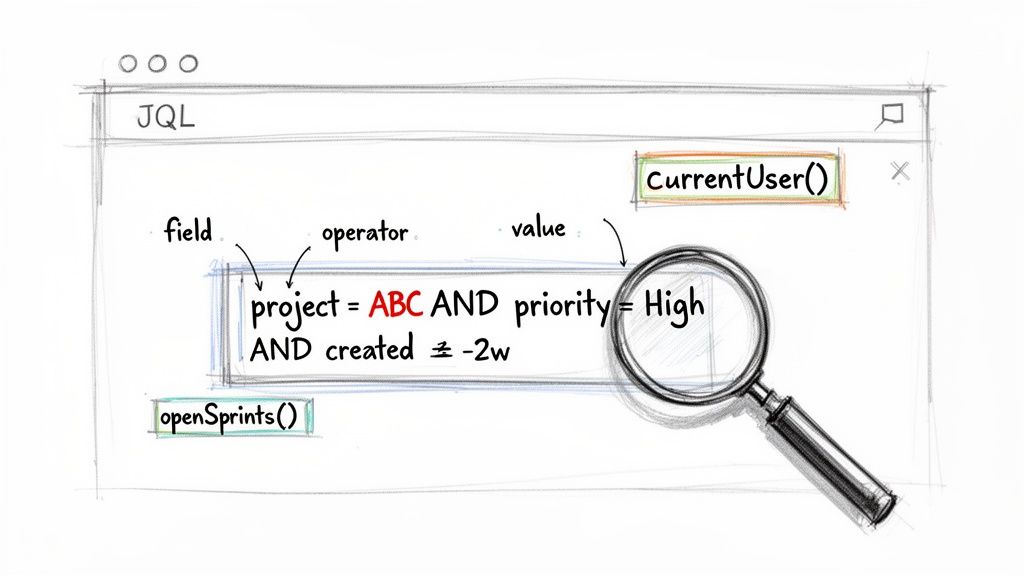
    JQL query example demonstrating fields, operators, and values, with a magnifying glass highlighting part.

    Its role in modern project management is huge. Projections show that by 2026, Jira filters will be the backbone of 70% of all dashboards in active production environments. We're also seeing filter creation skyrocket, expected to hit 2.5 million new filters each year across Atlassian's global base of over 250,000 organizations. If you're interested in the data behind these trends, you can discover more insights about Jira usage at scale in this deep-dive presentation.

    Understanding the JQL Building Blocks

    Every JQL query, no matter how complex, is made of just three parts. Master these, and writing your own queries will become second nature.

    • Fields: These are the data points on a Jira issue—think assignee, status, project, or priority. Don't forget this includes any custom fields your Jira admin has set up!
    • Operators: These are the connecting words of your query, like = (equals), != (does not equal), IN (matches one of many), and < (less than).
    • Values: This is the specific data you're looking for. It could be a username, a status like "In Review," a project key ("AP"), or a date.

    Putting it all together is simple. The basic search we created earlier would look like this in JQL: project = "Apollo Project" AND status = "To Do". It's a logical sentence that Jira can understand.

    Creating Practical JQL Filters

    The real power of JQL comes alive when you build queries that the basic search just can't handle. Let's walk through a couple of real-world examples that solve common headaches.

    Example 1: Find High-Priority Bugs Created Recently

    As a QA lead, you need a list of all critical bugs logged in the last two weeks for a specific project. Use this JQL:

    project = "Apollo Project" AND issuetype = Bug AND priority = Highest AND created >= -14d

    This query instantly pulls a targeted list of the most urgent issues needing attention. The created >= -14d part uses a relative date, something the basic search simply can’t do.

    Example 2: Identify Blocked Tasks for Your Team

    As a team lead, you need to know what's stuck. This JQL query will show you every task assigned to your team that’s currently marked as "Blocked."

    assignee IN membersOf("apollo-dev-team") AND status = "Blocked"

    The key here is the membersOf() function. Instead of manually listing every person on your team, you can reference the Jira group. This is more efficient and automatically stays up-to-date as the team changes.

    Pro Tip: Use dynamic functions like currentUser() and openSprints() to build powerful, reusable filters. A query like assignee = currentUser() AND sprint IN openSprints() is invaluable—it shows whoever is viewing it their own work in any currently active sprint.

    By mastering these simple JQL structures, you'll go from just finding information to extracting real, actionable intelligence from your Jira projects.

    Managing and Sharing Your Jira Filters

    So, you’ve built the perfect JQL query. That's a great start, but it’s only half the job. A filter’s real power isn’t just in finding issues—it’s in making that information easy to find, understand, and act on for both you and your team.

    If you don't manage them properly, your Jira instance can quickly turn into a digital junkyard of confusing, outdated, or duplicate filters. It creates more noise than signal. This is exactly why getting your saving and sharing habits right from the beginning is so important. A well-named, correctly permissioned filter goes from being a personal search to a valuable team asset.

    Think about the difference between a private filter like ‘My Overdue Tasks’ and a shared one like ‘Team’s Current Sprint Backlog.’ One is for your own accountability, while the other gives the entire team the visibility it needs to stay on track. This private vs. public distinction is fundamental.

    Since 2020, the use of Jira filters has exploded. Today, 95% of agile teams rely on them daily. In fact, enterprise audits in 2025 showed that users create over 1.2 filters per user every month. A typical workflow might be creating a query like assignee = currentUser() AND duedate < now(), saving it privately, and then sharing a broader one like status = Open with the entire organization. You can dig into more of these usage stats over on Atlassian's community forums.

    Setting Up Clear Naming Conventions

    Before you hit "Save," stop and think about the name. "Bug Filter" isn't going to cut it a week from now. A truly useful name should immediately answer three questions: What does this show? Who is it for? And is there a specific context?

    Adopt a simple but effective naming convention like this:

    • Team-Context-Content: [Marketing] - Q3 Campaign - Blocked Tasks
    • Purpose-User-Scope: [Report] - My Open Bugs - All Projects
    • Project-View-Status: [Apollo] - Dev Team View - Ready for QA

    A consistent structure makes your filters instantly searchable and easy to understand. It stops teammates from creating redundant queries and is a cornerstone of using Jira effectively at scale.

    Mastering Filter Permissions

    After you save a filter, Jira will ask you to set permissions for who can view and edit it. Don't just click through this step—it’s critical for controlling who sees what.

    Key Insight: Filter permissions are not just about security. They're about reducing clutter and making sure the right people see the right information. Over-sharing creates a mess and buries the filters that actually matter.

    Here’s an actionable guide to picking the right permission level:

    • Private: This is the default. Use it for your personal to-do lists, one-off queries, or any filters you're still testing.
    • Group: Share a filter with a specific set of people, like apollo-dev-team or qa-engineers. This is the best choice for team-specific boards and dashboards.
    • Project: Make the filter visible to everyone with access to a specific project. It’s great for cross-functional views, like a release readiness checklist involving multiple teams.
    • Organization: Share the filter with every logged-in user in your Jira instance. Use this sparingly for globally relevant information, like a filter for ‘All Open Production Incidents.’

    Getting permissions right is a huge part of good team alignment. When information flows to the right people at the right time, you’ll see a massive improvement in team collaboration and a lot less back-and-forth communication.

    Putting Filters to Work on Boards and Dashboards

    This is where you turn saved queries into the living core of your team’s daily workflow. A well-crafted filter is the engine that drives visibility, transforming raw data into real insights on the tools you use every single day—your boards and dashboards.

    Without this step, a filter is just a saved search sitting in a list. By connecting it to a board or a dashboard gadget, you give it purpose and turn it into a command center for your team.

    Powering Jira Boards with Custom Filters

    Every Agile board in Jira, whether Scrum or Kanban, runs on a saved filter. That filter dictates exactly which issues show up. Many teams overlook this, sticking with the default "show me everything in the project" filter and missing out on a powerful feature.

    By creating specific filters for your boards, you can build highly specialized views that solve frustrating team bottlenecks.

    Here are two actionable ideas you can implement today:

    • A Bug Triage Board: Create a filter issuetype = Bug AND status = "Awaiting Triage". Hook this up to a new Kanban board to give your QA and product teams a dedicated space to prioritize incoming bugs, separate from the noise of other development work.
    • A Release Readiness Board: Build a filter like fixVersion = "Q4-Release" AND status not in (Closed, Done). This gives stakeholders one clean, clear view of exactly how close you are to hitting your release milestone.

    To change a board's filter, navigate to your board, click the three dots () in the top-right corner, and choose Board settings. From there, go to the General tab to edit the Filter that powers the entire board.

    Visualizing Data on Dashboards

    If boards are where the work gets done, dashboards are your project's mission control. And filters are what feed mission control with real-time data.

    One of the most valuable gadgets you can add to any dashboard is the Filter Results gadget. It displays the live results of any saved filter you choose, giving you an immediate summary of what's most important.

    For example, add a gadget to your team's main dashboard powered by a filter for "Stories Awaiting QA Handoff." Suddenly, everyone on the team can see the QA queue at a glance. This simple action smooths out handoffs and stops work from sitting idle.

    Key Takeaway: Using filters on dashboards moves you from reactive project checking to proactive project monitoring. You start spotting potential problems as they develop, not after they've already caused a delay.

    Dashboards aren't just for you; they're for communicating status without calling another meeting. By visualizing your filter data, you can create powerful, automated summaries that keep everyone in the loop. If you want to take this a step further and turn this data into polished summaries for stakeholders, check out our guide on how to create a report in Jira. It’s the perfect next step for getting even more value out of your filters.

    Automating Workflows with Jira Filters

    Saved filters are much more than just shortcuts to your data. They're the secret sauce for kicking off powerful automated workflows, saving your team from countless hours of mind-numbing manual tasks. By plugging your filters into Jira’s automation engine, you can stop creating static reports and start building dynamic, self-managing processes.

    This flowchart shows how a single JQL filter can become the backbone for both visibility and automation across Jira.
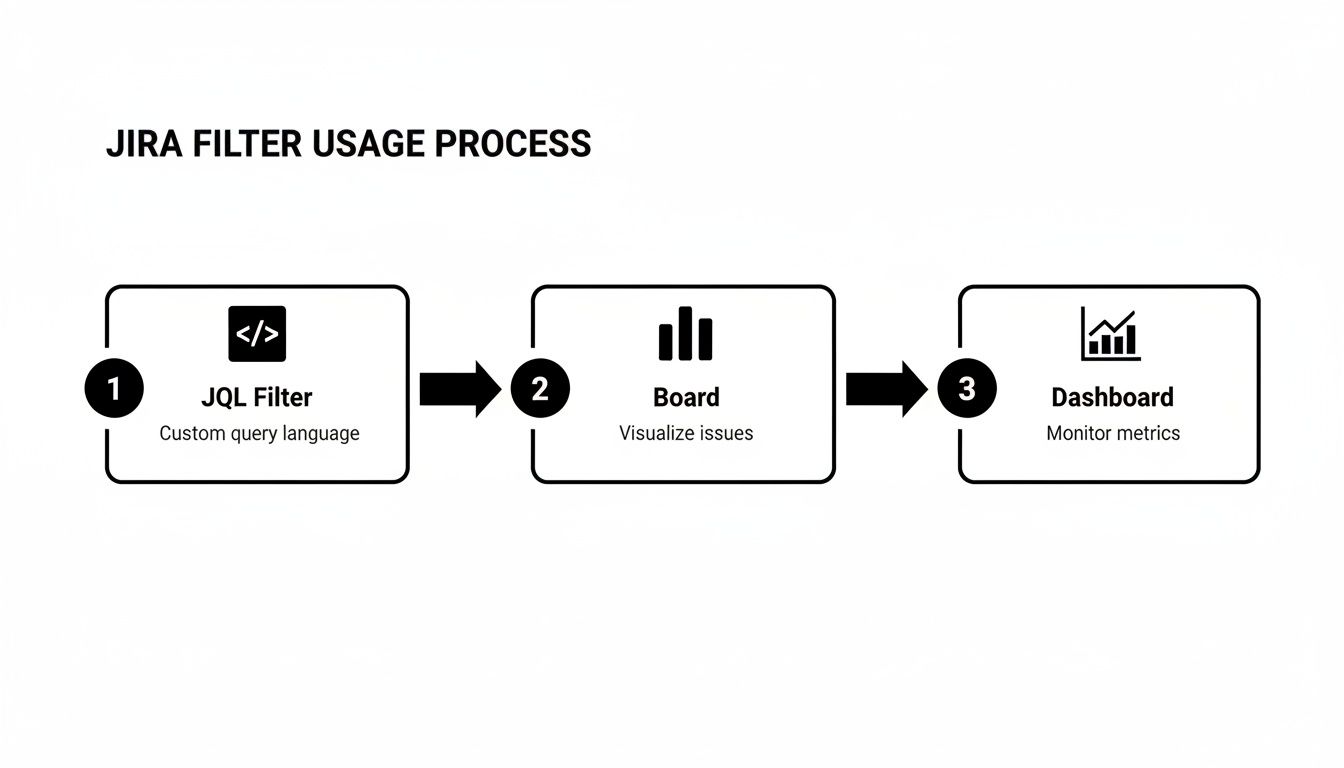
    A flowchart outlining the Jira filter usage process from JQL Filter to Board and Dashboard.

    As you can see, a focused JQL query feeds into a saved filter, which in turn powers the boards and dashboards your team relies on for daily work and high-level reporting. It all starts with the filter.

    Start Simple with Email Subscriptions

    One of the easiest wins in Jira automation is subscribing to a filter. A subscription is just a scheduled email that sends the results of your saved filter to you or a group. It's a fantastic way to keep stakeholders in the loop without them ever having to log into Jira.

    For instance, create a filter for all high-priority bugs and set it to automatically email a summary to your project manager every morning at 8 AM.

    Here’s how to set it up:

    1. Navigate to your saved filter from the Filters menu.
    2. Click the Details button at the top of the page.
    3. Select + New subscription.
    4. Define the recipients (yourself, a group, a specific user) and the schedule (daily, weekly, etc.).

    This simple action transforms a passive report into a proactive notification, ensuring critical info lands directly in the right inboxes.

    Triggering Advanced Automations

    Beyond simple email pings, saved filters can be the key condition for sophisticated automation rules. This is where you can truly bend Jira to your will, automating handoffs, status updates, and notifications.

    Key Insight: When a filter is used as an automation trigger, you're not just finding issues—you're telling Jira to do something the moment an issue matches that criteria. This is the heart of a proactive, event-driven workflow.

    Let's automate a common Dev-to-QA handoff. Create a filter named "Ready for QA" with a JQL query like this: status = "In Review" AND "Dev Complete[Checkbox]" = Checked.

    From there, build an automation rule that runs on a schedule—say, every 15 minutes—and checks for any issues matching your "Ready for QA" filter. When it finds a match, it can automatically:

    • Transition the status from "In Review" to "In QA."
    • Reassign the issue from the developer to the QA lead.
    • Post a notification in your team's Slack channel.

    Just like that, the tedious manual handoff process is gone. It's completely automated, which cuts down on delays and ensures nothing ever falls through the cracks. This is just one example of building a smarter process, and you can dive much deeper into setting up these kinds of intelligent systems in our complete guide to Jira workflow automation.

    And if you're looking to push Jira's capabilities even further with external tools, you might want to explore Zapier alternatives for AI automation to connect Jira to the rest of your tech stack.

    Got Questions? Common Jira Filter Hurdles Solved

    Even as you get comfortable with creating filters, a few common questions tend to pop up. Think of this as a quick troubleshooting guide for those little roadblocks that can get in the way of your workflow.

    What’s the Real Difference Between a Filter and a Queue?

    This is probably one of the most common points of confusion, especially if you spend time in Jira Service Management projects. They both show you a list of issues, so what gives?

    Here’s the breakdown:

    • A filter is your all-purpose, go-anywhere search. It’s a saved JQL or Basic search that you can plug into dashboards, boards, reports, and email subscriptions. It’s the foundational tool for finding and grouping issues across all of Jira.
    • A queue is a specialized tool built specifically for Jira Service Management. It helps service teams triage and manage incoming requests, often with a focus on SLAs. While queues are built using JQL, they live exclusively within the service project.

    The easiest way to think about it is this: every queue is powered by a filter, but not every filter is a queue. A queue is just a specific application of a filter designed for a service desk.

    "My JQL Query Is Perfect, So Why Is It Showing Zero Results?"

    We've all been there. You craft what feels like the perfect JQL query, hit enter with confidence, and… nothing. Zero issues found. It’s maddening, but the fix is usually simpler than you think.

    When your query comes up empty, run through this mental checklist.

    First, hunt for syntax errors. A tiny typo, like a missing quote or spelling assignee with one 's', can break everything. Jira's JQL editor is pretty good at flagging these with red squiggly lines, so pay attention to its hints.

    Next, double-check your field values. Are you searching for status = "Done" when your workflow actually calls that status "Closed"? JQL needs an exact match. This is also a classic trip-up with usernames or component names; they have to be perfect.

    My Go-To Debugging Trick: When a complex query fails, I strip it down to its simplest part (like project = "PROJ"). If that works, I add back one condition at a time. The moment the results vanish, I've found the part of the query that's causing the problem.

    Finally, don't forget about permissions. You can't find what you can't see. If your JQL is flawless and you know the issues exist, the problem might not be your query at all—it could be that you don't have the necessary project permissions to view those specific issues.


    Ready to push your filters beyond just viewing issues? Harmonize Pro builds Nesty, an app that lets you use saved filters to trigger powerful, self-managing workflows directly inside a single Jira issue. Imagine turning a "Ready for QA" filter into an automated process that assigns checklists, notifies the right people, and enforces quality gates without any manual effort. See how you can build smarter, faster processes and keep your team perfectly in sync by exploring Nesty.

  • How to Create Filters in Jira to Streamline Your Workflow

    How to Create Filters in Jira to Streamline Your Workflow

    To create a filter in Jira, navigate to the Issues dropdown menu and select Search for issues. Use the basic search dropdowns for a quick query, or switch to the advanced Jira Query Language (JQL) editor for more specific criteria. Once you see the results you need, click Save as, give your filter a descriptive name, and save it for future use.

    Why Mastering Jira Filters Is a Game Changer

    Before we jump into the step-by-step, let's establish why filters are critical. They are the building blocks that power your team's Kanban board, executive dashboards, and automated workflows. Mastering filters is the first step in transforming Jira from a simple task list into a powerful work management engine.

    Well-crafted filters cut through the noise, creating focused, actionable views for daily stand-ups and long-term planning.

    • Software Teams: Use filters to isolate bugs for an upcoming sprint, track all stories linked to a feature epic, or create a view of everything currently blocked or awaiting code review.
    • QA Engineers: Build bug triage queues with filters that instantly surface new, critical defects. Set up views for regression testing cycles or monitor tickets sent back to development.
    • Product Managers: Create release-health dashboards, track feature progress across multiple teams, and spot scope creep by filtering for issues added after a sprint has started.

    The Foundation of Jira's Most Powerful Features

    Learning how to create filters is essential because these saved queries are the core logic behind Jira's most advanced features. The same filter that shows you a list of overdue tasks can also be the trigger for a powerful automation rule.

    For example, a filter that finds all issues in a "Ready for QA" status for more than 24 hours can trigger an automation to reassign the ticket and notify the team on Slack. This turns a passive list into a proactive workflow, smoothing out the developer-to-QA handoff. This level of process control is a key part of learning how to improve team collaboration within Jira.

    Filters aren't just for you; they become the shared language your team uses to define work. A clearly named filter like "P1 Bugs – Current Release" ensures everyone—from a junior dev to the VP of Engineering—is looking at the exact same set of issues. It eliminates confusion and keeps everyone aligned on what matters most.

    Powering Dashboards and Reporting

    The impact of good filters extends to management and executive reporting. Since Jira's launch in 2002, filters have remained a core feature. In most organizations, over 70% of dashboards rely on at least one saved filter to populate gadgets like Issue Statistics or the Two-Dimensional Filter Statistics chart. These gadgets are the primary lens executives use to gauge progress.

    For tools like Harmonize Pro’s Nesty, these filters define which issues are pulled into automated nested workflows. You can find practical discussions and insights on this topic at the Atlassian Community.

    Building Your First Filter: From Basic Search To JQL

    Your journey into mastering Jira filters starts with the Basic Search. This is the most direct way to get started, letting you select criteria from simple dropdown menus. Use it to quickly find what you need without learning any special syntax.

    To begin, select a Project, Issue Type, Status, and Assignee. In just a few clicks, you can generate a list of all "To Do" bugs assigned to you in the "Phoenix Project." This is perfect for immediate, one-off searches.

    However, your questions will become more complex. What if you need to see issues from two different projects? Or find tasks updated in the last 48 hours that are still open? This is where Basic Search is limited, and you'll need a more powerful tool.

    Transitioning to Advanced Search With JQL

    Switch to the Advanced search mode to unlock Jira Query Language (JQL). While the empty search bar can seem intimidating, JQL is the key to building precise, reusable filters that drive professional workflows. It’s more like writing a specific, logical sentence than coding.

    Every JQL query consists of a few key components:

    • Fields: The attribute you're searching for, like project, status, assignee, or priority.
    • Operators: The relationship between a field and its value, such as = (equals), != (is not), IN (is one of), and > (is greater than).
    • Values: The specific data you want to find, like the project name 'Phoenix Project' or a status like 'In Progress'.
    • Keywords: The logic that connects your criteria, primarily AND and OR.

    For example, a simple JQL query might look like this: project = "Phoenix Project" AND status = "To Do". This provides the same result as our basic search but creates a foundation you can expand upon.

    The Anatomy of a Powerful JQL Query

    JQL's real power lies in handling complexity and change. Instead of searching for static values, you can use functions to create filters that are always current.

    Let’s walk through a real-world example. A team lead needs to see all critical bugs from two projects, "Phoenix" and "Orion," but only those that have been untouched for a week or more.

    Here is the JQL to accomplish this:
    project IN ("Phoenix", "Orion") AND issuetype = Bug AND priority = Highest AND updated <= -7d

    Let's break this down. project IN ("Phoenix", "Orion") efficiently searches both projects at once. The key part is updated <= -7d. This dynamic function finds any issue that has not been modified in the last seven days. This type of dynamic search is impossible with basic dropdowns.

    Pro Tip: Start typing directly in the JQL editor. Jira provides instant feedback, showing a green checkmark for correct syntax and a red 'x' with helpful suggestions for errors. This real-time validation is the fastest way to learn.

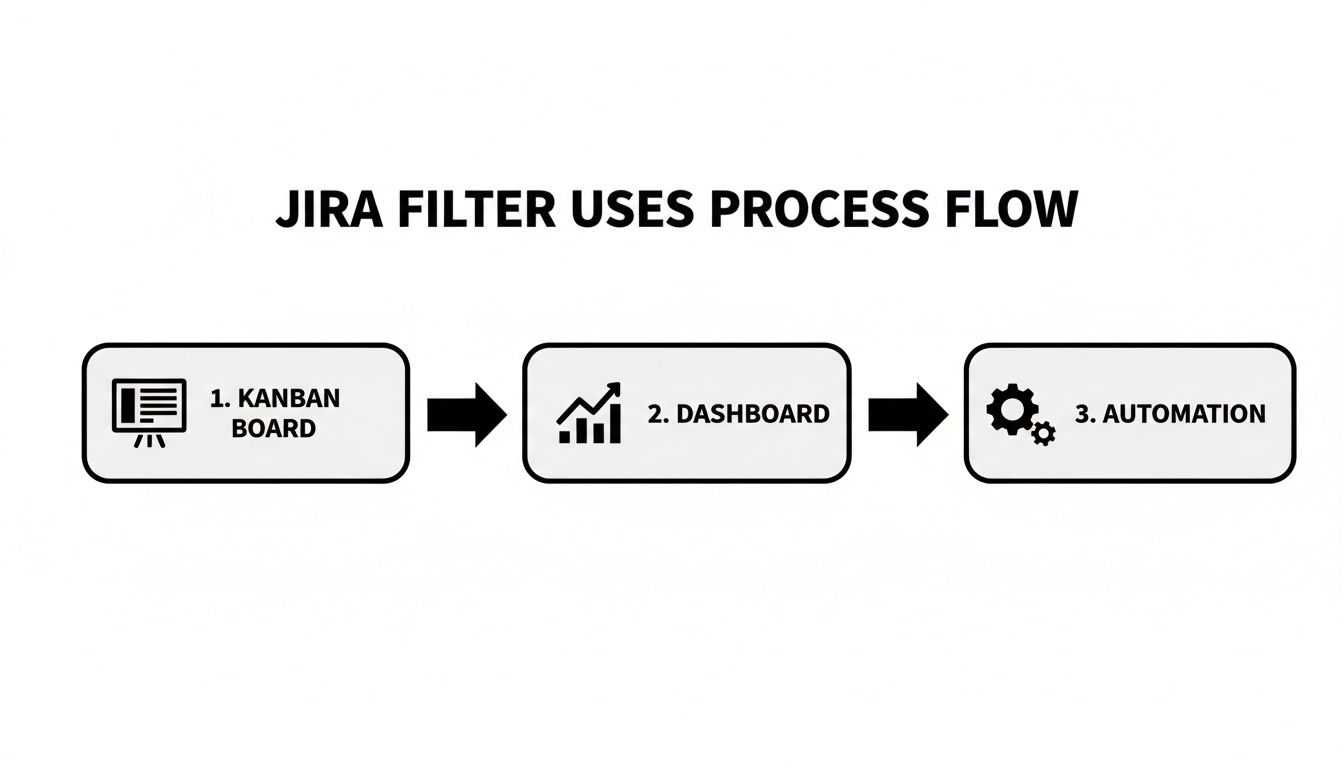
    A saved filter is a living tool that can power your most important Jira features. This flow shows how a single, well-crafted filter can define your team's board, feed your dashboard gadgets, and even kick off automations.

    A process flow diagram illustrating Jira filter uses for Kanban boards, dashboards, and automation.

    This demonstrates why learning JQL is a worthwhile investment. It makes your boards, reports, and workflows more intelligent and responsive to your team's activities. An entire Agile board is defined by its JQL filter; changing the query instantly updates the view for the entire team. To see how other teams solve similar challenges, explore the Atlassian community forums for practical examples.

    To help you get comfortable with JQL, here is a quick reference table with some of the most common operators and functions.

    Common JQL Operators and Functions at a Glance

    This table is a handy cheat sheet for the building blocks of JQL. Keep it nearby as you start constructing your own queries.

    Element Purpose Example Usage
    Operators
    = Finds exact matches. status = "In Progress"
    != Excludes specific values. assignee != "John Smith"
    IN Searches for any value within a given list. project IN ("Project A", "Project B")
    NOT IN Excludes all values within a given list. issuetype NOT IN (Bug, Sub-task)
    ~ Finds issues where a text field contains a specific word. summary ~ "deployment"
    > or < Finds values greater than or less than a specified value (dates/numbers). votes > 5
    IS Checks if a field has a value or is empty. description IS NOT EMPTY
    Functions
    currentUser() Represents the user who is currently logged in. assignee = currentUser()
    now() Represents the current date and time. duedate < now()
    -7d or 4h Represents a duration (days, hours) used with date fields. created >= -14d (created in the last 14 days)
    startOfDay() Represents the beginning of the current day. updated >= startOfDay()
    membersOf() Finds issues assigned to any member of a specific user group. assignee IN membersOf("jira-developers")

    Familiarizing yourself with these elements will dramatically accelerate your ability to translate complex questions into clean, effective JQL queries.

    Naming, Saving, and Sharing Your Filters

    You’ve built the perfect JQL query. Now you need to save and share it effectively. A brilliant filter that only you can find is just digital noise. The goal is to turn your query into a shared, single source of truth for your projects.

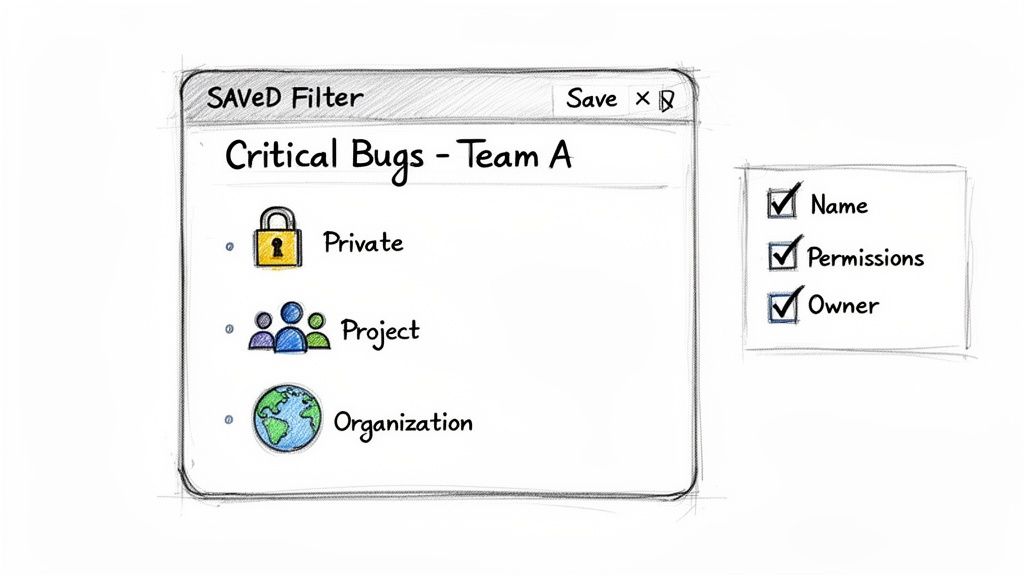
    A sketch of a filter setup window for 'Critical Bugs - Team A' showing visibility options.

    Once your query returns the exact results you need, click the Save as button above the search results. A dialog box will appear, prompting you for a name.

    Do not rush this step. A vague name like "My Filter" is a future problem. Be descriptive and consistent. A practical naming convention is [Project/Team] - [Purpose] - [Key Criteria].

    For example:

    • API Team – Sprint Planning – Unestimated Stories
    • QA – P1 Bugs – Current Release
    • All Projects – Overdue Tasks – No Recent Updates

    This simple habit makes your filter list instantly understandable to you and anyone else who uses it.

    Controlling Who Can See (and Break) Your Filter

    After naming your filter, you must define its access permissions. By default, new filters are private. To make them useful, you need to share them.

    The Viewers and Editors settings control who can see the filter's results and who can modify its JQL query.

    Consider your audience to determine the correct permissions. Is this filter for your personal use, a key team resource, or a high-level report for the entire company?

    You have several sharing options:

    • Private: Only you can see or edit it.
    • Group: Share with a specific user group, like jira-developers or product-managers.
    • Project: Make it accessible to all members of a specific project.
    • Organization: Open it to anyone with an account in your Jira instance.

    Here’s a pro-tip: restrict edit permissions. Allow others to view the filter, but be highly selective about who can change the JQL. This prevents someone from accidentally breaking a query that powers a critical dashboard before a major planning session.

    Building a Library of "Golden Filters"

    Over time, your team will develop a set of "golden filters." These are the definitive queries that everyone relies on for tracking key metrics like release readiness, bug backlogs, or team workload.

    Establishing these core filters is crucial for data consistency. It ensures that when your manager asks for a list of all critical bugs, they are viewing the exact same data as the development and QA teams. This eliminates conversations that start with, "Well, my search showed something different."

    These trusted filters should have clear names, concise descriptions, and tightly controlled edit rights. Investing a small amount of effort in governing your most important filters aligns everyone and ensures they are speaking the same data language. Once saved, these become the building blocks for your most valuable boards, dashboards, and reports.

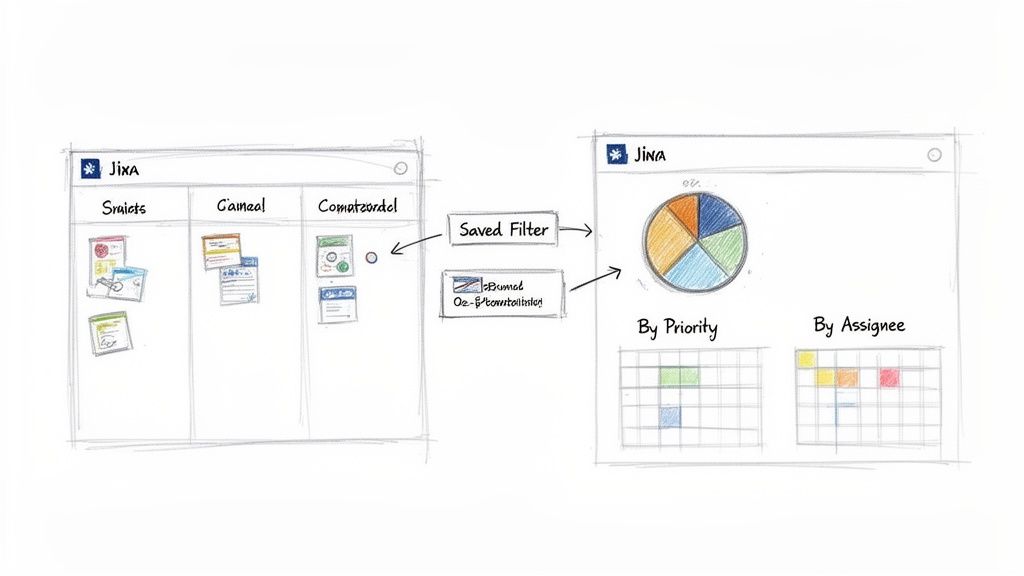
    You’ve built and saved your filters. Now it's time to put them to work on your team’s boards and dashboards. A filter sitting unused in your "My Filters" list is a wasted opportunity. Plug it into the high-traffic areas your team uses daily to make a real impact.

    Jira-like workflow showing how a saved filter transforms a kanban board into a dashboard report.

    This is how you transform a simple list of issues into a dynamic, real-time view of your project's health. You are instructing Jira to display specific issues in a way that provides meaningful insights.

    Powering Your Jira Dashboards

    For most teams, the Jira dashboard is mission control. It provides a bird's-eye view of everything happening across projects. The secret to an effective dashboard is its gadgets, and nearly all of them are powered by your saved filters.

    Saved filters are the lifeblood of dashboards. Gadgets like Filter Results, Issue Statistics, Pie Charts, and Two-Dimensional Filter Statistics all require you to select a filter. From there, you can slice that data by assignee, status, priority, or any other field. Advanced tools like Harmonize Pro’s Nesty even use filters to drive complex cross-team workflows, pushing issues through nested checklists and automated handoffs. Explore discussions in the Atlassian Community to see how teams are pushing the boundaries with filters and automation.

    To create a quick visual of your team's workload, follow these steps:

    1. Add a Pie Chart gadget to your dashboard.
    2. Point it to a saved filter, such as "API Team – Current Sprint."
    3. Set the statistic type to "Assignee."

    This instantly generates a chart showing who is responsible for what percentage of the sprint's tasks. Change the statistic to "Status" to get a live view of what's To Do vs. In Progress vs. Done. This is how you convert raw data into actionable insights without running manual searches. To get even more from these visualizations, review our guide on how to create a report in Jira.

    Redefining Your Agile Boards

    The relationship between a filter and an Agile board is one of the most critical concepts in Jira. Every board, whether Scrum or Kanban, is built on one filter. That filter defines the board's entire scope. If an issue does not match the filter's JQL, it will not appear on the board.

    This provides you with an incredible amount of control. By adjusting the board's underlying filter, you can completely change what your team sees and focuses on.

    For instance, a Kanban team can prevent their "Done" column from becoming cluttered with old tasks. Navigate to Board Settings > General and click Edit Filter Query. By adding a clause like AND (status != Done OR updated >= -14d), any ticket that has been Done for more than two weeks will disappear from the board, keeping the focus on active work.

    A Word of Caution: Modifying a board's filter is a significant change. It affects the view for every person who uses that board, so proceed with care. A small typo in the JQL can make it appear as if all the issues have vanished.

    Keeping Stakeholders in the Loop with Subscriptions

    Not everyone who needs project updates logs into Jira daily. Filter subscriptions solve this problem by emailing your filter results to key people on a schedule you define.

    You can create a subscription for any saved filter. Navigate to the filter, click Details, and select New subscription. From there, you can configure:

    • Recipients: Send the report to yourself, an entire user group (like project-stakeholders), or specific individuals.
    • Schedule: Choose to send it daily, weekly, or on a specific day of the month.
    • Frequency: Pinpoint the exact time for the email delivery.

    This is a perfect way to automate communication. You can send a daily "Overdue Tasks" email to team leads at 8 AM or a weekly summary of new P1 bugs to engineering leadership every Monday morning. It pushes relevant information to the right people, keeping them informed effortlessly.

    Where to Use Your Saved Jira Filters

    Once created, filters can be plugged into almost every corner of Jira to drive visibility and automation. Here’s a quick rundown of the most common and powerful places to put them to use.

    Usage Area Primary Benefit Example Implementation
    Dashboards Provides at-a-glance, real-time project status and team workload visibility through configurable gadgets. A Pie Chart gadget showing the distribution of unresolved issues by assignee for the "Support Team – High Priority" filter.
    Agile Boards Defines the entire scope of a Scrum or Kanban board, controlling which issues are visible to the team. A Kanban board filter that excludes "Done" issues older than 30 days to keep the board focused on active work.
    Subscriptions Automates stakeholder communication by emailing filter results on a recurring schedule. A daily 8 AM email subscription for a "Critical Bugs – Unassigned" filter sent to the engineering leadership group.
    Automation Rules Acts as a trigger or condition for Jira Automation rules, enabling powerful "if-this-then-that" workflows. An automation rule that adds a comment to any issue from the "Customer Escalations" filter that hasn't been updated in 24 hours.
    Quick Filters Allows users to further refine the issues displayed on an Agile board with one-click JQL-based buttons. On a team board, a Quick Filter for assignee = currentUser() so each person can instantly see just their own tasks.

    Thinking of filters as reusable building blocks—not just saved searches—is the key to customizing Jira to fit how your team actually works.

    Advanced JQL Recipes for Common Team Scenarios

    Once you have mastered basic JQL, you can start crafting queries that solve specific, common team problems. These queries are about asking smarter questions to move from a reactive to a proactive process. Instead of just fighting fires, you can identify smoke before it becomes a major issue. A well-crafted filter can provide these answers instantly.

    Uncovering Workflow Bottlenecks

    One of the most powerful applications of an advanced filter is to identify where your process is breaking down. A common problem is work that stagnates or is reopened after being marked as complete, which often points to quality issues or communication breakdowns.

    Find Tickets Reopened After Being "Done"

    Use this query to find regressions or incomplete fixes. It instantly identifies any issue that was marked "Done" but has since been moved back to an open state.

    status was "Done" AND status != "Done"

    The WAS operator examines an issue's history. It is incredibly useful for building dashboard gadgets that track your team's "bounce-back" rate—a critical indicator of quality.

    Identify Stale "In Progress" Tasks

    Another common scenario is tasks that remain "In Progress" for too long without updates. This often indicates a developer is blocked or has been reassigned without updating the ticket.

    status = "In Progress" AND updated < -5d

    This filter flags any issue that has been in progress for more than 5 business days without any comment, work log, or status change. Run this query before your daily stand-up to surface discussions about hidden roadblocks.

    Dynamic Filters for Evolving Teams

    Static JQL queries with hardcoded usernames are difficult to maintain. When someone joins or leaves the team, the filters break. Use dynamic functions to make your filters resilient to organizational changes.

    The membersOf() function is essential here. It allows you to query based on a Jira group rather than a list of individual users.

    Pro Tip: If you manage a team, insist on having a dedicated Jira user group (e.g., 'dev-team-phoenix'). This small administrative task saves significant time by allowing you to build filters, boards, and permissions that update automatically as your team roster changes.

    See All Unresolved Issues for Your Team

    Instead of listing every person on your team, reference the group name to create filters that last.

    assignee in membersOf("dev-team-phoenix") AND resolution = Unresolved

    This query will always show the current, accurate workload for everyone in that group, no matter when it is run. It is the perfect foundation for team dashboards and board configurations that you can set once and rely on.

    Historical Analysis with CHANGED

    Sometimes you need to know not just the current state of an issue, but when a specific change occurred. The CHANGED operator allows you to pinpoint issues where a field was modified within a certain timeframe, which is invaluable for release management and process audits.

    Find Scope Creep in the Current Sprint

    Imagine you are a Product Manager who suspects that stories are being added to a sprint after it has already started. This scope creep can derail a team's commitments.

    sprint in openSprints() AND "Sprint" CHANGED AFTER startOfDay("-7d")

    This query identifies any issue in an active sprint where the "Sprint" field was changed within the last seven days (assuming weekly sprints). It is a powerful tool for protecting your team’s focus and initiating a data-driven conversation about unplanned work.

    These historical operators can be combined with triggers to create sophisticated workflows. To take this a step further, the next logical step is to explore Jira workflow automation.

    These recipes are just the beginning. The real power comes from combining these concepts to build filters that answer the unique questions your team faces daily. Mastering these advanced operators and functions is what elevates you from a basic Jira user to someone who truly understands and can optimize your team's workflow.

    Common Questions (and Quick Fixes) for Jira Filters

    Even after you master creating filters, a few common questions tend to arise. Here are straightforward answers to the most frequent sticking points.

    How Do I Create a Filter for My Entire Team?

    The most effective method is to use the membersOf() JQL function. Manually listing every team member in your query creates a maintenance problem, as it will break as soon as someone joins or leaves.

    The smarter approach is to ensure your team has a user group in Jira (e.g., 'alpha-squad').

    Once the group is created, your query becomes simple and future-proof:

    assignee in membersOf('alpha-squad') AND resolution = Unresolved

    This filter will always display the correct issues for the right people, automatically adjusting as your team changes without requiring any updates to the JQL.

    Why Is My JQL Query Showing an Error?

    Seeing a red 'x' next to your JQL is common. It almost always results from one of these simple errors:

    • Typos: Double-check the spelling of field names, operators, and statuses. A common mistake is typing status = 'In Progress' when the workflow uses status = 'In-Progress'.
    • Wrong Operators: The equals sign (=) cannot be used for a text field search. For the 'summary' field, use the "contains" operator (~). For example: summary ~ "database error".
    • Custom Fields: Custom field names must be exact. If a field name contains a space, like "Story Points," you must enclose it in double quotes: "Story Points" > 5.

    Hover your mouse over the red 'x' in Jira's validator; it will usually provide a helpful clue about what is wrong.

    A filter can be syntactically correct but still not show the expected issues. This is often a permissions issue. If the person viewing the filter lacks "Browse Project" permission for the projects in your query, issues from those projects will be hidden from their results.

    Can I Share a Filter With Someone Outside My Project?

    Yes, but it is a two-step process. You must consider both the filter's permissions and the project's permissions.

    First, when you save your filter, set its sharing permissions. You can share it with a project, a user group, or your entire organization.

    Second, the person you share it with must also have permission to see the issues from the projects your filter queries. If your filter includes "Project Falcon," they need "Browse Project" permission for Project Falcon to see any results.

    What's the Difference Between ORDER BY Created and ORDER BY Updated?

    Properly sorting your results can change the story your filter tells. Both created and updated are useful but solve different problems.

    ORDER BY created DESC sorts results to show the newest tickets first. This is ideal for a triage queue or monitoring incoming support requests, as it places the most recently logged issues at the top.

    ORDER BY updated DESC sorts by the last activity date, such as a comment, field edit, or status change. This is the best sort for a daily stand-up dashboard, as it brings issues with the most recent activity to the forefront.


    At Harmonize Pro, we believe that well-structured workflows are the key to unlocking team potential. Our flagship app, Nesty, helps teams turn complex processes into clear, automated checklists right inside Jira, ensuring no step is ever missed. Learn how Nesty can bring order and clarity to your most critical workflows.

  • Create a Report in Jira That Drives Real Decisions

    Create a Report in Jira That Drives Real Decisions

    Creating a report in Jira is about transforming project data into clear actions. Start in the Reports section, select a pre-built template like a Sprint or Velocity chart, and then configure it to answer your specific questions. For deeper insights, use Jira Query Language (JQL) to build custom reports from scratch and pinpoint exactly what's driving your project's performance.

    From Data Overload to Actionable Insights

    Jira is more than a task manager; it's your project's data hub, capturing every update, bug, and user story. Without clear reporting, this data is just noise. Mastering Jira reports turns thousands of raw data points into a clear, compelling story about your project's health, allowing you to move from simply tracking work to making informed decisions.

    Effective reporting helps you pinpoint the exact bottlenecks slowing down your sprints. It empowers you to forecast timelines with confidence and gives stakeholders a real-time view of progress without another meeting. Understanding the principles of business intelligence reporting helps you extract the most value from your data.

    Why Jira Reports Are Your Project’s Command Center

    Jira's role as a project command center is undeniable. It currently powers workflows on 42,781 websites globally, and its adoption by 0.71% of the top 10,000 sites highlights its critical function in top-tier organizations. This widespread use means a vast amount of project data is sitting inside Jira, ready to be turned into actionable intelligence.

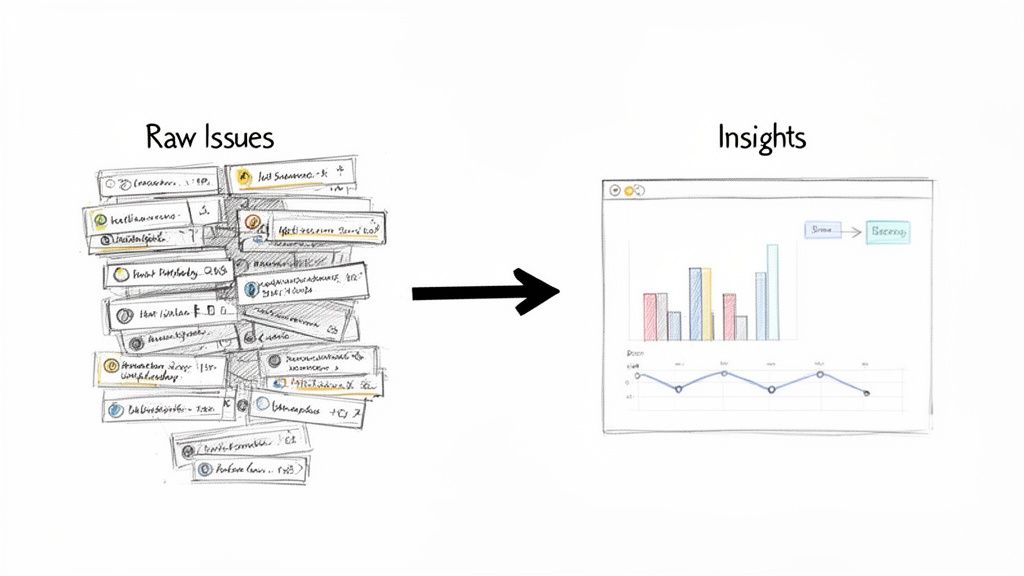
    A visual showing raw issues transformed into actionable insights, represented by charts and graphs.

    The image above showcases Jira's built-in reports. Each one is a tool designed to answer a specific question about your workflow, helping you make data-backed decisions that move your project forward.

    Expert Tip: For organizations where compliance and process integrity are non-negotiable, these reports are more than just progress trackers—they form a critical part of your project's history. For a deeper dive into this, our guide on https://harmonizepro.com/blog/audit-trail-best-practices is a great resource.

    The key to effective reporting is to start with a clear objective. What specific question are you trying to answer right now?

    Choosing the Right Jira Report for Your Goal

    Use this table to match your immediate objective with the best report for the job.

    Your Goal Recommended Jira Report Key Insight It Provides
    "Are we on track to finish our sprint work?" Sprint Report or Burndown Chart Tracks the remaining work against the time left in the sprint.
    "How much work does our team typically get done?" Velocity Chart Shows the average amount of work a team completes per sprint.
    "How long does it take to resolve bugs?" Resolution Time Report Averages the time it takes to resolve issues.
    "Where are our biggest bottlenecks?" Control Chart Visualizes the cycle time for issues, highlighting outliers.
    "What's the overall workload distribution?" Pie Chart Report (with a "Status" or "Assignee" gadget) Shows how work is distributed across team members or statuses.

    This table is your starting point. As you become more familiar with these reports, you'll learn how to combine their insights for a complete picture of your project's health.

    Interpreting Core Agile Reports Like a Pro

    Generating a report in Jira is the easy part. The real skill is interpreting what the data is telling you. By understanding the two most fundamental Agile reports—the Sprint Burndown and the Velocity Chart—you can elevate your team's conversations from subjective feelings to data-driven action.

    This shifts the discussion from "I feel like we're behind" to "The data shows a potential bottleneck here; let's identify the cause and a solution."

    When the whole team can read these charts, it fosters a powerful sense of shared ownership and a proactive approach to problem-solving. Let's break down how to extract actionable insights from these crucial visuals.

    Decoding the Sprint Burndown Chart

    The Sprint Burndown Chart is your daily pulse check for the current sprint. It compares remaining work against the ideal pace needed to meet your goal. While a perfectly smooth downward line is the textbook ideal, the real story lies in the jagged peaks and valleys. These patterns are not just data; they are signals for action.

    A burndown line that stays flat for the first few days of a sprint is a classic red flag. Actionable Insight: This signals a need to investigate immediately. It could mean the sprint planning was flawed, user stories are unclear, or an early blocker has stopped progress. Address it in the daily stand-up to get work flowing.

    Another common pattern is the "end-of-sprint cliff"—a sharp drop in the final days. Actionable Insight: This often points to rushed work, skipped testing, or tasks being closed without meeting the Definition of Done. Use this pattern as a trigger to review your team's workflow and QA process in the next retrospective.

    Hand-drawn charts illustrating a sprint burndown with flat start and end cliff, and a magnified velocity chart.

    These patterns tell you far more than a simple status update ever could.

    When you can spot these patterns, you can ask much better questions. Instead of a generic "What's the status?" you can lead with, "I see our burndown hasn't moved in two days. What's blocking us from getting those first few tickets rolling?" It completely changes the conversation.

    Leveraging the Velocity Chart for Predictability

    While the burndown chart is a daily snapshot, the Velocity Chart is your long-term strategic guide. It shows your team's output over multiple sprints, measuring the amount of work (in story points) they consistently complete. This historical data is your most reliable tool for realistic planning.

    It prevents overcommitment, reduces team burnout, and manages stakeholder expectations. If your team's average velocity is 30 story points, committing to 50 in the next sprint is a recipe for failure. The Velocity Chart is your data-driven reality check.

    In Jira, you’ll see two bars for each sprint:

    • Commitment (Gray Bar): What the team planned to complete.
    • Completed (Green Bar): What the team actually delivered.

    Actionable Insight: A stable velocity indicates a healthy, predictable team. If you see wild fluctuations between sprints, use this as a prompt to investigate root causes. Are requirements changing mid-sprint? Is the team facing external disruptions? A volatile velocity chart is a clear signal to refine your workflow or improve your team’s focus.

    Stabilizing your velocity often comes down to improving communication and refining your processes. If your chart looks more like a rollercoaster, it might be a good time to revisit your team’s dynamics and explore how to improve team collaboration.

    By using these two core reports together, you build a system that guides your team toward more predictable, sustainable performance.

    Unlocking Custom Insights with JQL

    When standard reports don't answer your most critical questions, it's time to use Jira Query Language (JQL). Think of JQL not as a complex coding language, but as a powerful search tool that lets you build a custom Jira report perfectly tailored to your team's specific needs.

    At its core, JQL combines fields, operators, and values to filter your issues with precision. It’s the engine behind advanced searches, custom dashboard gadgets, and powerful automation rules.

    From Simple Queries to Powerful Filters

    You don't need a technical background to start using JQL. Its logical, sentence-like structure allows you to build queries that answer complex questions with a single line.

    For example, to find all high-priority, open tasks for an upcoming release, you don't need to manually scan a backlog. Instead, a simple JQL query gives you an instant, accurate list:

    project = "Project Phoenix" AND priority = "High" AND status not in (Resolved, Closed)

    This query immediately cuts through the noise. From here, you can easily add more conditions, such as filtering for a specific assignee or issues created within the last two weeks. JQL handles these layers of complexity with ease.

    Here’s what building a query looks like right inside Jira’s search interface.

    This interface shows how you can combine criteria to zero in on the exact list of issues you need for your analysis.

    Actionable JQL Snippets for Common Problems

    The true power of JQL is its ability to create "early warning systems." By saving specific queries as filters and displaying them on a team dashboard, you can proactively identify risks before they derail your project.

    Here are three JQL queries you can implement today to improve your workflow:

    • Find Stale Issues: Pinpoint any ticket that hasn't been updated in a week, indicating it may be stuck or forgotten.
      status not in (Closed, Resolved) AND updated <= -7d

    • Spot Overdue Tasks: Instantly generate a list of all unresolved issues that have passed their due date.
      due <= now() AND resolution = Unresolved

    • Monitor Scope Creep: Identify every issue added to the current sprint after it started, helping you control unplanned work.
      sprint in openSprints() AND issue in sprint = "Sprint Name" AND created > sprint.startDate

    These queries aren't just for pulling lists; they are diagnostic tools. A filter that flags tickets stuck in "In Review" for more than two days isn't just a report—it's a specific talking point for your next stand-up, pointing directly to a bottleneck that needs to be addressed.

    Recent research highlights a critical productivity paradox: while 99% of developers save time with AI, 90% still lose over six hours a week to other inefficiencies. This is where targeted JQL reports make a tangible impact, helping teams find and eliminate the workflow friction that consumes valuable time. Dive into the full developer experience report from Atlassian to learn more.

    By turning these queries into always-on dashboard gadgets, you make crucial insights visible to everyone, fostering a culture of continuous improvement.

    Building a Mission Control Dashboard for Your Team

    Individual reports are useful, but a well-designed dashboard is a game-changer. It acts as your team's mission control—a single source of truth that visualizes project health, tracks progress, and flags risks in real-time. A great dashboard answers the "What's the status?" question for anyone at a glance, eliminating the need for constant check-in meetings.

    The key is to move beyond simply adding gadgets and start curating a collection that tells a cohesive story.

    From Individual Gadgets to a Cohesive Story

    An effective dashboard layers different types of information to build a complete picture. For example, take the "Stale Issues" JQL filter and display it using the Filter Results gadget. Now, place it next to a Pie Chart gadget showing issue distribution by assignee.

    This combination creates a powerful narrative. You not only see which tickets are stale but can also spot if a single team member is overloaded, causing a bottleneck. This is how you transform raw data into actionable insights that lead to better, faster decisions.

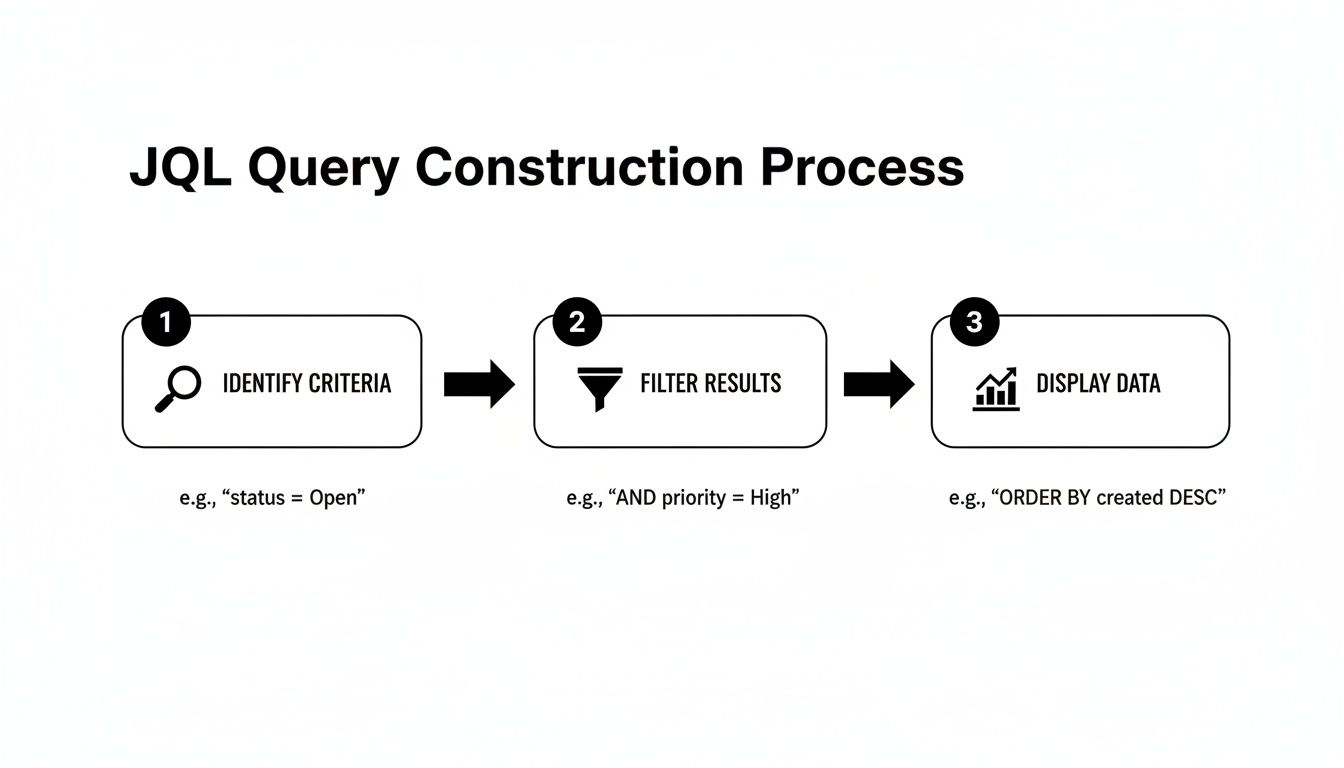
    The entire process is powered by a simple, three-step JQL query construction.

    Diagram illustrating the three-step JQL query construction process: identify, filter, and display data.

    It all comes down to identifying the right data, filtering it with precision, and then displaying it visually. This is the core principle behind every useful gadget on your dashboard.

    Essential Gadgets for a High-Impact Dashboard

    Choosing the right gadgets is critical. While Jira offers many options, a few consistently deliver the most value. These are the foundational blocks for a dashboard that provides immediate clarity.

    Gadget Name Primary Use Case Ideal Audience
    Filter Results Display a dynamic list of issues from a saved JQL filter (e.g., stale tickets, high-priority bugs). Everyone
    Pie Chart Visualize issue distribution based on a field like status, assignee, or priority. Team Leads, Managers
    Sprint Health Get a quick, color-coded overview of the current sprint's progress against scope. Scrum Masters, Dev Team
    Sprint Burndown Track the team's progress toward the sprint goal, showing work remaining vs. time. Dev Team, Scrum Masters
    Created vs. Resolved Chart Compare the rate of incoming work against the rate of completed work over time. Product Owners, Managers
    Assigned to Me A personalized "to-do" list showing all issues assigned to the logged-in user. Individual Contributors

    Combine these to answer nearly any question about your team's workload, progress, and potential roadblocks directly from the dashboard.

    Crafting a High-Impact Dashboard Layout

    For a typical software team, a three-column layout is highly effective. It helps you create a report in Jira that balances immediate sprint concerns with a broader view of ongoing work, serving multiple roles at once.

    Use this proven layout as your starting point:

    • Left Column (Sprint Focus):

      • Sprint Health Gadget: Your at-a-glance summary of the current sprint—time elapsed, work done, and any scope creep.
      • Sprint Burndown Gadget: The daily pulse check to keep the team focused on the sprint goal.
    • Center Column (Team Workload & Blockers):

      • Assigned to Me Gadget: A personal to-do list for each team member.
      • Filter Results (Stale Issues): The custom JQL gadget to ensure nothing is forgotten.
      • Filter Results (High Priority Bugs): Keeps the most critical fixes front and center.
    • Right Column (Big Picture View):

      • Pie Chart (Issues by Status): A high-level view of work distribution across your workflow.
      • Created vs. Resolved Chart: Helps you determine if the team is keeping up with incoming work.

    Remember, the best dashboards are living documents. Don't be afraid to experiment. Swap gadgets, tweak the layout, and—most importantly—ask your team what they find useful. Adjust it based on what provides the most clarity and drives the most action.

    A final pro tip on permissions: configure your dashboard so the core team sees all the granular details, while a separate, simplified version is shared with leadership showing only high-level progress charts. This tailored approach ensures everyone gets the right information without being overwhelmed.

    Advanced Reporting Tactics and Best Practices

    You've mastered the built-in reports and built a solid dashboard. But what happens when you need to answer questions that span beyond a single project or require combining Jira data with other business metrics? To unlock the deepest insights, you need to take your data outside of Jira.

    Exporting issue data to a tool like Google Sheets or Microsoft Power BI unlocks a new level of analysis. You can merge Jira metrics with other business data to give stakeholders a panoramic view. Imagine correlating development velocity with customer support ticket volume—you could instantly see how a new feature release impacts bug reports and support requests.

    Extending Jira With Marketplace Apps

    For more powerful reporting directly inside Jira, turn to the Atlassian Marketplace. It's filled with apps designed to solve specific reporting challenges that Jira's native tools don't address.

    A common challenge is tracking the true progress of an Epic with dozens of sub-tasks. Doing this manually is a nightmare. A specialized Marketplace app can automatically roll up the progress of all child issues, giving you an accurate, real-time view of the parent task's status without any manual effort.

    The most effective teams treat Jira not as a closed system, but as a central data hub. They extend its capabilities with apps and connect it to other tools to answer complex business questions that drive strategic decisions.

    This ecosystem is growing rapidly. Atlassian recently hit 120% cloud net revenue retention, a figure driven largely by enterprise adoption and the expanding Marketplace. This signals that Jira Cloud is scaling to meet even the most demanding reporting needs.

    Troubleshooting Common Reporting Headaches

    Even experienced Jira users encounter reporting issues. A report your team can't trust is worse than no report at all. Knowing how to quickly diagnose common problems is a critical skill.

    Here's how to troubleshoot two of the most frequent issues:

    • "My Burndown Chart Isn't Burning Down!" A flat or upward-trending line is almost always caused by scope creep (adding new issues to an active sprint) or re-estimating story points on in-progress tickets. Use this pattern to start a conversation about protecting sprint scope.
    • "My JQL Query is Pulling in Weird Results." This often comes down to a simple operator mistake. A common error is using = for a text field search when the ~ (CONTAINS) operator would provide the more flexible results you need. Always double-check your operators and field names to ensure accuracy.

    Essential Best Practices for Clean Reporting

    Ultimately, accurate reporting depends on clean data. If your Jira instance is disorganized, your reports will be unreliable. A few disciplined habits can prevent major headaches down the line.

    Start by enforcing a strict and descriptive naming convention for all saved filters and dashboards. Instead of a vague name like "Dev Team Filter," use something specific like "P2+ Bugs – Mobile App – Unresolved." This instantly clarifies its purpose and prevents the clutter of duplicate, confusing filters that pollute your instance.

    For a deeper dive into these foundational habits, check out our complete guide on best practices in Jira.

    Answering Common Jira Reporting Questions

    Even with the best tools, you'll encounter specific challenges when creating reports in Jira. Overcoming these common hurdles is key to transforming your data into a reliable source of insight. Let's tackle some of the most frequent questions teams face.

    One of the most common issues is permissions. A team member creates a perfect JQL filter and adds it to a shared dashboard, but their colleagues can't see the results. The Fix: The JQL filter itself must be shared with the same project, group, or users who have access to the dashboard. Check the sharing settings on the filter to resolve this.

    How Can I Report on Story Points for Sub-Tasks?

    This is a major pain point for many teams. By default, Jira’s Agile reports roll up estimates at the parent issue level (like a Story or Bug) and ignore any story points assigned to sub-tasks.

    This makes it difficult to get accurate velocity or burndown charts if your team breaks down work into estimated sub-tasks. Here are two practical solutions:

    • Marketplace Apps: Many reporting apps are built specifically to solve this. They can aggregate story points from sub-tasks up to the parent issue, giving you charts that reflect how your team actually works.
    • Automation Rules: Create an automation rule that copies the story point value from a sub-task to a custom field on its parent. Then, configure your reports to use that custom field for estimation.

    Can I Schedule a Report to Be Emailed Automatically?

    Teams often need to send key reports on a regular schedule, like a weekly summary of resolved issues for leadership or a daily bug report for QA.

    Jira Cloud’s native features for this are limited. You can subscribe to a filter to receive email updates on a list of issues, but you can't automatically email a visual report like a Pie Chart or Burndown Chart.

    For this functionality, you'll need to turn to the Atlassian Marketplace. You'll find numerous apps that offer robust subscription features, allowing you to schedule and email rich, visual dashboard reports as PDFs or images to any stakeholder—even those without a Jira account.

    Mastering these reporting nuances is a core part of effective project management in Jira, providing the clarity your team needs to deliver consistently.


    Stop letting manual steps and missed handoffs slow down your team. Harmonize Pro's Nesty app for Jira turns your complex processes into automated, self-managing workflows directly within your tickets. Enforce your Definition of Done, automate QA handoffs, and ensure every step is completed in the right order, every time. Discover how Nesty can bring order and automation to your most critical workflows.

  • Create a Filter in Jira: A Practical Guide for Modern Teams

    Create a Filter in Jira: A Practical Guide for Modern Teams

    To create a filter in Jira, navigate to the 'Issues' screen, use the search dropdowns to define your criteria, and click 'Save as' to name your filter. This simple action transforms a chaotic backlog into a focused, actionable list—making it a powerful way to boost your team's efficiency.

    Why Mastering Jira Filters Unlocks Team Productivity

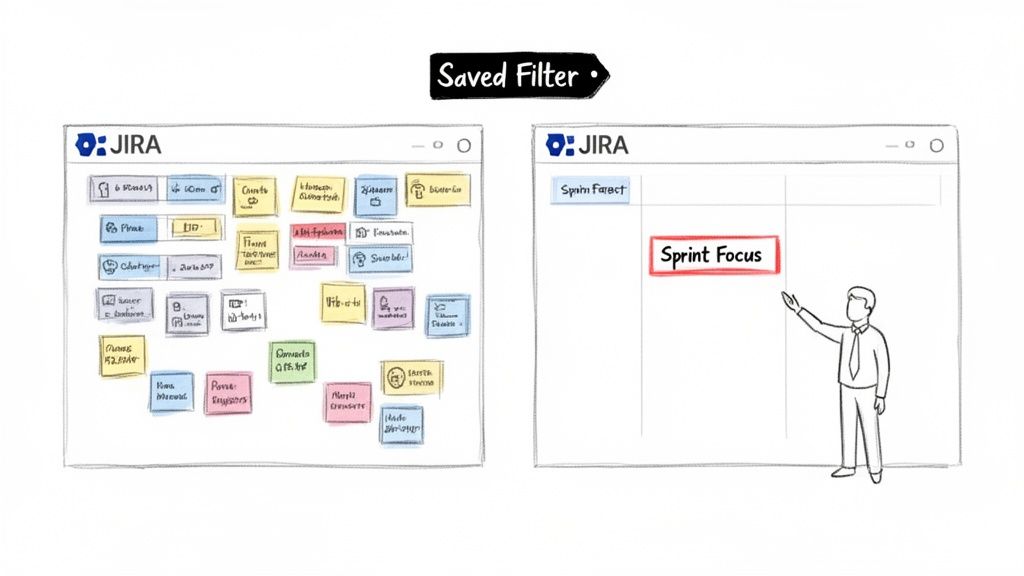
    A visual explanation of applying a saved filter in JIRA to focus on sprint items.

    We've all faced a massive, unfiltered Jira backlog. It's a digital wall where critical tasks get buried, causing project anxiety. Learning to create a filter in Jira isn’t just a technical skill; it's the first step to bringing order and clarity to your projects.

    For example, a project manager preparing for sprint planning can apply a single filter to instantly see all unassigned, high-priority stories. Filters turn noise into a clear signal, providing immediate focus for your team.

    The Foundation of Jira Workflows

    Saved filters are the building blocks for nearly every advanced feature in Jira. For any technical role—from developer to DevOps engineer—mastering filters is non-negotiable.

    They are the engine behind key Jira functionalities:

    • Dashboards and Gadgets: Filters power the charts and lists on your dashboards, providing at-a-glance status updates.
    • Agile Boards: A Jira filter is the core of every Scrum or Kanban board, defining exactly which issues are displayed.
    • Automation and Subscriptions: Filters define the trigger conditions for automation rules and scheduled email reports, keeping teams updated without manual intervention.

    Beyond boosting team output, it's worth exploring broader strategies to improve team productivity to build even more efficient workflows. By making information accessible and relevant, filters directly contribute to better team dynamics and results.

    Building Your First Jira Filter: From Basic to JQL

    You have two methods to build a filter in Jira: the simple point-and-click Basic search and the more powerful Advanced search using Jira Query Language (JQL). Start with the Basic view. Its dropdown menus let you achieve quick wins immediately.

    Navigate to the main issue search screen and you'll find fields for Project, Issue Type, Status, and Assignee. Use these to answer simple, everyday questions without writing any code.

    For instance, a product manager can select their project, choose the 'Bug' issue type, and set the status to 'New'. Instantly, they have a list of all newly reported bugs. This immediate feedback is what makes Jira effective for daily task management.

    Moving from Clicks to Code with JQL

    Once you're comfortable with Basic search, level up by clicking the "Switch to JQL" link. Jira automatically translates your dropdown selections into a JQL query, offering a practical way to learn the syntax.

    This is where you unlock Jira's true power and solve complex, role-specific problems.

    For anyone on a software development, QA, or DevOps team, learning JQL is essential. Well-crafted filters let you slice through massive backlogs and zero in on exactly what you need, whether it's by assignee, status, priority, or any custom field.

    The ability to create and share filters has been a core part of Jira since the beginning. Today, Jira is used on 42,781 websites worldwide. It’s especially critical for larger organizations; a solid 1.1% of the top 10,000 websites depend on Jira to keep their operations running smoothly. If you're curious, you can explore the full Jira statistics and see the data for yourself.

    Actionable JQL Queries for Development Teams

    Here is a quick reference table with copy-and-paste-ready JQL queries that software, QA, and DevOps teams can use immediately.

    Team Role Goal Example JQL Query
    DevOps Engineer Find all 'In Progress' deployment tickets for a specific release. project = "PROJ" AND issuetype = "Task" AND status = "In Progress" AND fixVersion = "Release 2.5"
    QA Engineer Isolate unassigned critical bugs reported in the last 7 days. project = "PROJ" AND issuetype = "Bug" AND priority = "Critical" AND assignee IS EMPTY AND created >= -7d
    Developer View all open stories assigned to you in the current sprint. project = "PROJ" AND assignee = currentUser() AND status not in (Closed, Resolved) AND sprint in openSprints()

    These queries are excellent starting points. Tweak them to match your team's specific projects, issue types, and workflows.

    Once your query returns the desired issues, click the "Save as" button at the top of the search results. Give your filter a descriptive name, like "QA – Unassigned Critical Bugs – Last 7 Days," so you and your team can easily find it later. With one click, your custom query is saved and ready for reuse.

    Sharing Filters and Managing Permissions Effectively

    You've built the perfect filter. Its real power is unlocked when you share it, turning a personal query into a shared source of truth for your team. However, incorrect permissions can create a messy, confusing Jira instance.

    The moment you hit "Save," Jira will prompt you to set permissions. Don't rush this step. If the filter is for your personal to-do list, keep it Private. If it defines your team’s sprint backlog, share it so everyone is aligned.

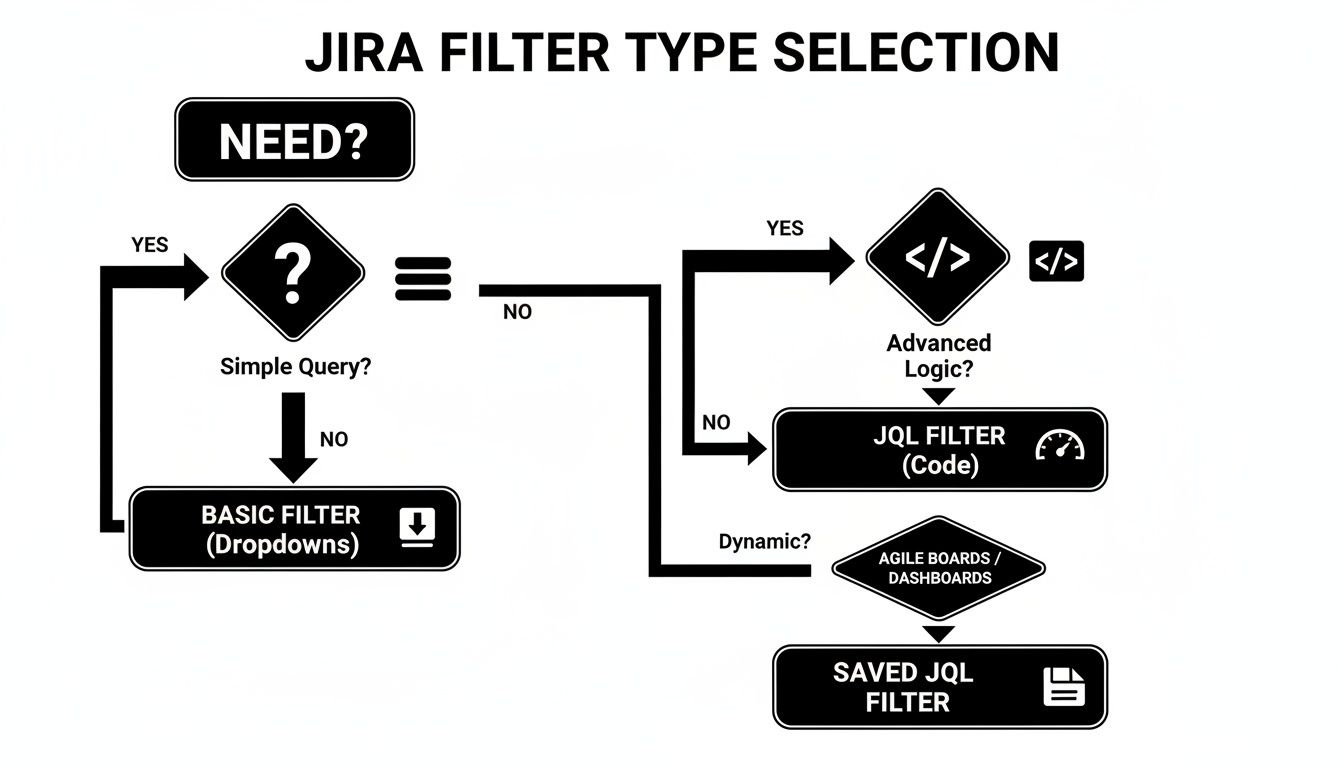
    Deciding between a basic search and JQL often comes down to complexity. This flowchart breaks it down.

    Flowchart detailing the decision process for selecting Jira filter types based on query complexity.

    As you can see, basic dropdowns are great for straightforward searches. For anything with multiple conditions or nuanced logic, jump straight into JQL.

    Choosing the Right Sharing Level

    Jira provides several sharing options. Think carefully about who needs access before granting it.

    • Group: The best choice for sharing with a specific team, such as 'UX-Designers' or 'Backend-Devs'.
    • Project: Ideal for filters that everyone on a project needs, like a 'Release 4.2 Bug Triage' filter.
    • Public: Use this with extreme caution. Public makes the filter visible to everyone on your Jira site, which can create significant clutter.

    Pro Tip: Set Up Filter Subscriptions
    Subscribe to a filter to receive its results in your inbox on a set schedule. For example, a support lead can get a daily 8 AM email listing all new high-priority tickets, ensuring nothing is missed at the start of the day.

    Bringing Your Filters to Life on Dashboards and Boards

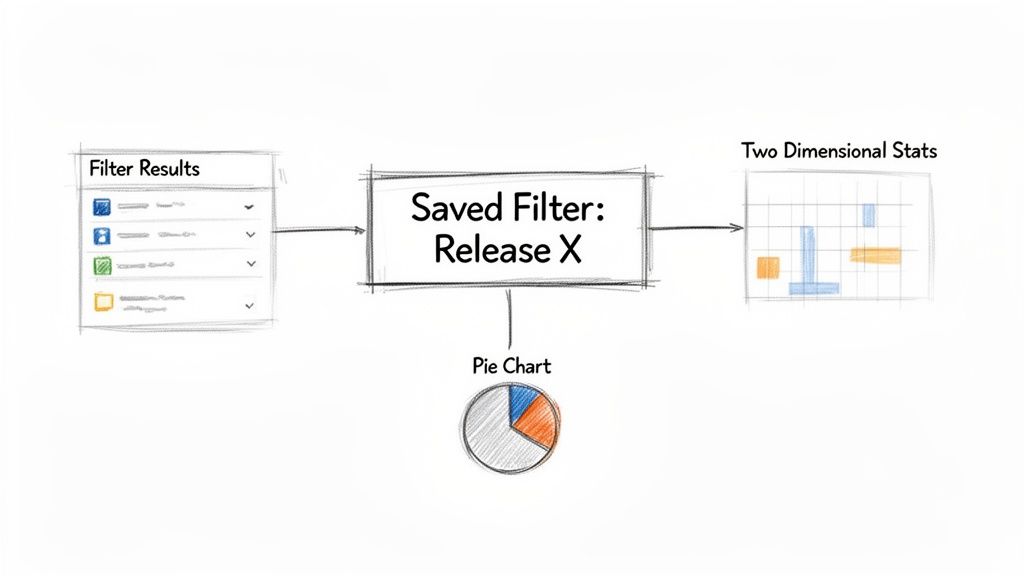
    Diagram showing a saved filter processing results to generate a pie chart and two-dimensional stats.

    Saved filters are the engines that power Jira’s visual tools. Once saved, a filter can be plugged into dashboards and Agile boards to transform raw data into an at-a-glance overview for your team.

    Think of your dashboard as a real-time command center. By connecting a filter to a gadget, you can turn a long list of issues into a visual story that is instantly understandable.

    Powering Dashboard Gadgets

    A product manager can build an entire release dashboard using a few key filters paired with different gadgets.

    • Filter Results Gadget: Use a filter like "New Feature Requests – Release 3.0" to display a clean, sortable list of incoming ideas.
    • Pie Chart Gadget: Apply a filter for "Release 3.0 – All Issues" and set the gadget to visualize issue statuses. This provides an instant breakdown of work that is in progress, in review, or done.
    • Two Dimensional Filter Statistics: Use a broad filter like "All Team Tasks" and configure the gadget to plot Assignee against Priority. This helps identify who has the most high-priority work.

    This ability to visualize data addresses a long-standing need in the Jira community for better ways to get specific counts, like how many issues are assigned to each person. Now, with filters driving these gadgets, teams can get the exact stats they need to manage projects where 68% of issues might be flagged as Major priority. For more on this, the Atlassian community has some great discussions.

    Defining Agile Boards

    For any team using Scrum or Kanban, a single filter serves as the source of truth for their Agile board. The JQL query behind that filter dictates exactly which issues appear. This gives you complete control over your team’s focus.

    The filter behind a board is its constitution. Modifying that filter directly changes what the team sees and works on every single day. This is how you create specialized, high-visibility views for different project needs.

    For instance, if your board is cluttered with old tickets, tweak its filter to exclude resolved issues older than 30 days. To create a hyper-focused view, change the board’s filter to pull in only the issues from a single epic, isolating all related stories and sub-tasks.

    Pairing targeted filtering with smart workflows allows you to automate how issues move across the board. For a deep dive into that, check out our guide on Jira workflow automation.

    Advanced JQL Functions and Filter Best Practices

    Conceptual diagram of an advanced filter interface, showing query conditions like project, status, assignee, and additional settings.

    To elevate your Jira skills, move beyond static queries and use dynamic JQL functions. These let you build smart filters that adapt to the user, eliminating the need for manual updates. This is the key when you need to create a filter in Jira that works for your entire team with a single query.

    For example, assignee = currentUser() creates one "My Open Issues" filter that shows each user their own assigned issues. Similarly, reporter in membersOf("QA-Team") pulls all issues reported by anyone in that group and stays current as team membership changes.

    Establish Smart Naming Conventions

    As your Jira instance grows, the list of saved filters can become disorganized. A strategic naming convention is crucial for keeping filters discoverable and easy to understand.

    A simple, effective format is TEAM_Purpose.

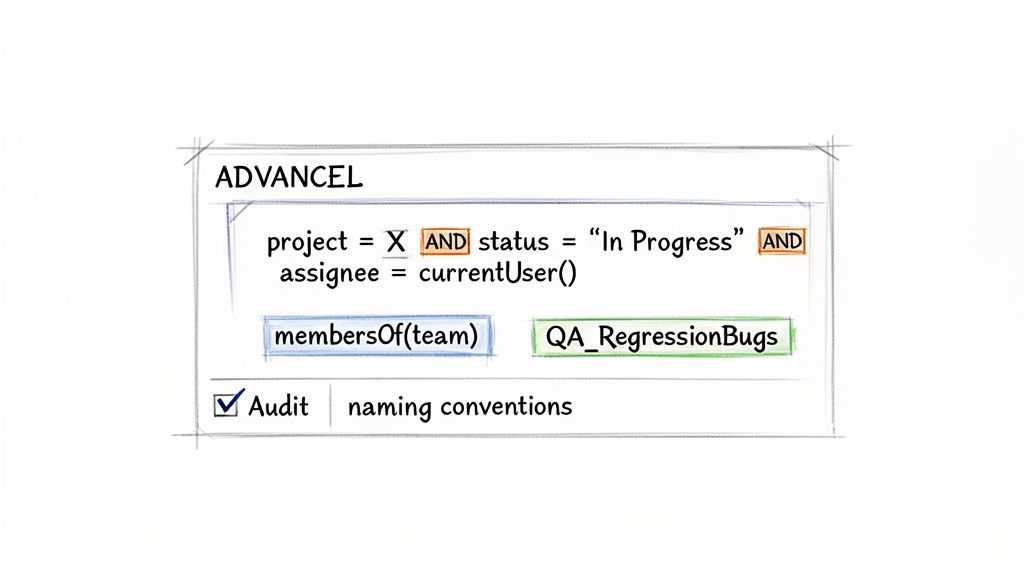
    • QA_RegressionBugs: Identifies a filter for the QA team tracking regression bugs.
    • DEV_SprintSpillovers: A developer-focused filter for monitoring work carried over from the last sprint.
    • SUPPORT_Tier1-Escalations: Clearly shows the support team which tickets have been escalated to them.

    This structure makes filters scannable and immediately understandable.

    A clean Jira instance is a productive one. Regularly audit your filters to reduce clutter so your team can find information without sifting through obsolete queries. Set a calendar reminder to review and delete unused filters quarterly.

    Maintaining Filter Hygiene and Automation

    A long-standing challenge for Jira admins is the lack of a built-in method to track filter usage. Since at least 2023, teams have sought ways to identify unused filters, boards, and dashboards. This has led to creative solutions, like using Jira Automation with smart values like {{issues.size}} to log issue counts and approximate usage. The community is always finding new ways to tackle Jira statistics challenges.

    Connect your filters to Jira Automation rules to trigger entire workflows. For example, a filter for "Bugs with 'Ready for QA' status" can automatically transition the issue and notify the QA team on Slack as soon as a ticket matches the criteria, creating seamless handoffs.

    Got Questions About Jira Filters? Here Are Some Answers

    Here are answers to some of the most common questions about working with Jira filters.

    How Do I Find a Filter Someone Shared with Me?

    To find a shared filter, go to the Filters menu in the main navigation and select "View all filters." Use the search bar to find the filter by name or creator. For frequently used filters, click the star icon to add it to your favorites, which appear directly in the Filters dropdown for quick access.

    Can I Edit a Jira Filter Created by Someone Else?

    You can only edit a filter if the owner has explicitly granted you edit permissions. In most cases, you won't have them.

    The best workaround is to open the filter, switch to the JQL view, and copy the entire query. Then, create a new filter of your own and paste the query. This gives you a personal, editable version to modify.

    A quick tip on JQL errors: 90% of the time, they are simple syntax mistakes. Check for a single equals sign (=) instead of an operator like IN or ~ (CONTAINS), or missing quotes around names with spaces. Jira's query validator will highlight the exact problem for you.

    How Can I See All Issues Assigned to My Team?

    The most effective method is using the membersOf() JQL function. First, ensure your team is set up as a user group in Jira (e.g., "dev-team").

    Once the group exists, create a filter with the query: assignee in membersOf("dev-team"). This filter is dynamic; it automatically updates as users are added to or removed from the group, requiring no manual changes.


    At Harmonize Pro, we build Jira apps that turn complex processes into automated, transparent workflows. Our app, Nesty, helps teams enforce quality gates and automate handoffs with dynamic nested checklists and smart triggers, all within a single Jira ticket. Streamline your Dev→QA handoffs, deployments, and customer onboarding by visiting us at https://harmonizepro.com/nesty.