
To create a filter in Jira, navigate to the Issues dropdown menu and select Search for issues. Use the basic search dropdowns for a quick query, or switch to the advanced Jira Query Language (JQL) editor for more specific criteria. Once you see the results you need, click Save as, give your filter a descriptive name, and save it for future use.
Why Mastering Jira Filters Is a Game Changer
Before we jump into the step-by-step, let's establish why filters are critical. They are the building blocks that power your team's Kanban board, executive dashboards, and automated workflows. Mastering filters is the first step in transforming Jira from a simple task list into a powerful work management engine.
Well-crafted filters cut through the noise, creating focused, actionable views for daily stand-ups and long-term planning.
- Software Teams: Use filters to isolate bugs for an upcoming sprint, track all stories linked to a feature epic, or create a view of everything currently blocked or awaiting code review.
- QA Engineers: Build bug triage queues with filters that instantly surface new, critical defects. Set up views for regression testing cycles or monitor tickets sent back to development.
- Product Managers: Create release-health dashboards, track feature progress across multiple teams, and spot scope creep by filtering for issues added after a sprint has started.
The Foundation of Jira's Most Powerful Features
Learning how to create filters is essential because these saved queries are the core logic behind Jira's most advanced features. The same filter that shows you a list of overdue tasks can also be the trigger for a powerful automation rule.
For example, a filter that finds all issues in a "Ready for QA" status for more than 24 hours can trigger an automation to reassign the ticket and notify the team on Slack. This turns a passive list into a proactive workflow, smoothing out the developer-to-QA handoff. This level of process control is a key part of learning how to improve team collaboration within Jira.
Filters aren't just for you; they become the shared language your team uses to define work. A clearly named filter like "P1 Bugs – Current Release" ensures everyone—from a junior dev to the VP of Engineering—is looking at the exact same set of issues. It eliminates confusion and keeps everyone aligned on what matters most.
Powering Dashboards and Reporting
The impact of good filters extends to management and executive reporting. Since Jira's launch in 2002, filters have remained a core feature. In most organizations, over 70% of dashboards rely on at least one saved filter to populate gadgets like Issue Statistics or the Two-Dimensional Filter Statistics chart. These gadgets are the primary lens executives use to gauge progress.
For tools like Harmonize Pro’s Nesty, these filters define which issues are pulled into automated nested workflows. You can find practical discussions and insights on this topic at the Atlassian Community.
Building Your First Filter: From Basic Search To JQL
Your journey into mastering Jira filters starts with the Basic Search. This is the most direct way to get started, letting you select criteria from simple dropdown menus. Use it to quickly find what you need without learning any special syntax.
To begin, select a Project, Issue Type, Status, and Assignee. In just a few clicks, you can generate a list of all "To Do" bugs assigned to you in the "Phoenix Project." This is perfect for immediate, one-off searches.
However, your questions will become more complex. What if you need to see issues from two different projects? Or find tasks updated in the last 48 hours that are still open? This is where Basic Search is limited, and you'll need a more powerful tool.
Transitioning to Advanced Search With JQL
Switch to the Advanced search mode to unlock Jira Query Language (JQL). While the empty search bar can seem intimidating, JQL is the key to building precise, reusable filters that drive professional workflows. It’s more like writing a specific, logical sentence than coding.
Every JQL query consists of a few key components:
- Fields: The attribute you're searching for, like
project,status,assignee, orpriority. - Operators: The relationship between a field and its value, such as
=(equals),!=(is not),IN(is one of), and>(is greater than). - Values: The specific data you want to find, like the project name 'Phoenix Project' or a status like 'In Progress'.
- Keywords: The logic that connects your criteria, primarily
ANDandOR.
For example, a simple JQL query might look like this: project = "Phoenix Project" AND status = "To Do". This provides the same result as our basic search but creates a foundation you can expand upon.
The Anatomy of a Powerful JQL Query
JQL's real power lies in handling complexity and change. Instead of searching for static values, you can use functions to create filters that are always current.
Let’s walk through a real-world example. A team lead needs to see all critical bugs from two projects, "Phoenix" and "Orion," but only those that have been untouched for a week or more.
Here is the JQL to accomplish this:project IN ("Phoenix", "Orion") AND issuetype = Bug AND priority = Highest AND updated <= -7d
Let's break this down. project IN ("Phoenix", "Orion") efficiently searches both projects at once. The key part is updated <= -7d. This dynamic function finds any issue that has not been modified in the last seven days. This type of dynamic search is impossible with basic dropdowns.
Pro Tip: Start typing directly in the JQL editor. Jira provides instant feedback, showing a green checkmark for correct syntax and a red 'x' with helpful suggestions for errors. This real-time validation is the fastest way to learn.
A saved filter is a living tool that can power your most important Jira features. This flow shows how a single, well-crafted filter can define your team's board, feed your dashboard gadgets, and even kick off automations.
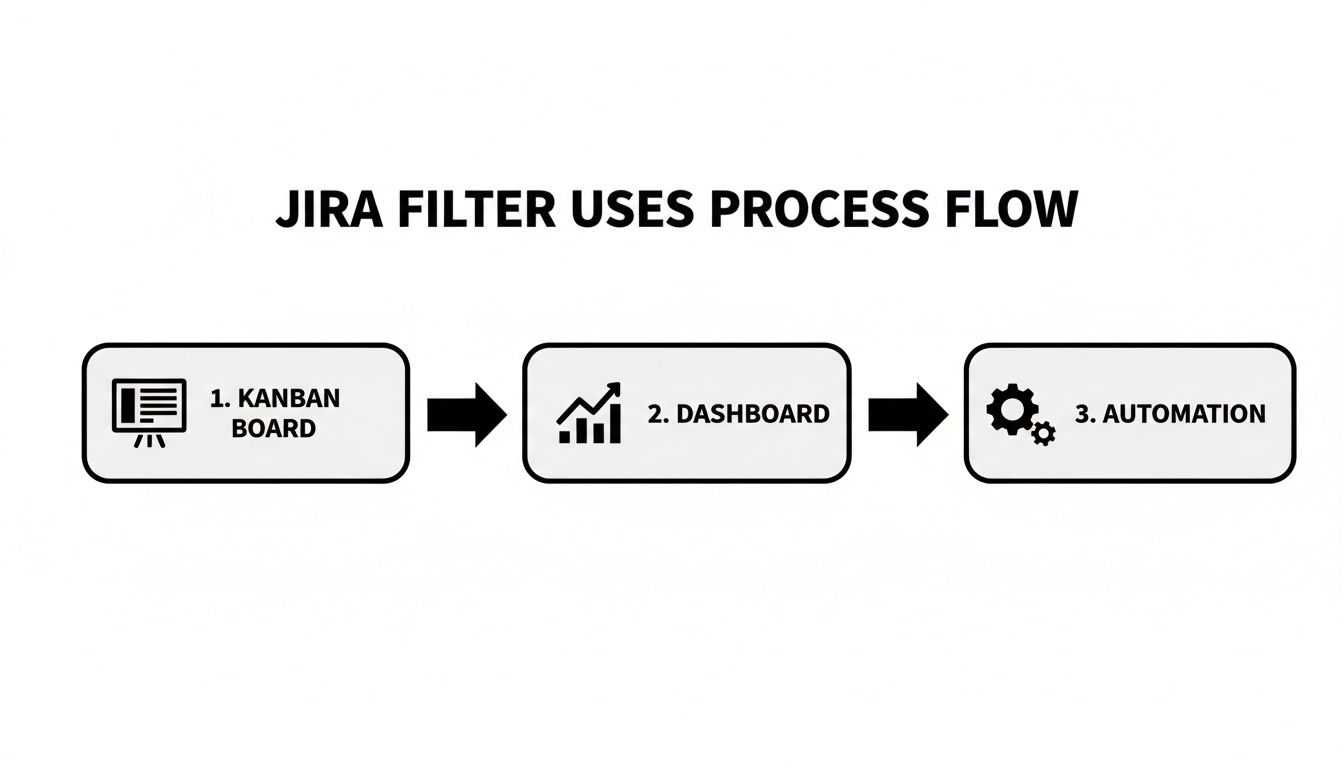
This demonstrates why learning JQL is a worthwhile investment. It makes your boards, reports, and workflows more intelligent and responsive to your team's activities. An entire Agile board is defined by its JQL filter; changing the query instantly updates the view for the entire team. To see how other teams solve similar challenges, explore the Atlassian community forums for practical examples.
To help you get comfortable with JQL, here is a quick reference table with some of the most common operators and functions.
Common JQL Operators and Functions at a Glance
This table is a handy cheat sheet for the building blocks of JQL. Keep it nearby as you start constructing your own queries.
| Element | Purpose | Example Usage |
|---|---|---|
| Operators | ||
= |
Finds exact matches. | status = "In Progress" |
!= |
Excludes specific values. | assignee != "John Smith" |
IN |
Searches for any value within a given list. | project IN ("Project A", "Project B") |
NOT IN |
Excludes all values within a given list. | issuetype NOT IN (Bug, Sub-task) |
~ |
Finds issues where a text field contains a specific word. | summary ~ "deployment" |
> or < |
Finds values greater than or less than a specified value (dates/numbers). | votes > 5 |
IS |
Checks if a field has a value or is empty. | description IS NOT EMPTY |
| Functions | ||
currentUser() |
Represents the user who is currently logged in. | assignee = currentUser() |
now() |
Represents the current date and time. | duedate < now() |
-7d or 4h |
Represents a duration (days, hours) used with date fields. | created >= -14d (created in the last 14 days) |
startOfDay() |
Represents the beginning of the current day. | updated >= startOfDay() |
membersOf() |
Finds issues assigned to any member of a specific user group. | assignee IN membersOf("jira-developers") |
Familiarizing yourself with these elements will dramatically accelerate your ability to translate complex questions into clean, effective JQL queries.
Naming, Saving, and Sharing Your Filters
You’ve built the perfect JQL query. Now you need to save and share it effectively. A brilliant filter that only you can find is just digital noise. The goal is to turn your query into a shared, single source of truth for your projects.
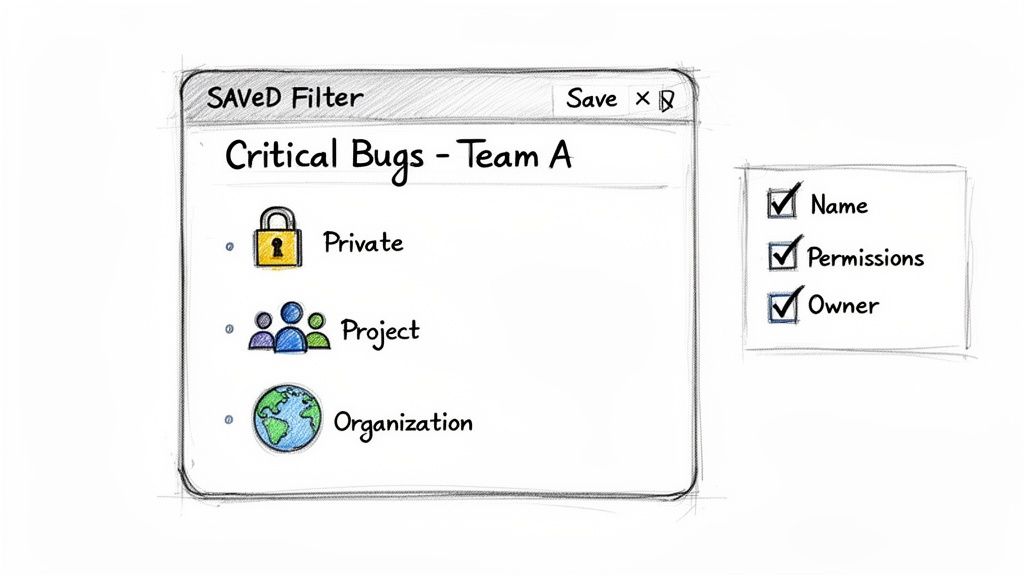
Once your query returns the exact results you need, click the Save as button above the search results. A dialog box will appear, prompting you for a name.
Do not rush this step. A vague name like "My Filter" is a future problem. Be descriptive and consistent. A practical naming convention is [Project/Team] - [Purpose] - [Key Criteria].
For example:
- API Team – Sprint Planning – Unestimated Stories
- QA – P1 Bugs – Current Release
- All Projects – Overdue Tasks – No Recent Updates
This simple habit makes your filter list instantly understandable to you and anyone else who uses it.
Controlling Who Can See (and Break) Your Filter
After naming your filter, you must define its access permissions. By default, new filters are private. To make them useful, you need to share them.
The Viewers and Editors settings control who can see the filter's results and who can modify its JQL query.
Consider your audience to determine the correct permissions. Is this filter for your personal use, a key team resource, or a high-level report for the entire company?
You have several sharing options:
- Private: Only you can see or edit it.
- Group: Share with a specific user group, like
jira-developersorproduct-managers. - Project: Make it accessible to all members of a specific project.
- Organization: Open it to anyone with an account in your Jira instance.
Here’s a pro-tip: restrict edit permissions. Allow others to view the filter, but be highly selective about who can change the JQL. This prevents someone from accidentally breaking a query that powers a critical dashboard before a major planning session.
Building a Library of "Golden Filters"
Over time, your team will develop a set of "golden filters." These are the definitive queries that everyone relies on for tracking key metrics like release readiness, bug backlogs, or team workload.
Establishing these core filters is crucial for data consistency. It ensures that when your manager asks for a list of all critical bugs, they are viewing the exact same data as the development and QA teams. This eliminates conversations that start with, "Well, my search showed something different."
These trusted filters should have clear names, concise descriptions, and tightly controlled edit rights. Investing a small amount of effort in governing your most important filters aligns everyone and ensures they are speaking the same data language. Once saved, these become the building blocks for your most valuable boards, dashboards, and reports.
You’ve built and saved your filters. Now it's time to put them to work on your team’s boards and dashboards. A filter sitting unused in your "My Filters" list is a wasted opportunity. Plug it into the high-traffic areas your team uses daily to make a real impact.
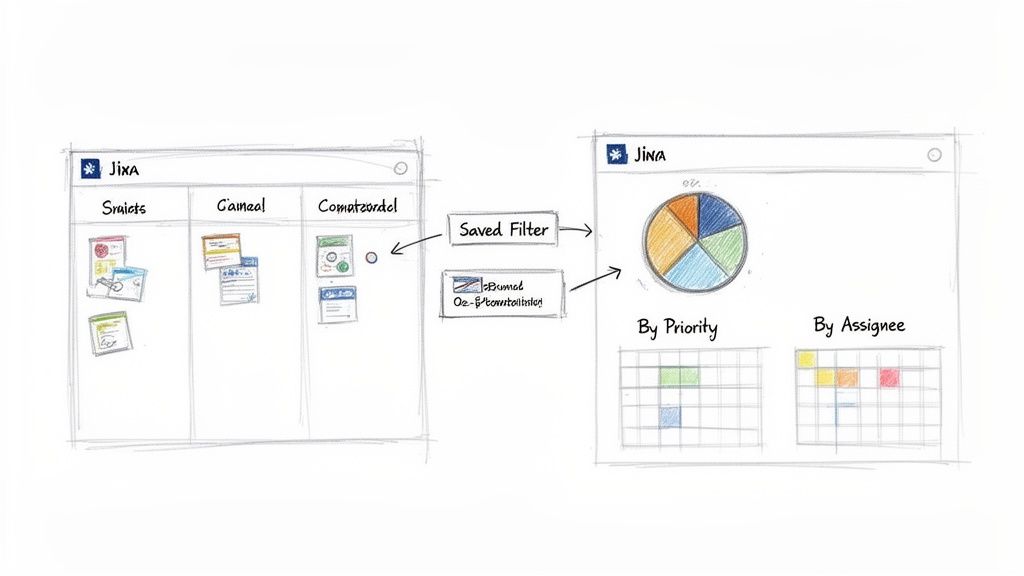
This is how you transform a simple list of issues into a dynamic, real-time view of your project's health. You are instructing Jira to display specific issues in a way that provides meaningful insights.
Powering Your Jira Dashboards
For most teams, the Jira dashboard is mission control. It provides a bird's-eye view of everything happening across projects. The secret to an effective dashboard is its gadgets, and nearly all of them are powered by your saved filters.
Saved filters are the lifeblood of dashboards. Gadgets like Filter Results, Issue Statistics, Pie Charts, and Two-Dimensional Filter Statistics all require you to select a filter. From there, you can slice that data by assignee, status, priority, or any other field. Advanced tools like Harmonize Pro’s Nesty even use filters to drive complex cross-team workflows, pushing issues through nested checklists and automated handoffs. Explore discussions in the Atlassian Community to see how teams are pushing the boundaries with filters and automation.
To create a quick visual of your team's workload, follow these steps:
- Add a Pie Chart gadget to your dashboard.
- Point it to a saved filter, such as "API Team – Current Sprint."
- Set the statistic type to "Assignee."
This instantly generates a chart showing who is responsible for what percentage of the sprint's tasks. Change the statistic to "Status" to get a live view of what's To Do vs. In Progress vs. Done. This is how you convert raw data into actionable insights without running manual searches. To get even more from these visualizations, review our guide on how to create a report in Jira.
Redefining Your Agile Boards
The relationship between a filter and an Agile board is one of the most critical concepts in Jira. Every board, whether Scrum or Kanban, is built on one filter. That filter defines the board's entire scope. If an issue does not match the filter's JQL, it will not appear on the board.
This provides you with an incredible amount of control. By adjusting the board's underlying filter, you can completely change what your team sees and focuses on.
For instance, a Kanban team can prevent their "Done" column from becoming cluttered with old tasks. Navigate to Board Settings > General and click Edit Filter Query. By adding a clause like AND (status != Done OR updated >= -14d), any ticket that has been Done for more than two weeks will disappear from the board, keeping the focus on active work.
A Word of Caution: Modifying a board's filter is a significant change. It affects the view for every person who uses that board, so proceed with care. A small typo in the JQL can make it appear as if all the issues have vanished.
Keeping Stakeholders in the Loop with Subscriptions
Not everyone who needs project updates logs into Jira daily. Filter subscriptions solve this problem by emailing your filter results to key people on a schedule you define.
You can create a subscription for any saved filter. Navigate to the filter, click Details, and select New subscription. From there, you can configure:
- Recipients: Send the report to yourself, an entire user group (like
project-stakeholders), or specific individuals. - Schedule: Choose to send it daily, weekly, or on a specific day of the month.
- Frequency: Pinpoint the exact time for the email delivery.
This is a perfect way to automate communication. You can send a daily "Overdue Tasks" email to team leads at 8 AM or a weekly summary of new P1 bugs to engineering leadership every Monday morning. It pushes relevant information to the right people, keeping them informed effortlessly.
Where to Use Your Saved Jira Filters
Once created, filters can be plugged into almost every corner of Jira to drive visibility and automation. Here’s a quick rundown of the most common and powerful places to put them to use.
| Usage Area | Primary Benefit | Example Implementation |
|---|---|---|
| Dashboards | Provides at-a-glance, real-time project status and team workload visibility through configurable gadgets. | A Pie Chart gadget showing the distribution of unresolved issues by assignee for the "Support Team – High Priority" filter. |
| Agile Boards | Defines the entire scope of a Scrum or Kanban board, controlling which issues are visible to the team. | A Kanban board filter that excludes "Done" issues older than 30 days to keep the board focused on active work. |
| Subscriptions | Automates stakeholder communication by emailing filter results on a recurring schedule. | A daily 8 AM email subscription for a "Critical Bugs – Unassigned" filter sent to the engineering leadership group. |
| Automation Rules | Acts as a trigger or condition for Jira Automation rules, enabling powerful "if-this-then-that" workflows. | An automation rule that adds a comment to any issue from the "Customer Escalations" filter that hasn't been updated in 24 hours. |
| Quick Filters | Allows users to further refine the issues displayed on an Agile board with one-click JQL-based buttons. | On a team board, a Quick Filter for assignee = currentUser() so each person can instantly see just their own tasks. |
Thinking of filters as reusable building blocks—not just saved searches—is the key to customizing Jira to fit how your team actually works.
Advanced JQL Recipes for Common Team Scenarios
Once you have mastered basic JQL, you can start crafting queries that solve specific, common team problems. These queries are about asking smarter questions to move from a reactive to a proactive process. Instead of just fighting fires, you can identify smoke before it becomes a major issue. A well-crafted filter can provide these answers instantly.
Uncovering Workflow Bottlenecks
One of the most powerful applications of an advanced filter is to identify where your process is breaking down. A common problem is work that stagnates or is reopened after being marked as complete, which often points to quality issues or communication breakdowns.
Find Tickets Reopened After Being "Done"
Use this query to find regressions or incomplete fixes. It instantly identifies any issue that was marked "Done" but has since been moved back to an open state.
status was "Done" AND status != "Done"
The WAS operator examines an issue's history. It is incredibly useful for building dashboard gadgets that track your team's "bounce-back" rate—a critical indicator of quality.
Identify Stale "In Progress" Tasks
Another common scenario is tasks that remain "In Progress" for too long without updates. This often indicates a developer is blocked or has been reassigned without updating the ticket.
status = "In Progress" AND updated < -5d
This filter flags any issue that has been in progress for more than 5 business days without any comment, work log, or status change. Run this query before your daily stand-up to surface discussions about hidden roadblocks.
Dynamic Filters for Evolving Teams
Static JQL queries with hardcoded usernames are difficult to maintain. When someone joins or leaves the team, the filters break. Use dynamic functions to make your filters resilient to organizational changes.
The membersOf() function is essential here. It allows you to query based on a Jira group rather than a list of individual users.
Pro Tip: If you manage a team, insist on having a dedicated Jira user group (e.g., 'dev-team-phoenix'). This small administrative task saves significant time by allowing you to build filters, boards, and permissions that update automatically as your team roster changes.
See All Unresolved Issues for Your Team
Instead of listing every person on your team, reference the group name to create filters that last.
assignee in membersOf("dev-team-phoenix") AND resolution = Unresolved
This query will always show the current, accurate workload for everyone in that group, no matter when it is run. It is the perfect foundation for team dashboards and board configurations that you can set once and rely on.
Historical Analysis with CHANGED
Sometimes you need to know not just the current state of an issue, but when a specific change occurred. The CHANGED operator allows you to pinpoint issues where a field was modified within a certain timeframe, which is invaluable for release management and process audits.
Find Scope Creep in the Current Sprint
Imagine you are a Product Manager who suspects that stories are being added to a sprint after it has already started. This scope creep can derail a team's commitments.
sprint in openSprints() AND "Sprint" CHANGED AFTER startOfDay("-7d")
This query identifies any issue in an active sprint where the "Sprint" field was changed within the last seven days (assuming weekly sprints). It is a powerful tool for protecting your team’s focus and initiating a data-driven conversation about unplanned work.
These historical operators can be combined with triggers to create sophisticated workflows. To take this a step further, the next logical step is to explore Jira workflow automation.
These recipes are just the beginning. The real power comes from combining these concepts to build filters that answer the unique questions your team faces daily. Mastering these advanced operators and functions is what elevates you from a basic Jira user to someone who truly understands and can optimize your team's workflow.
Common Questions (and Quick Fixes) for Jira Filters
Even after you master creating filters, a few common questions tend to arise. Here are straightforward answers to the most frequent sticking points.
How Do I Create a Filter for My Entire Team?
The most effective method is to use the membersOf() JQL function. Manually listing every team member in your query creates a maintenance problem, as it will break as soon as someone joins or leaves.
The smarter approach is to ensure your team has a user group in Jira (e.g., 'alpha-squad').
Once the group is created, your query becomes simple and future-proof:
assignee in membersOf('alpha-squad') AND resolution = Unresolved
This filter will always display the correct issues for the right people, automatically adjusting as your team changes without requiring any updates to the JQL.
Why Is My JQL Query Showing an Error?
Seeing a red 'x' next to your JQL is common. It almost always results from one of these simple errors:
- Typos: Double-check the spelling of field names, operators, and statuses. A common mistake is typing
status = 'In Progress'when the workflow usesstatus = 'In-Progress'. - Wrong Operators: The equals sign (
=) cannot be used for a text field search. For the 'summary' field, use the "contains" operator (~). For example:summary ~ "database error". - Custom Fields: Custom field names must be exact. If a field name contains a space, like "Story Points," you must enclose it in double quotes:
"Story Points" > 5.
Hover your mouse over the red 'x' in Jira's validator; it will usually provide a helpful clue about what is wrong.
A filter can be syntactically correct but still not show the expected issues. This is often a permissions issue. If the person viewing the filter lacks "Browse Project" permission for the projects in your query, issues from those projects will be hidden from their results.
Can I Share a Filter With Someone Outside My Project?
Yes, but it is a two-step process. You must consider both the filter's permissions and the project's permissions.
First, when you save your filter, set its sharing permissions. You can share it with a project, a user group, or your entire organization.
Second, the person you share it with must also have permission to see the issues from the projects your filter queries. If your filter includes "Project Falcon," they need "Browse Project" permission for Project Falcon to see any results.
What's the Difference Between ORDER BY Created and ORDER BY Updated?
Properly sorting your results can change the story your filter tells. Both created and updated are useful but solve different problems.
ORDER BY created DESC sorts results to show the newest tickets first. This is ideal for a triage queue or monitoring incoming support requests, as it places the most recently logged issues at the top.
ORDER BY updated DESC sorts by the last activity date, such as a comment, field edit, or status change. This is the best sort for a daily stand-up dashboard, as it brings issues with the most recent activity to the forefront.
At Harmonize Pro, we believe that well-structured workflows are the key to unlocking team potential. Our flagship app, Nesty, helps teams turn complex processes into clear, automated checklists right inside Jira, ensuring no step is ever missed. Learn how Nesty can bring order and clarity to your most critical workflows.
Leave a Reply